To change the wallpaper on a Mac, open System Settings → Wallpaper, scroll to Your Photos, click Add Photo and choose an image, or simply right-click a picture in Finder and pick Set Desktop Picture. Either way takes a few seconds. Getting it to look sharp and fill the screen properly is mostly about the file size and one fit setting, which this guide covers too.
In short
- System Settings → Wallpaper → Your Photos → Add Photo → Choose File (or Choose Folder, or Choose from Photos), then click the thumbnail.
- Faster: Control-click an image in Finder and choose Set Desktop Picture, or Control-click one in Safari and choose Use Image as Desktop Wallpaper.
- Fill Screen is the fit to use; with a file at your Mac's native resolution nothing is cropped or stretched.
- For a different picture on each desktop, turn off Show on all Spaces and set each space separately.
How do I change my Mac wallpaper step by step?
Start with an image saved somewhere permanent, such as your Pictures folder. If the file later disappears from Downloads, the Mac may lose track of it.
- Click the Apple menu and open System Settings.
- Choose Wallpaper in the sidebar (you may need to scroll down).
- Scroll to Your Photos, click Add Photo, then Choose File and select your image. Use Choose Folder to add a whole folder, or Choose from Photos for a picture in your library.
- Click the picture's thumbnail to apply it. You can also drag an image onto the thumbnail at the top of Wallpaper settings.
- Check the size and position options next to the wallpaper name at the top and set them to Fill Screen unless you have a reason to choose another option.
The quick way: right-click in Finder
For a single image there is a shortcut. Find the file in Finder, right-click it (or Control-click) and choose Set Desktop Picture. macOS applies it to the current desktop using your existing fit setting, so you skip the settings window completely.
Adding a folder in Wallpaper settings is handy if you like variety: macOS can rotate through every picture in it on a timer. Drop a few scenes from our Mac nature wallpapers into one folder and you have a gentle slideshow that changes through the day.
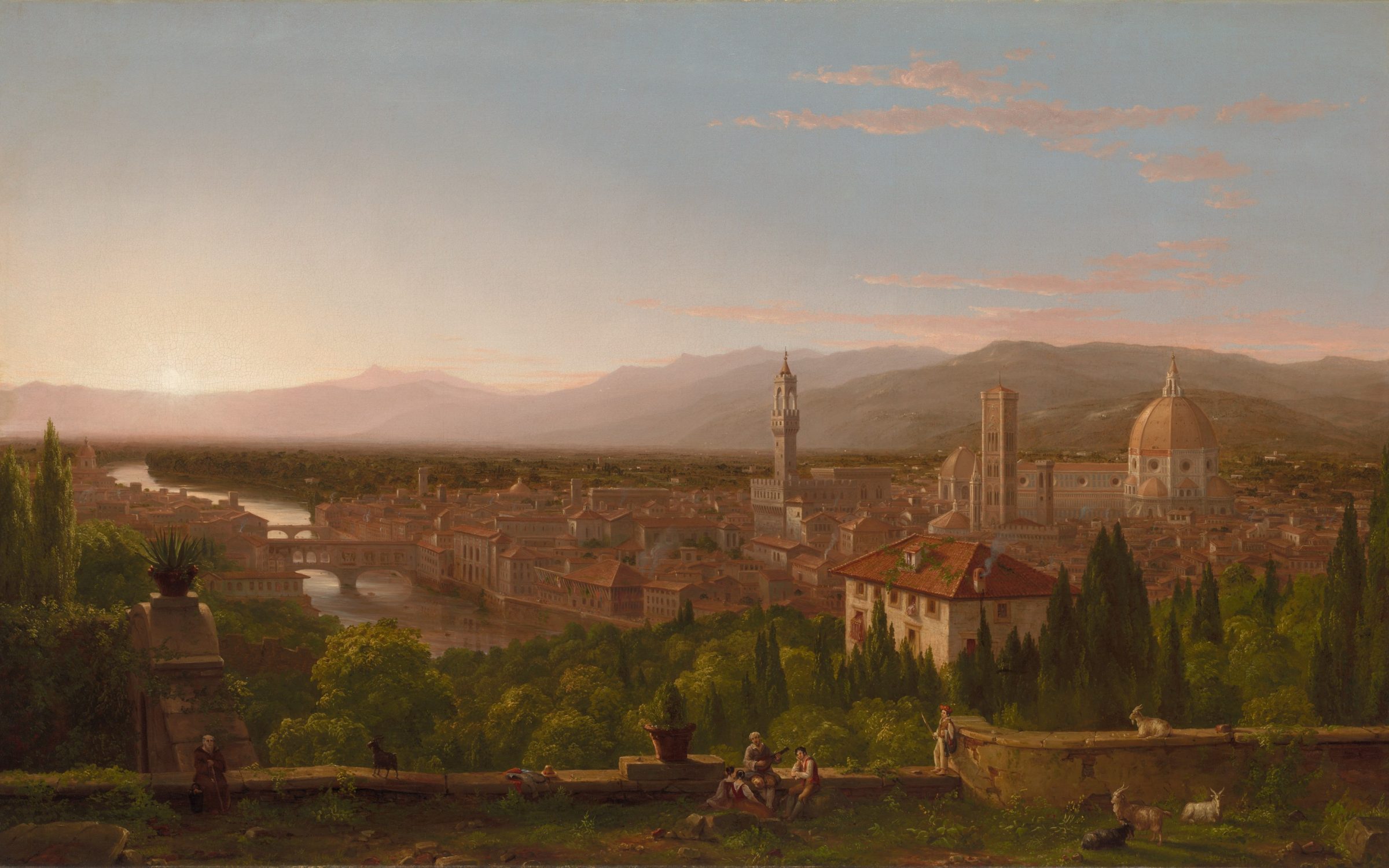
 Tuscan Valley Evening
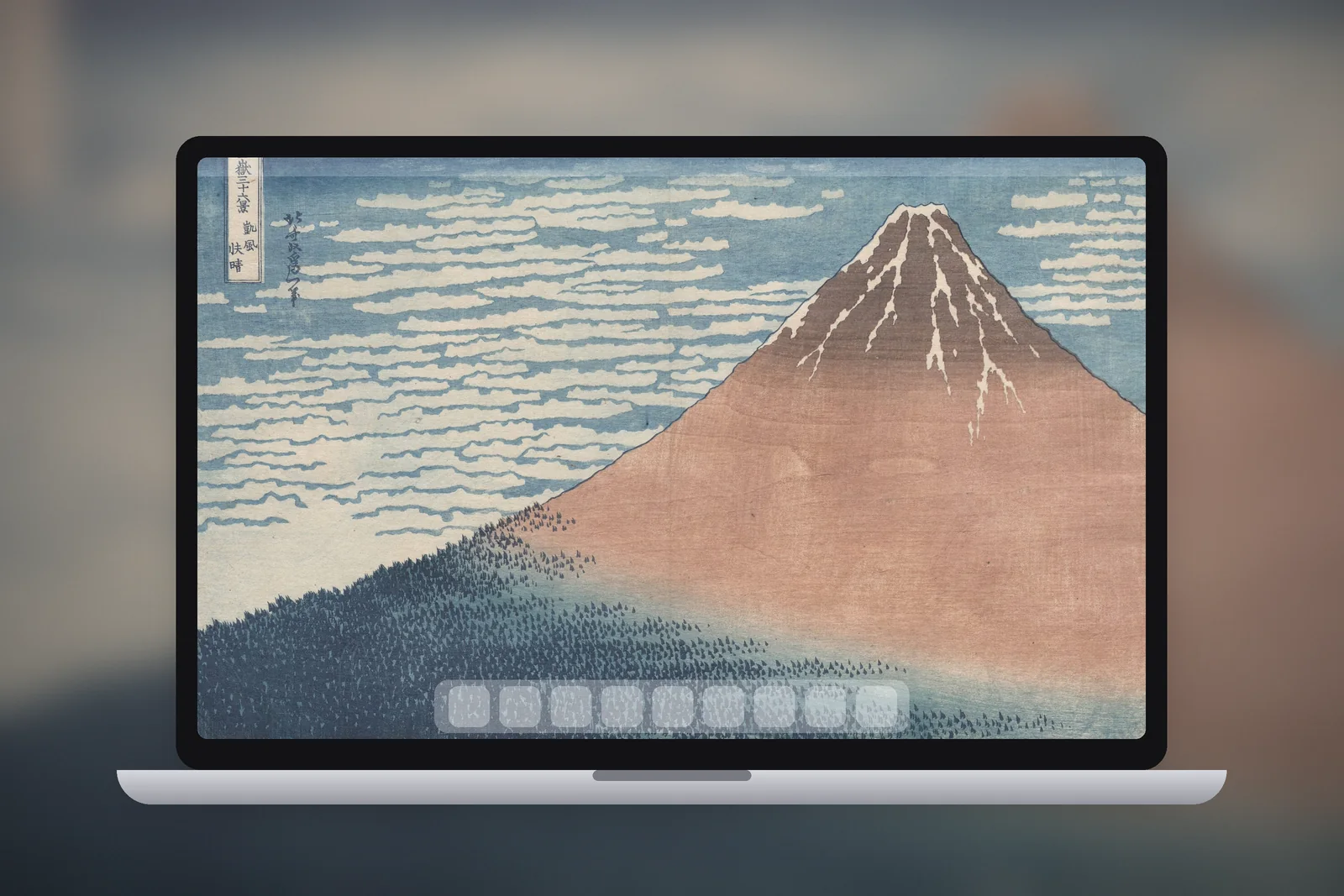
 Red Mountain Morning
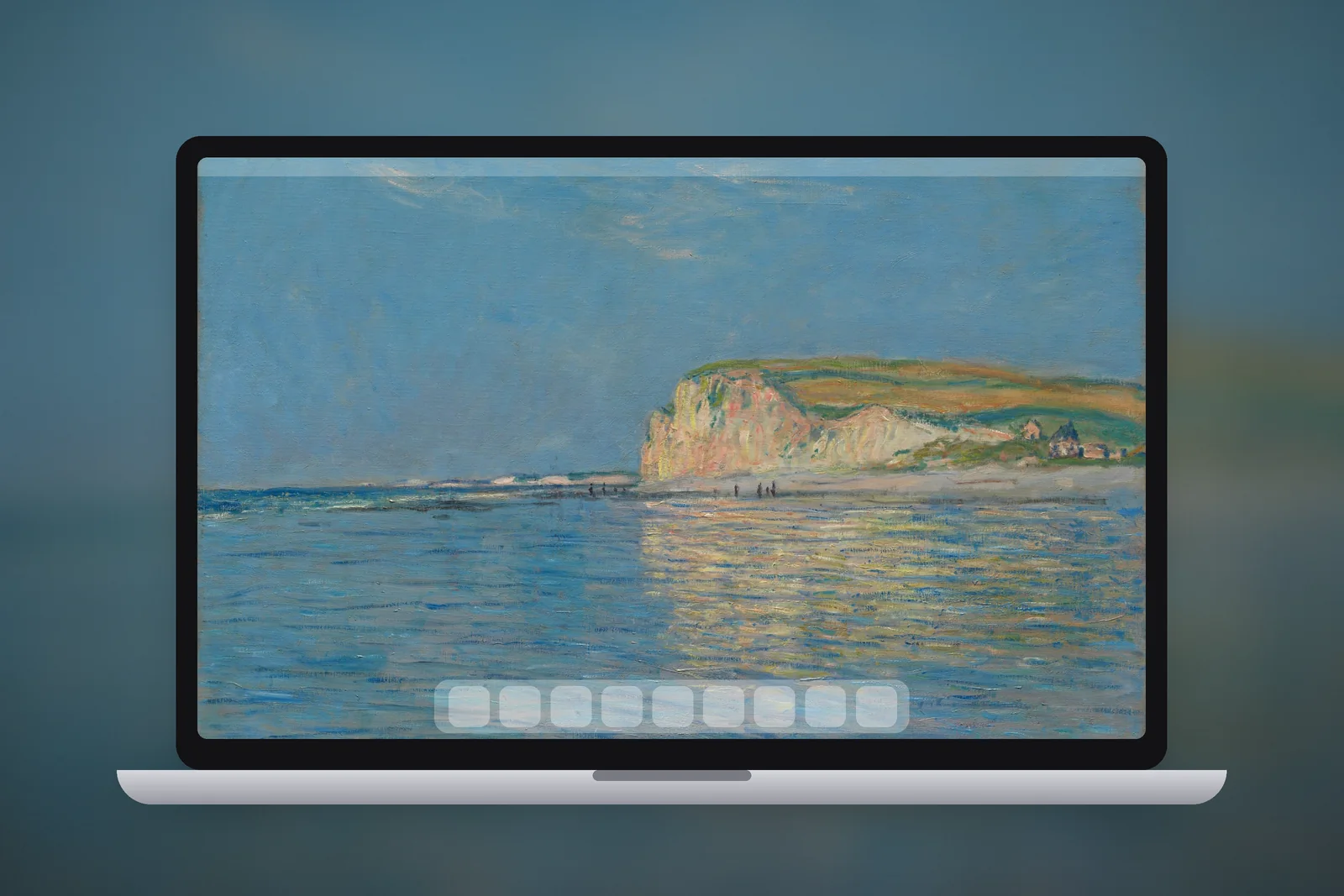
 Low Tide Blue Coast
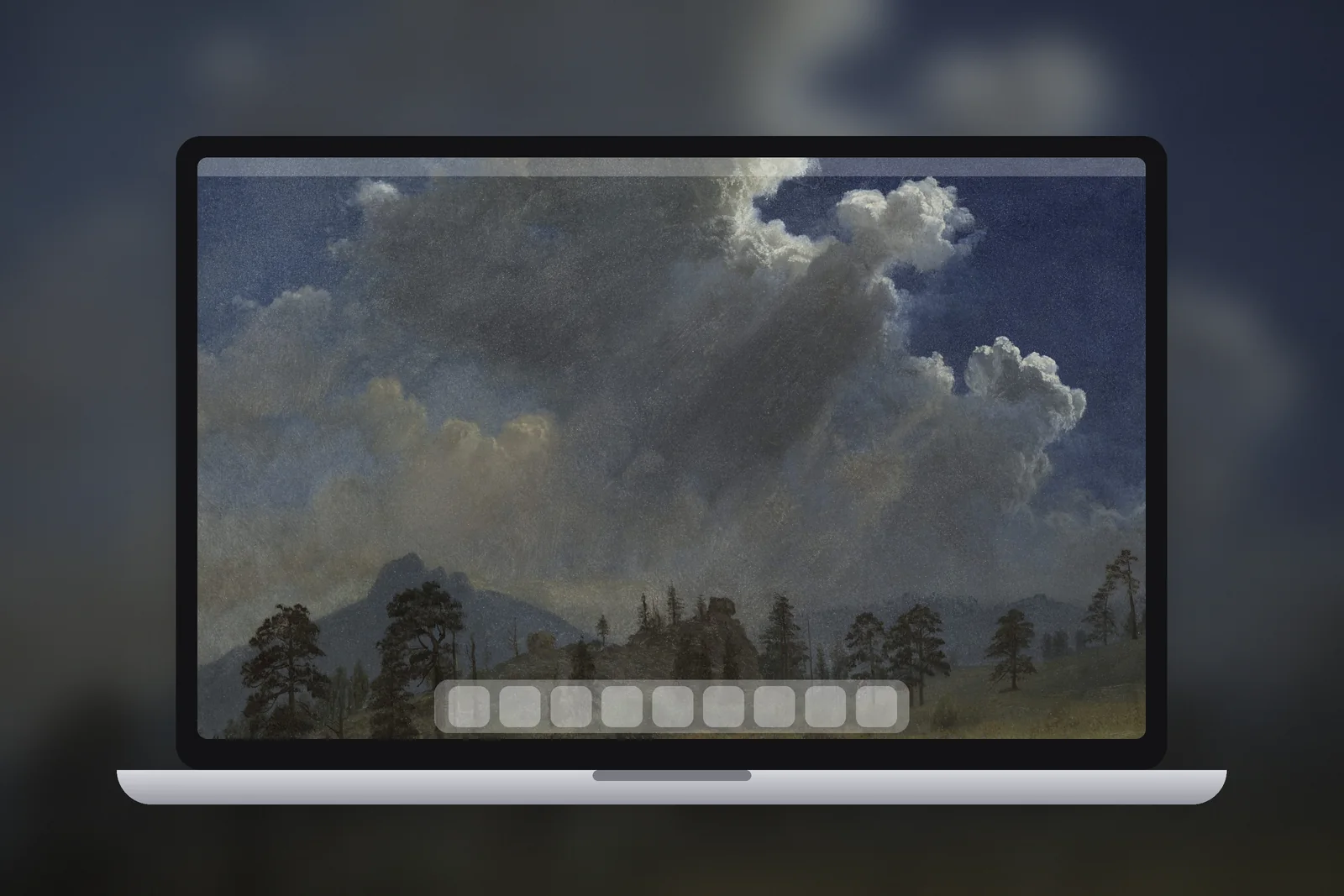
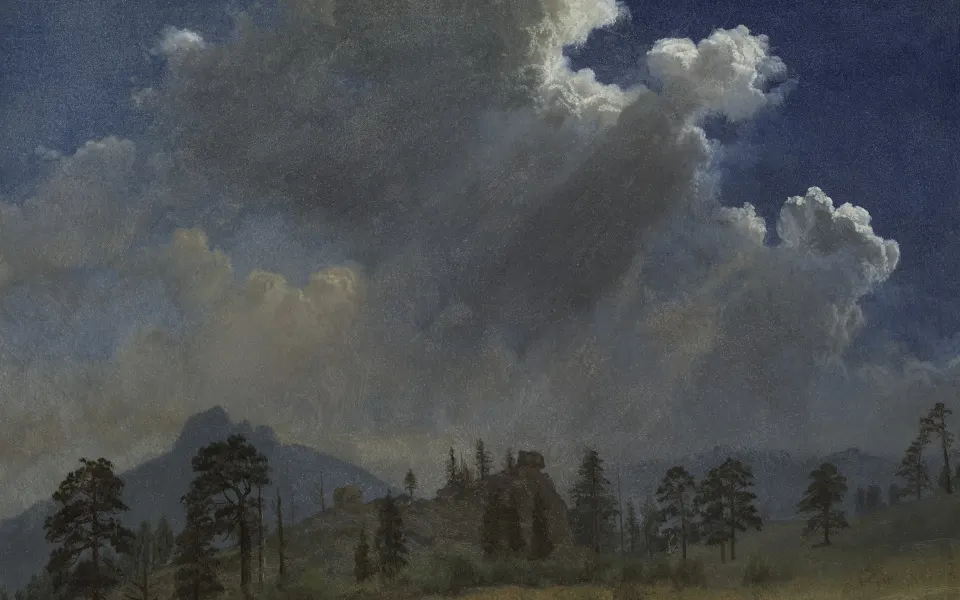 Storm Over Fir Forest
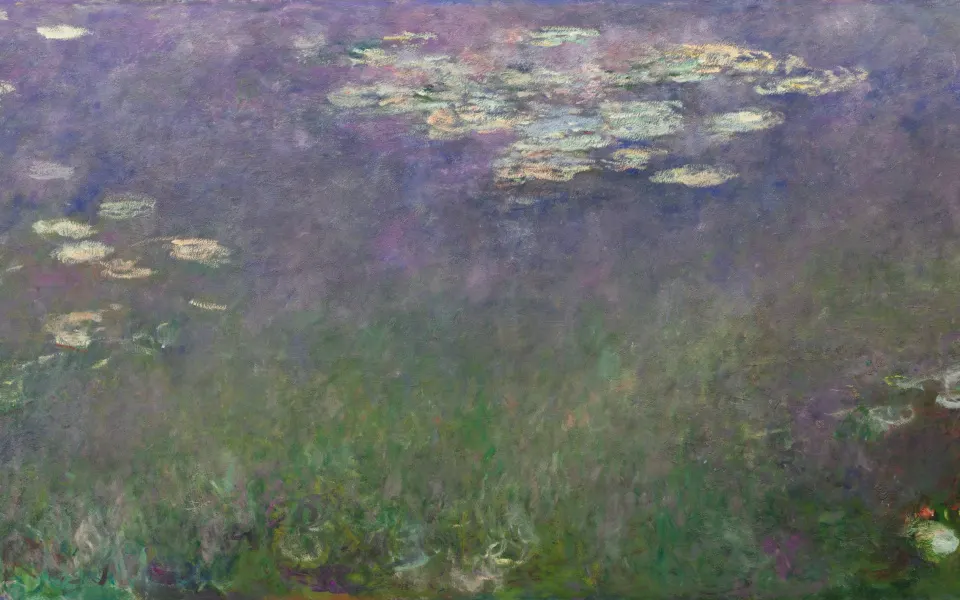 Lavender Lily Pond
Mac wallpaper fit options explained
The fit menu decides what happens when the picture and the screen are not exactly the same shape. Here is what each option does and when it makes sense.
| Option | What it does | Use it when |
|---|---|---|
| Fill Screen | Scales the image until the screen is covered, then crops what spills over | Almost always; perfect with a native-size file |
| Fit to Screen | Shows the whole image, adding bars at the sides or top | The edges of the picture matter more than filling the screen |
| Stretch to Fill Screen | Pulls the image to the screen's exact shape | Rarely; it distorts anything with a different aspect ratio |
| Centre | Places the image at its real size in the middle | Small artwork or logos you want left untouched |
| Tile | Repeats the image across the desktop | Small repeating patterns and textures |
With a file that matches your Mac's native resolution, Fill Screen and Stretch to Fill Screen give the same result, because there is nothing to crop or distort. The fit menu only matters when the shapes differ.
A different wallpaper on each desktop or display
macOS lets every desktop in Mission Control (often called Spaces) have its own wallpaper. Many people use this to tell work and personal desktops apart at a glance.
- In the Dock, Control-click System Settings, choose Options and set Assign To to All Desktops. Apple recommends this so the settings window follows you from space to space.
- Open Mission Control with the Mission Control key, a three-finger swipe up, or Control-Up Arrow.
- Click the + button in the Spaces bar to add a desktop if you need one (you can have up to 16).
- Click the desktop you want to change so it becomes active.
- Set the wallpaper with System Settings or the Finder shortcut. Only that desktop changes.
- Switch to the next desktop and repeat.
If every desktop changes together, turn off Show on all Spaces in Wallpaper settings. Then set each desktop separately.
With more than one display, each screen keeps its own wallpaper too. When the Wallpaper settings show a choice of displays, pick the one you want; otherwise move the System Settings window onto that screen before choosing a picture. Remember that an external monitor usually has a different resolution from the MacBook's built-in screen, so it may need a different file, such as a 16:9 size from our PC wallpapers section for a standard monitor.
Mac wallpaper not filling the screen, soft or cropped
Most wallpaper problems on a Mac come down to the file rather than the settings. Work through these in order.
- Black or coloured bars at the edges: the fit option is set to Fit to Screen or Centre. Switch it to Fill Screen.
- Looks soft or blurry: the file is smaller than the screen and macOS is enlarging it. Retina MacBooks have far more pixels than the looks like resolution in Displays settings suggests, so download the native size for your model.
- The top or sides are cut off: the picture has a different shape from the screen, so Fill Screen crops it. A file at your exact resolution has nothing to crop.
- Squashed or stretched: Stretch to Fill Screen is on with a mismatched file. Choose Fill Screen instead.
- Wallpaper reverts after a restart: the original file was moved or deleted. Keep wallpapers in a folder you do not clear out.
Every wallpaper in our Mac wallpapers section is cut to the native resolution of each MacBook Air, MacBook Pro and iMac, so picking your model there removes the cropping and softness problems in one go.
Read next: MacBook Wallpaper Size: Native Resolutions for Every Mac and Space Wallpaper 4K: Earth From Orbit for Phone and PC.
Quick answers
Why is my Mac wallpaper not filling the screen?
The fit option is probably set to Fit to Screen or Centre. Open System Settings → Wallpaper and choose Fill Screen. If parts are then cut off, use a file at your Mac's native resolution.
Can I have a different wallpaper on each desktop on Mac?
Yes. Open Mission Control, click the desktop you want, then set its wallpaper. Each desktop keeps its own picture.
How do I set a picture as wallpaper on Mac from Finder?
Right-click the image file in Finder and choose Set Desktop Picture. It is applied to the current desktop straight away.
What does Show on all Spaces do on Mac?
It uses the same wallpaper on every desktop space and every connected display. Turn it off in System Settings → Wallpaper if you want a different picture on each space or screen.
Why does my Mac wallpaper get darker at night?
You are probably using a Dynamic Wallpaper, which brightens and darkens with the time of day, or one set to Automatic, which switches to dark at sunset when Appearance is set to Auto. Choose Light (Still) or Dark (Still) next to the wallpaper to stop it changing.
Sources
- Customize the wallpaper on your Mac, Apple Support
- Wallpaper settings on Mac, Apple Support
- Work in multiple spaces on Mac, Apple Support
- Change Wallpaper settings on Mac (macOS Ventura, fit options), Apple Support