To change the wallpaper on Windows 11, open Settings → Personalisation → Background, set Personalise your background to Picture, click Browse photos and choose an image. The quicker route is to right-click any picture in File Explorer and pick Set as desktop background.
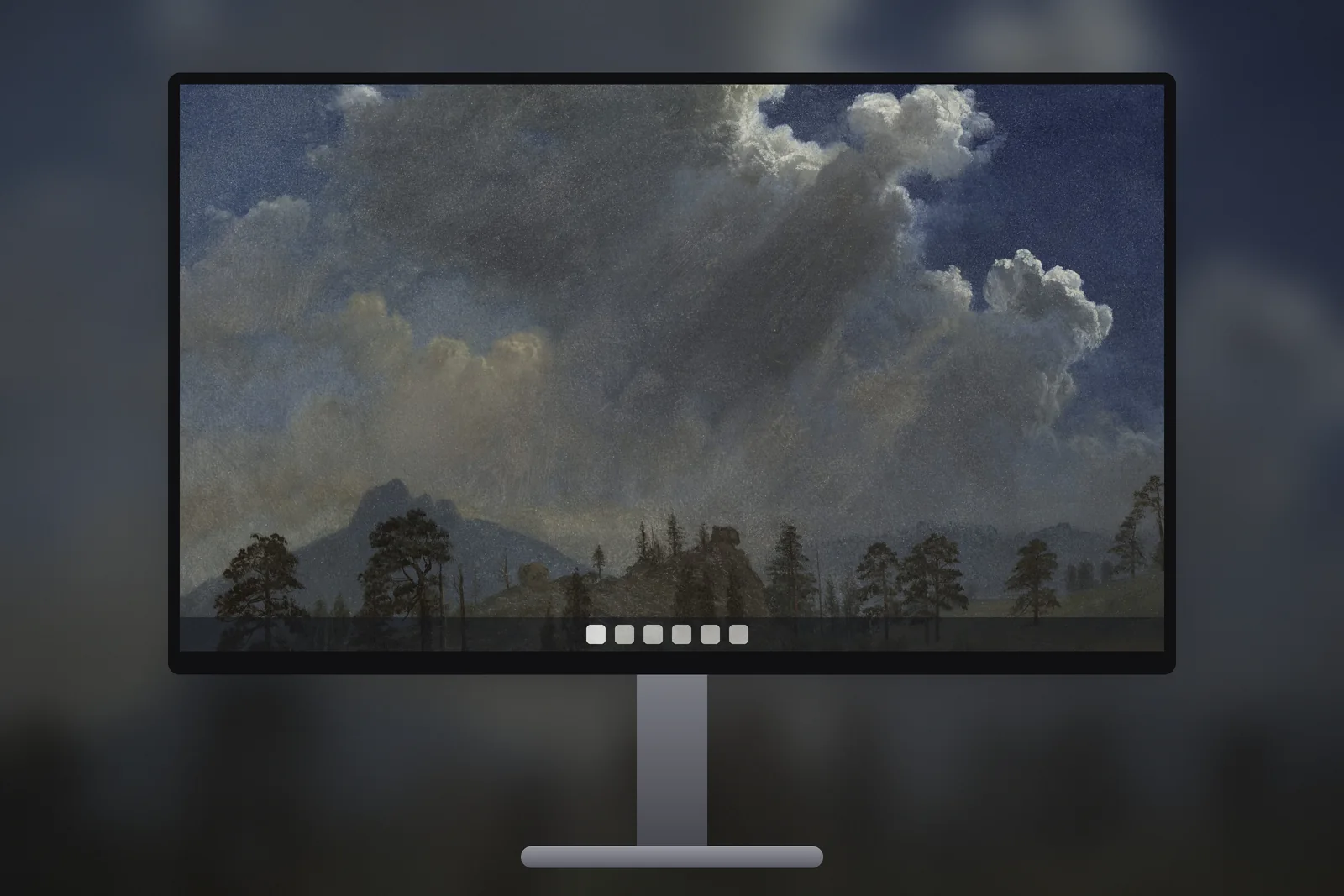
That covers the basics. The rest of this guide explains the Choose a fit menu, slideshows, how to find your screen resolution and what to do when a wallpaper looks blurry or cut off.
In short
- Open Settings → Personalisation → Background, set Personalise your background to Picture and click Browse photos.
- Faster: right-click an image file in File Explorer and choose Set as desktop background.
- Leave Choose a fit on Fill; switch to Fit only when no part of the picture may be cropped.
- For a sharp result, use a file at the resolution marked Recommended in Settings → System → Display.
Change your wallpaper step by step
- Right-click an empty part of the desktop and choose Personalise, or open Start → Settings → Personalisation.
- Click Background.
- Next to Personalise your background, choose Picture.
- Pick one of the thumbnails under Recent images, or click Browse photos to choose a file from your PC.
- Open Choose a fit for your desktop image and select Fill unless you have a reason to use something else.
The change applies instantly; there is no save button. Windows keeps the last few pictures in Recent images, so switching back later takes one click.
The right-click shortcut works anywhere you can see an image file: the desktop, your Downloads folder or a USB stick. Select several pictures at once and use the same command, and Windows turns them into a slideshow.
Every "Choose a fit" option explained
The fit decides what Windows does when the picture and the screen are not the same shape or size. Here is what each option does and when to use it:
| Fit | What it does | Use it for |
|---|---|---|
| Fill | Scales the picture to cover the whole screen, keeps its proportions and crops whatever overflows | Almost everything, especially files at your screen's exact size |
| Fit | Shows the whole picture, keeps its proportions, and fills the leftover space with a solid colour | Images that must not lose any edge, such as artwork or a photo of a different shape |
| Stretch | Forces the picture to the screen's shape without keeping proportions | Rarely; it distorts anything that is not already the right shape |
| Tile | Repeats the picture at its original size across the screen | Small repeating patterns and textures |
| Centre | Places the picture at its original size in the middle, with no scaling | Small logos or pixel art you want shown at actual size |
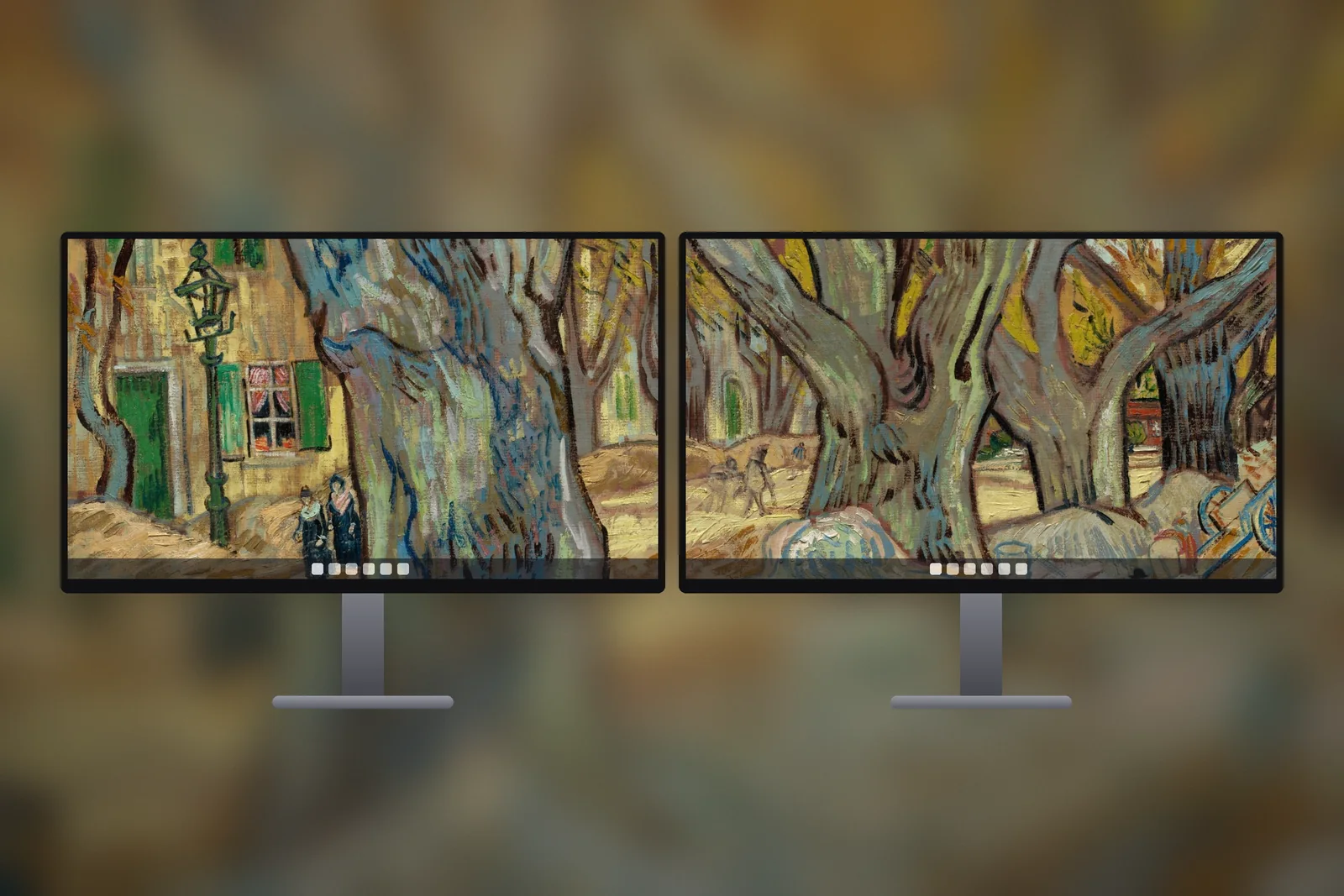
| Span | Stretches one picture across all connected monitors | Wide panoramas on a two- or three-monitor setup |
Fill is the safe default because it never distorts and never leaves bars. Its only cost is cropping, and that disappears when the file matches your resolution.
Can each virtual desktop have its own wallpaper?
Yes. Windows 11 lets every virtual desktop keep its own background, which is a handy way to tell a work desktop from a personal one at a glance. Press Windows key + Tab to open Task View, right-click the desktop you want to change in the row at the top of the screen. The menu that opens has options to change that desktop's background and to rename it.
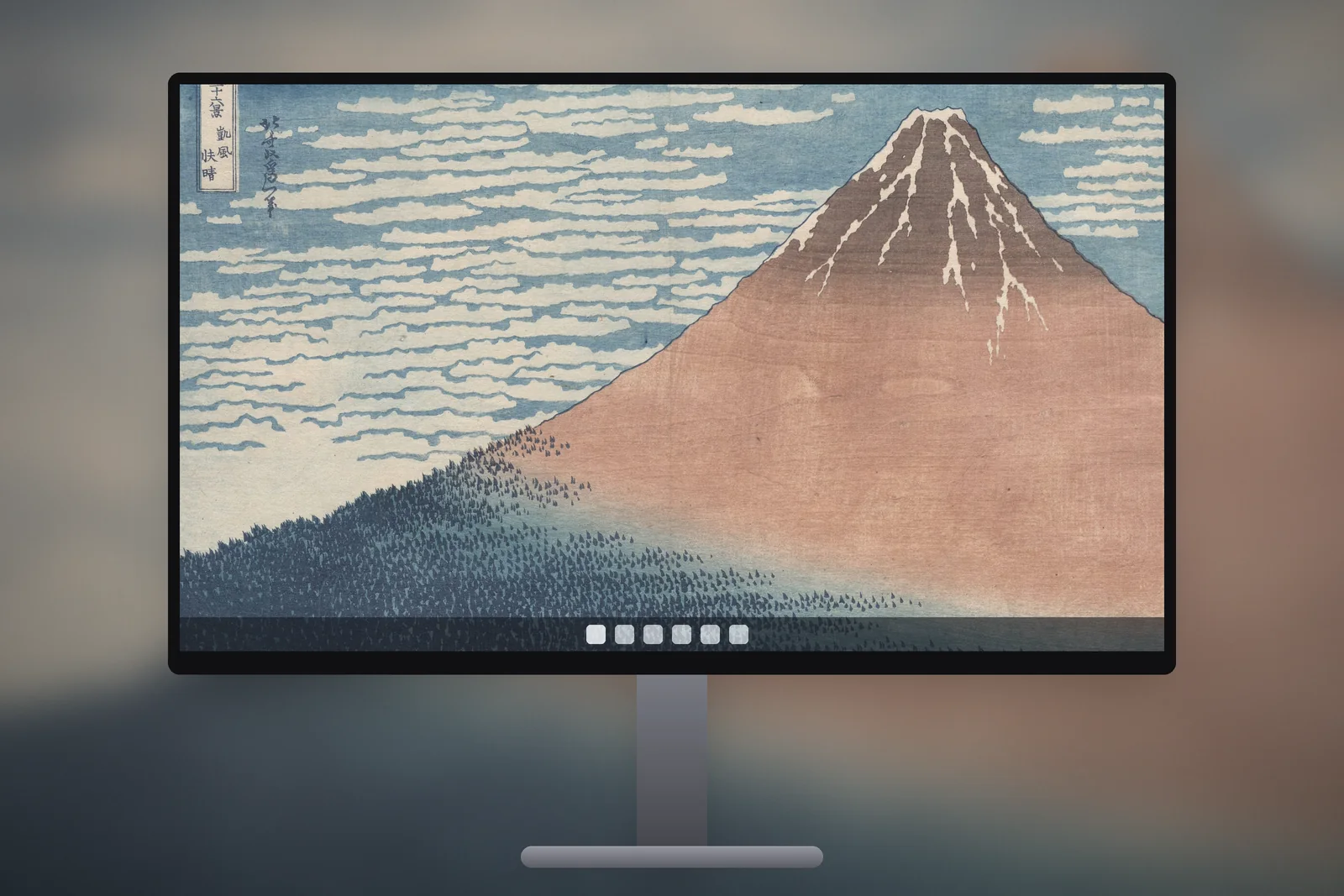
A calm, dark picture on the work desktop and a brighter one on the personal desktop is a simple pairing. If you would rather skip pictures altogether, the Personalise your background menu also has a Solid colour option, which suits screen sharing and presentations because nothing distracts from your windows.
Set up a wallpaper slideshow
- In Settings → Personalisation → Background, change Personalise your background to Slideshow.
- Next to Choose a picture album for a slideshow, click Browse and select a folder of wallpapers.
- Set Change picture every to anything from 1 minute to 1 day.
- Turn on Shuffle the picture order if you want a random sequence.
- On a laptop, decide whether to allow the slideshow on battery power.
A slideshow uses the same fit for every picture, so mix shapes carefully. A folder of files all at your screen's resolution looks consistent; a folder of mixed phone photos and screenshots will jump between crops.
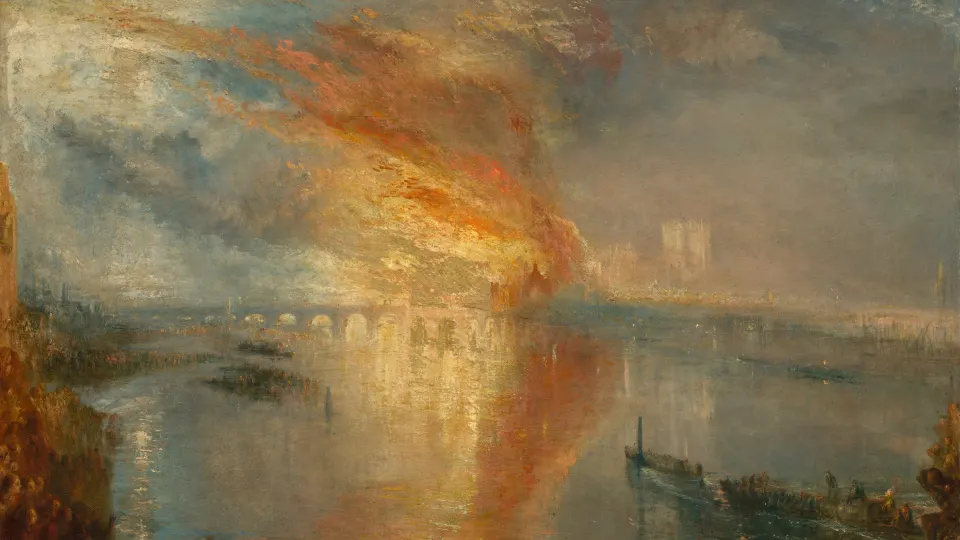
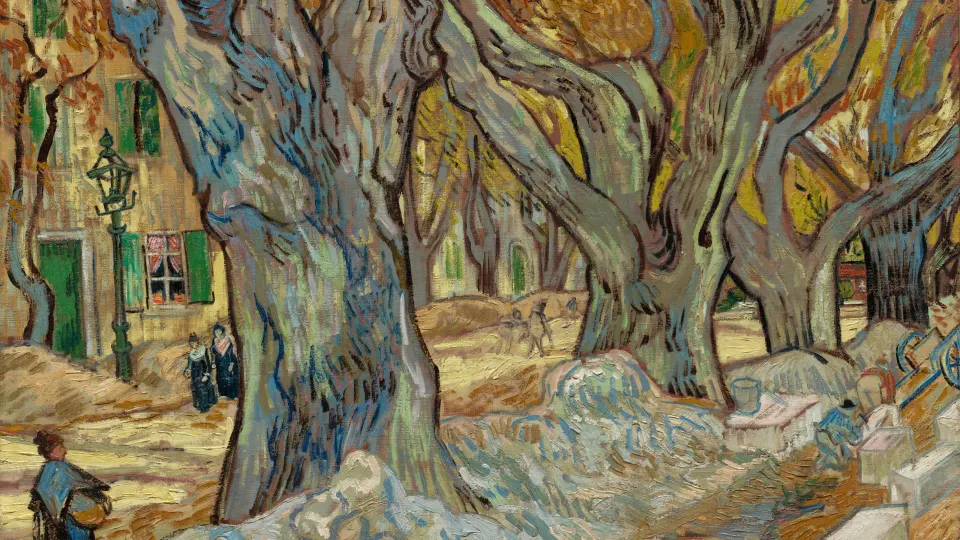
Night skies and dusk landscapes make a calm rotating set. A handful from the space wallpapers for PC is a good place to start.


Find your screen resolution
A wallpaper looks sharpest when its size matches your screen. To check yours, open Settings → System → Display and look at Display resolution. The value marked Recommended is your screen's native resolution.
Ignore the Scale setting just above it. Scaling at 125 or 150 percent makes text and icons larger, but the wallpaper is still drawn at the full native resolution, so a 2560 × 1600 laptop needs a 2560 × 1600 picture whatever the scale.
| Common Windows screen | Resolution | Shape |
|---|---|---|
| Full HD monitor or laptop | 1920 × 1080 | 16:9 |
| QHD monitor | 2560 × 1440 | 16:9 |
| 4K monitor | 3840 × 2160 | 16:9 |
| 16:10 laptop | 1920 × 1200 or 2560 × 1600 | 16:10 |
| Ultrawide monitor | 3440 × 1440 | 21:9 |
| Older HD laptop | 1366 × 768 | 16:9 |
Every wallpaper in the PC wallpaper section is available at each of these sizes, so you can download the one that matches exactly.
Fixing a blurry or cropped wallpaper
When the wallpaper looks blurry
- The file is too small. A 1280 × 720 picture on a 4K screen is enlarged three times and will always look soft. Download a version at least as large as your resolution.
- The display is not at its native resolution. If everything on screen looks slightly fuzzy, set Display resolution back to the Recommended value.
- It was a heavily compressed image. Pictures saved from messaging apps or social media lose detail. Use the original file.
- Windows compressed it. Windows re-saves JPEG wallpapers at a lower quality. A large, high-quality source file keeps this loss hard to see.
When the wallpaper is cropped or not fitting
- Wrong shape. A 16:9 picture on a 16:10 laptop loses a strip at the sides; on an ultrawide it loses a quarter of its height. Use a file made for your screen's shape.
- Portrait photo on a landscape screen. Fill keeps only the middle band. Switch to Fit to see the whole photo with bars on either side.
- Stretch is selected. If faces look wide or circles look oval, change the fit to Fill.
- Several monitors. If one picture is spread oddly across screens, the fit is probably Span. Change it to Fill to give each monitor its own copy.
If you are doing your phone as well, the step-by-step guide to setting a wallpaper on iPhone covers framing and the Lock Screen editor.
Read next: Dual Monitor Wallpaper: Span One Image or Use One per Screen and Wallpaper Resolution Guide: What Size Do You Need?.
Quick answers
Why is my wallpaper not fitting the screen on Windows 11?
The picture is a different shape from your screen, or the fit is set to Fit or Centre. Choose Fill in Settings → Personalisation → Background, and use a file at your exact resolution to avoid cropping.
How do I make my Windows 11 wallpaper less blurry?
Use an image at least as large as your screen's native resolution, check Display resolution is set to Recommended, and avoid compressed copies saved from chats or social media.
Can I change the wallpaper without opening Settings?
Yes. Right-click an image file in File Explorer or on the desktop and choose Set as desktop background.
How do I change the wallpaper on another virtual desktop in Windows 11?
Press Windows key + Tab to open Task View, right-click the desktop at the top of the screen and use the option to change its background. Each virtual desktop keeps its own picture.
Can I use a plain colour as my Windows 11 background?
Yes. In Settings → Personalisation → Background, set Personalise your background to Solid colour and pick a swatch. It is the cleanest choice for screen sharing.
Sources
- How to make your Windows computer aesthetic, Microsoft
- Stay organized by using multiple desktops, Microsoft
- Using a monitor with a closed laptop, Microsoft