Photo Shuffle is a Lock Screen wallpaper type that rotates through a set of your photos automatically. To set it up, go to Settings → Wallpaper → Add New Wallpaper (or touch and hold the Lock Screen and tap +), choose Photo Shuffle, pick categories, an album or your own photos, and choose how often it changes: On Tap, On Lock, Hourly or Daily.
It is a simple way to keep the phone feeling fresh without picking a new wallpaper every week. Below are the full steps, how each frequency behaves, and the reasons a shuffle sometimes stops shuffling.
In short
- Path: Settings → Wallpaper → Add New Wallpaper → Photo Shuffle (top row).
- Photo sources: categories such as People, Nature and Cities, an existing album, or Select Photos Manually.
- Frequency: On Tap, On Lock, Hourly or Daily; change it later from the More (…) button in the editor.
- Stuck on one photo? Check the frequency, make sure the set has several photos and see whether a Focus is switching Lock Screens.
How to set up Photo Shuffle
- Open Settings → Wallpaper and tap Add New Wallpaper. You can also touch and hold the Lock Screen and tap the + button.
- Tap Photo Shuffle in the top row of options.
- Choose one or more categories such as People, Nature or Cities, choose an existing album, or tap Select Photos Manually to pick your own.
- If you choose manually, tap each photo you want in the set, then tap the checkmark button.
- Set the Shuffle Frequency (see the table below); when picking manually, it is under the More (…) button.
- Tap Use Album or Use Featured Photos (the label depends on your choice), or Add for a manual set.
- Adjust the clock and widgets, then choose Set as Wallpaper Pair or Customise Home Screen.
Once it is set, you can edit the selection any time: touch and hold the Lock Screen, tap Customise, choose the Lock Screen and tap the photo thumbnail to add or remove pictures.
How often Photo Shuffle changes
The Shuffle Frequency setting controls when the next picture appears. There are four choices:
| Frequency | When the photo changes | Good for |
|---|---|---|
| On Tap | Each time you tap the Lock Screen | Flicking through favourites on demand |
| On Lock | Each time you lock the iPhone | A new picture almost every time you pick it up |
| Hourly | Once an hour | Variety through the day without constant change |
| Daily | Once a day | A "picture of the day" feel |
To change it later, touch and hold the Lock Screen, tap Customise, choose the Lock Screen, tap the More (…) button and pick a new frequency under Shuffle Frequency. On Tap is useful when you are testing a new set, since you can step through every photo quickly and spot any that crop badly.
Picking photos that look good together
A shuffle looks best when the photos feel like a set. Every picture is framed by the same clock, the same widgets and the same font colour, so wildly different images can make some of them hard to read.
- Stick to one mood. All dark images, all warm sunsets or all soft neutrals look deliberate rather than random.
- Keep the top calm. The clock sits over the upper part of every photo, so choose pictures with sky, shadow or plain space there.
- Use portrait images. Landscape photos are heavily cropped to fill a tall screen. Pictures already sized for your phone fit without losing anything.
- Use sharp files. A single blurry, low-resolution photo stands out badly in a shuffle of crisp ones.
- Leave out near-duplicates. Ten versions of the same scene feel like the wallpaper isn't changing.
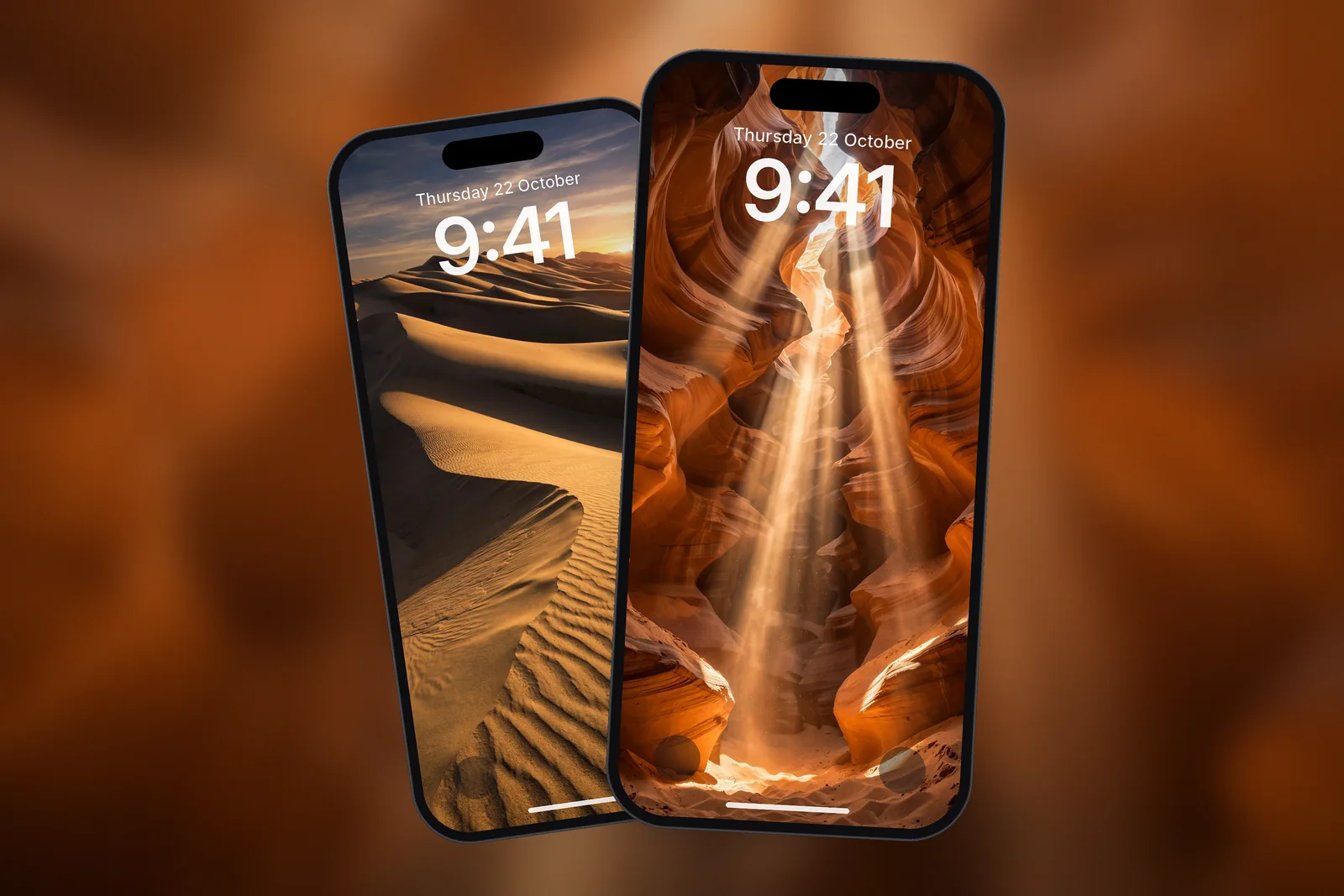
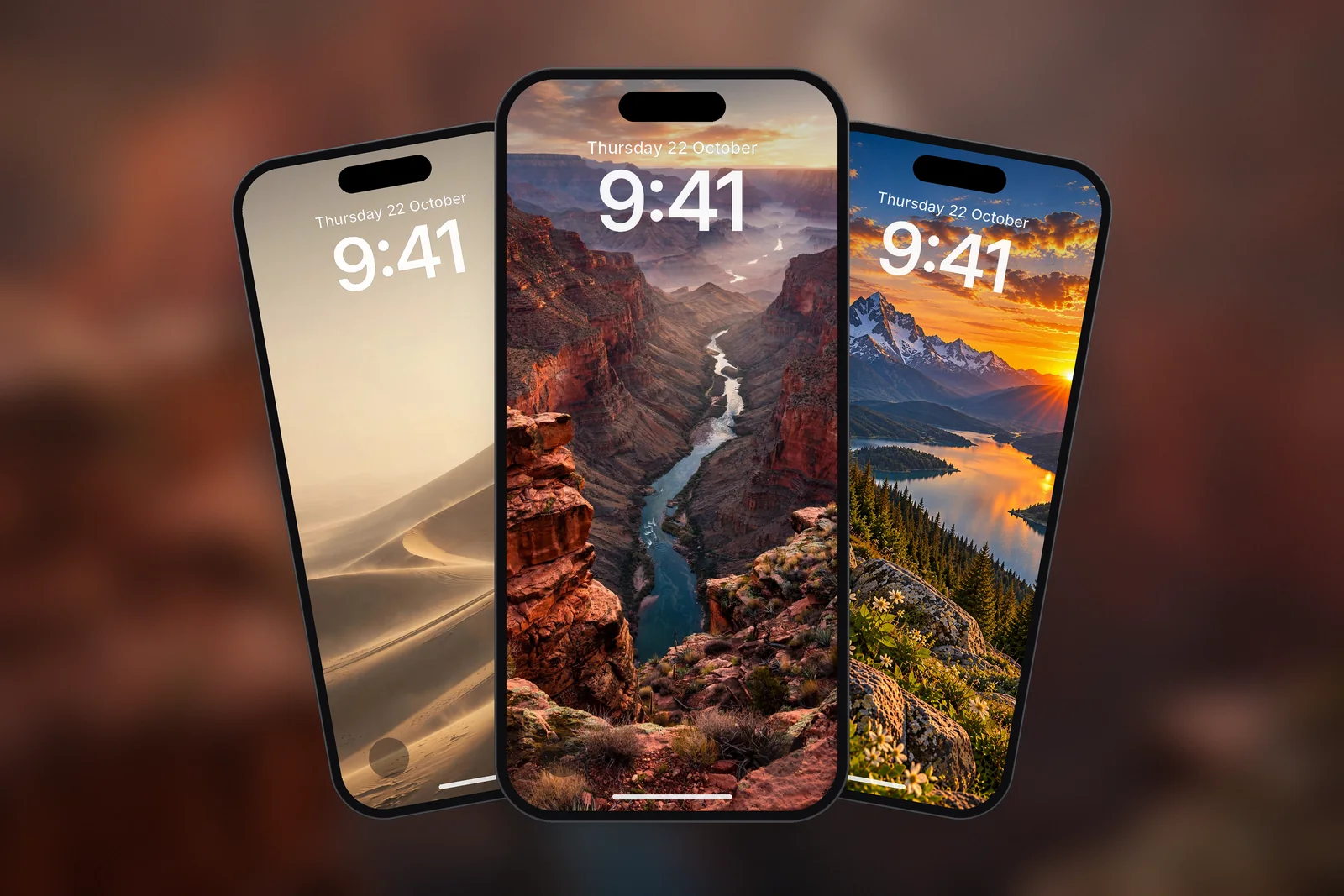
A neat trick is to build a shuffle from wallpapers in one colour or theme. For example, download a handful of desert and dune pictures, or a set of sunset wallpapers, at your phone's exact size and add them all to a single shuffle.
 Golden Hour Desert Dunes
 Golden Desert Sand Dunes at Sunset
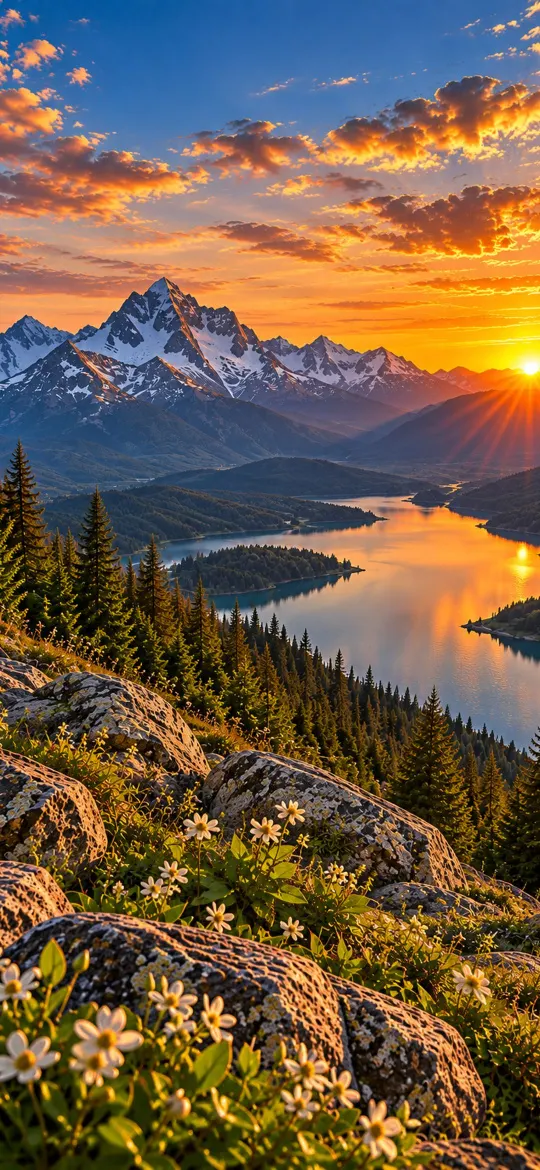 Mountain Lake Sunset
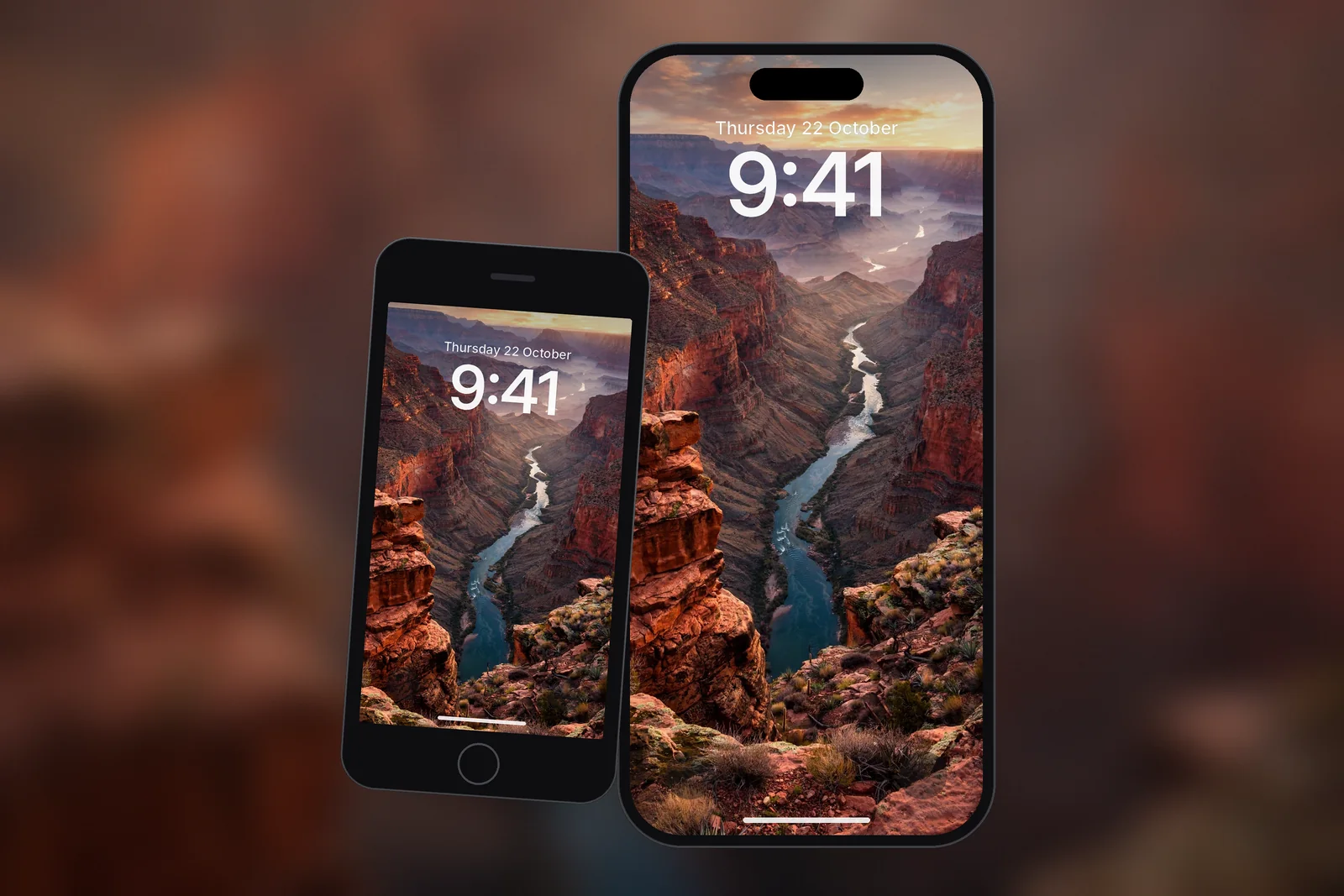
 Grand Canyon River Gorge Sunset
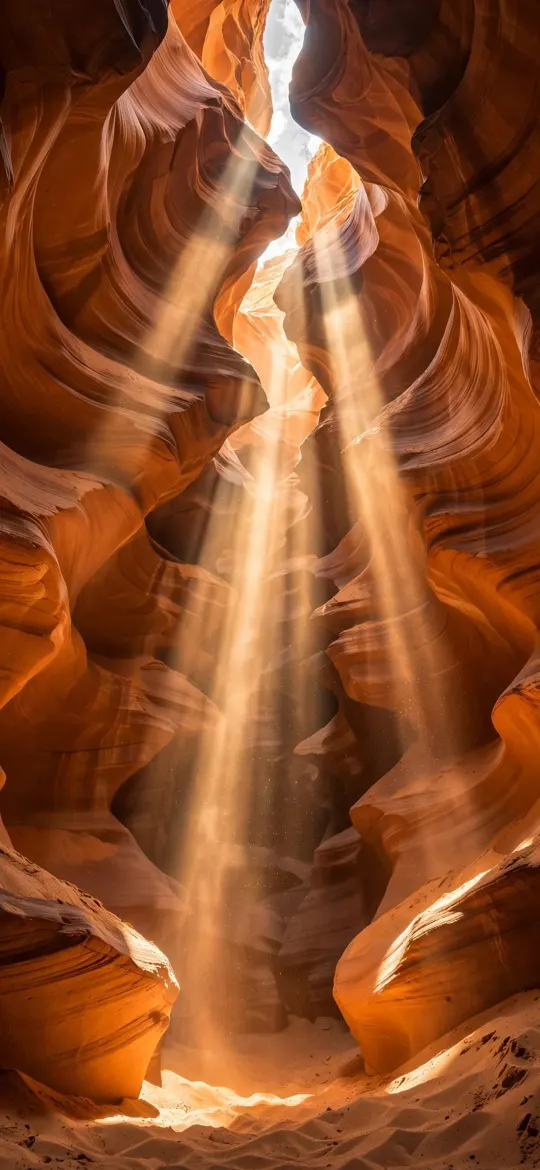 Antelope Canyon Sunbeams Red Rock
You can find your size in the iPhone wallpaper sizes guide, or open your model from the devices page to see every wallpaper already cut to fit.
Why Photo Shuffle isn't changing
If your shuffle seems stuck on one picture, check these in order:
- Frequency is set to Daily or Hourly. It is easy to forget which you chose. Switch to On Lock or On Tap to test it.
- Only one photo in the set. Open the editor, tap the photo thumbnail and make sure several photos are selected.
- Suggested photos haven't updated. If you use featured categories, iOS picks from photos it has analysed. A new library, or one still syncing with iCloud, may offer very few.
- Photos stored only in iCloud. With Optimise iPhone Storage on, some originals may not be on the phone. A stable Wi-Fi connection lets them download.
- A Focus is switching Lock Screens. A Focus can be linked to a specific Lock Screen, which switches you to a different wallpaper. Check Settings → Focus to see if a Lock Screen is attached.
- A glitch after an update. Delete the shuffle Lock Screen (swipe it up in the gallery and tap the bin) and create it again. This fixes most stuck shuffles.
Photo Shuffle with Depth Effect and the Home Screen
Depth Effect can work with a shuffle, but only on the photos where iOS finds a clear subject. On the others, the clock simply sits on top as normal. The Home Screen follows the Lock Screen photo when you set the shuffle as a pair, or you can choose a fixed picture or a blur for the Home Screen in its own Customise screen.
If you prefer something steadier, a single favourite still image from the nature collection keeps the look consistent and the clock readable every time.
Read next: Live Wallpaper on iPhone: How to Set a Live Photo as Wallpaper and 10 Aesthetic iPhone Wallpaper Ideas That Work on a Lock Screen.
Quick answers
How often does Photo Shuffle change?
As often as you choose: On Tap, On Lock, Hourly or Daily. Change it from the More (…) button in the Lock Screen editor, under Shuffle Frequency.
Why is my Photo Shuffle not working?
Usually the frequency is set to Daily or Hourly, the set contains only one photo, or a Focus is switching you to another Lock Screen. If none of those apply, delete the shuffle and set it up again.
How many photos can I add to Photo Shuffle?
You can add a good number of photos, well beyond what most people need. A set of 10 to 30 well-chosen pictures usually gives enough variety without the odd mismatched image.
Can Photo Shuffle use an album?
Yes. On the Photo Shuffle screen, choose an existing album instead of a category, then tap Use Album. Keeping a dedicated wallpaper album makes the set easy to update from Photos.
Sources
- Change your iPhone wallpaper, Apple Support
- Create a custom iPhone Lock Screen (iOS 27), Apple Support
- Change the wallpaper on iPhone (iOS 27), Apple Support