On iPhone, the Always On display keeps a dimmed version of your Lock Screen, wallpaper included, visible after you lock the phone. It is available on iPhone 14 Pro and later Pro models, iPhone 17, iPhone Air and iPhone Duo. To change what shows, open Settings → Display & Brightness → Always On Display and switch Show Wallpaper or Show Notifications on or off.
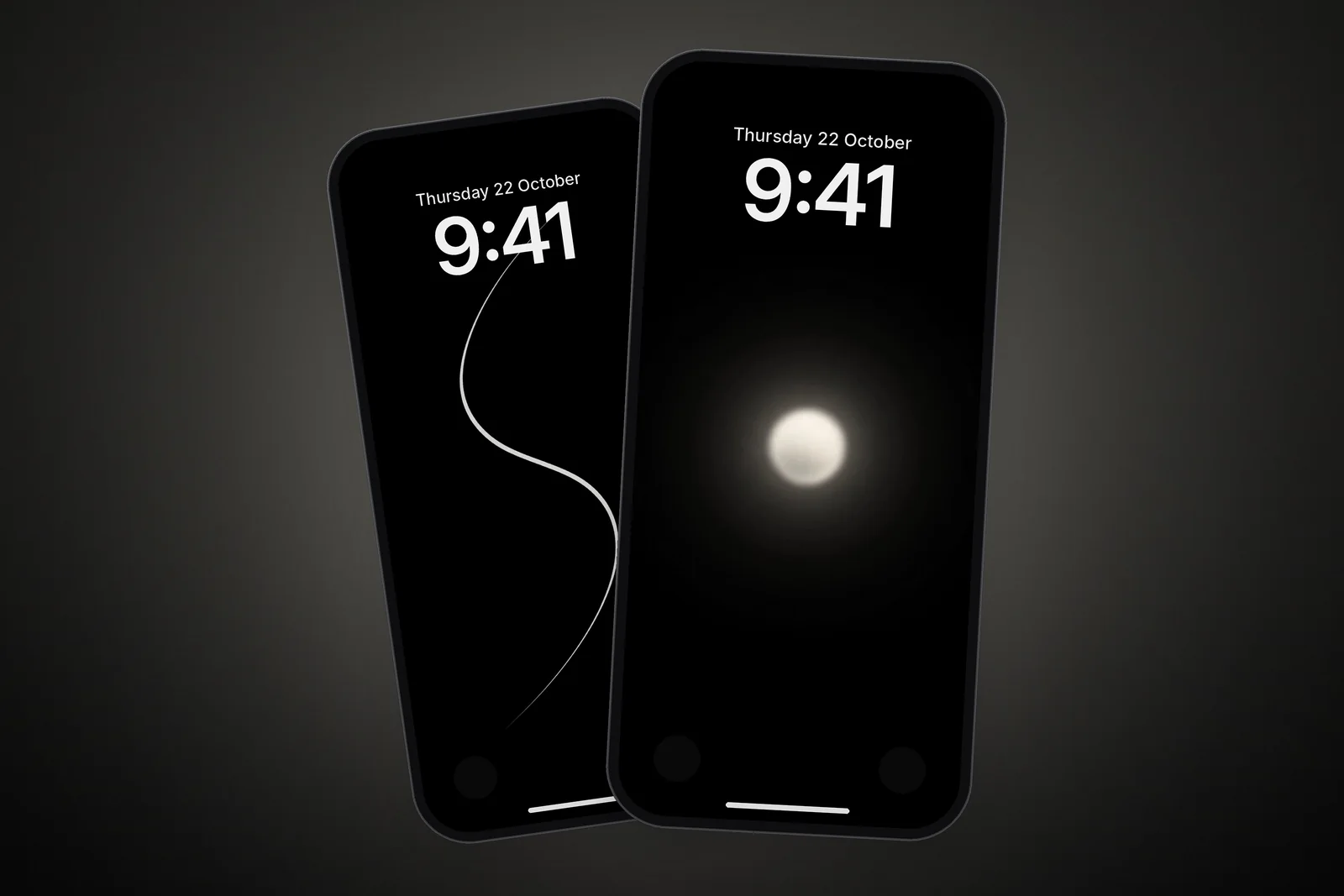
In short
- The Always On display dims the Lock Screen instead of turning it off, so the clock, widgets and wallpaper stay visible.
- It is found on iPhone 14 Pro, 15 Pro, 16 Pro, 17 Pro and 18 Pro (and their Pro Max models), plus iPhone 17, iPhone Air and iPhone Duo.
- Settings → Display & Brightness → Always On Display has a main switch plus Show Wallpaper and Show Notifications toggles.
- Turning off Show Wallpaper leaves a black screen with only the clock, widgets and any notifications.
- Dark, simple wallpapers look best dimmed and leave the most pixels switched off on the OLED panel.
What is the Always On display on iPhone?
The Always On display is a setting that keeps a dimmed version of the Lock Screen visible while the phone is locked. Instead of going fully black, the screen darkens the wallpaper and keeps the time, date, notifications and Lock Screen widgets readable at a glance. It is on by default on models that have it.
It switches off by itself when the iPhone is face down or covered (in a pocket or bag), when you move away from it with a paired Apple Watch, when a CarPlay session starts, while Continuity Camera is in use, while Low Power Mode or Sleep Focus is on, and at your usual bedtime.
Which iPhones have Always On display?
Always On display is limited to certain models, and it is not tied to price alone: iPhone 17 has it, while iPhone 17e does not. If your iPhone has it, you'll see an Always On Display row in Settings → Display & Brightness. If that row is missing, your model doesn't support it.
| iPhone | Always On display | What happens when locked |
|---|---|---|
| iPhone 14 Pro, 15 Pro, 16 Pro (and Pro Max) | Yes | Dimmed wallpaper, clock and widgets |
| iPhone 17, 17 Pro, 17 Pro Max, iPhone Air | Yes | Dimmed wallpaper, clock and widgets |
| iPhone 18 Pro, 18 Pro Max, iPhone Duo | Yes | Dimmed wallpaper, clock and widgets |
| iPhone 14, 15, 16 (and Plus), 16e, 17e | No | Screen turns fully off |
| Older models | No | Screen turns fully off |
How do I hide the wallpaper on Always On display?
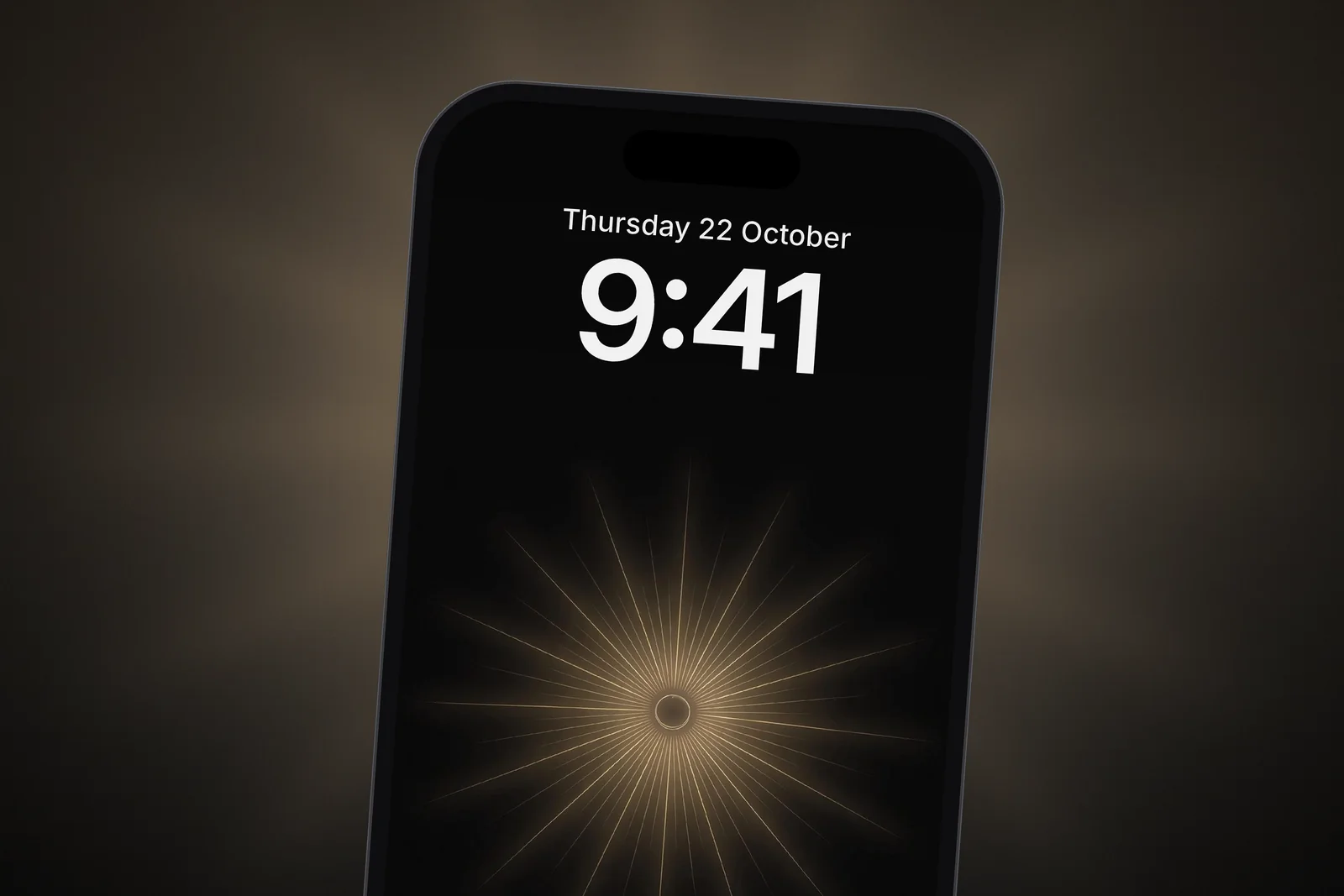
You hide the wallpaper by turning off Show Wallpaper in the Always On Display settings.
- Open Settings.
- Tap Display & Brightness.
- Tap Always On Display.
- Turn off Show Wallpaper to get a black background with only the clock and widgets.
- Turn off Show Notifications too if you don't want messages visible on the dimmed screen.
- Or turn off Always On Display completely to make the screen go dark when locked.
With Show Wallpaper off, the dimmed screen looks like a black clock face. That is the cleanest look and uses the least power, but you lose the personal touch of your wallpaper.
What does the dimmed wallpaper look like?
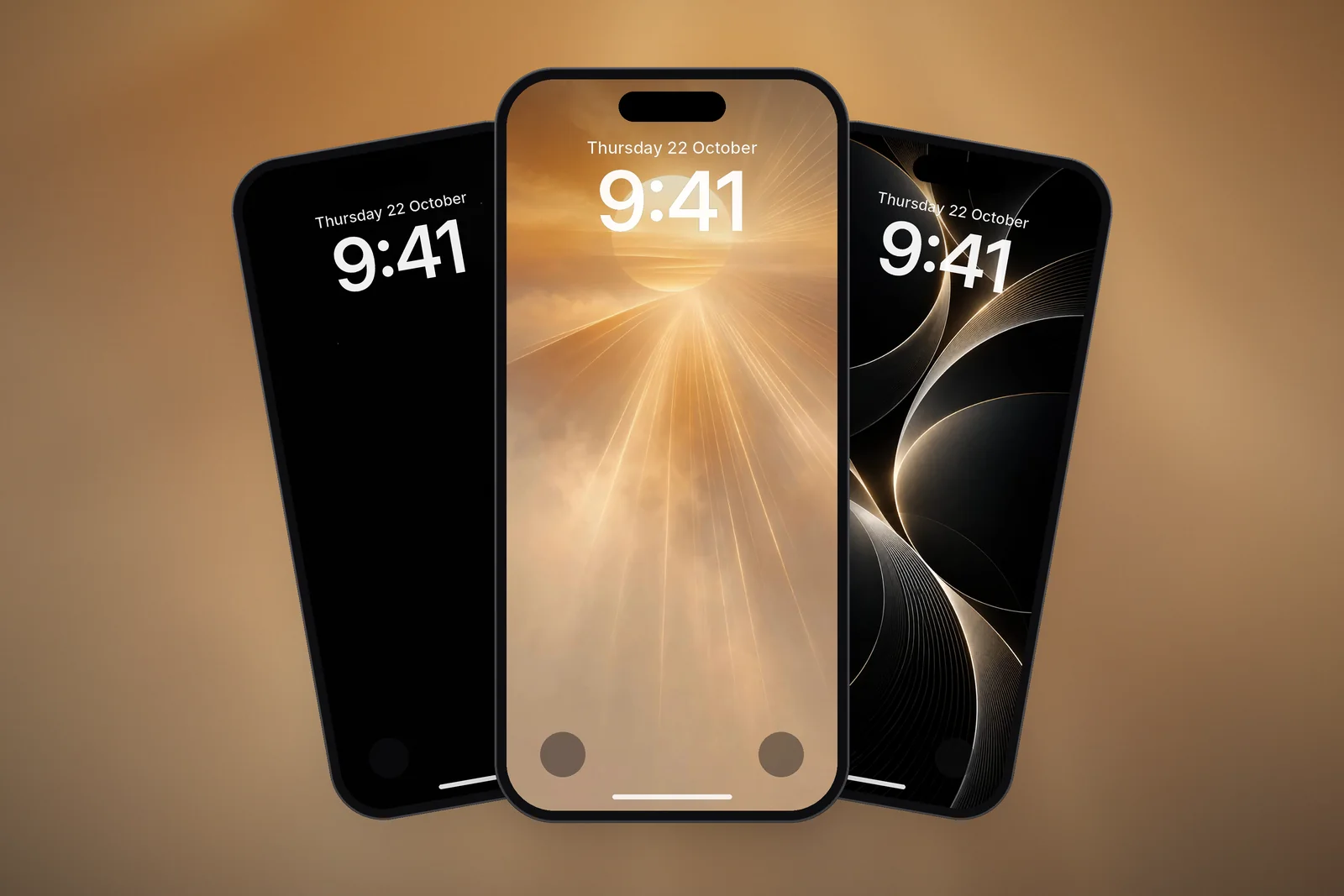
The dimmed wallpaper is a darker, lower-contrast copy of your Lock Screen. Bright areas lose most of their glow, colours get muted and fine detail softens. Photos with people or pets are faded behind the clock rather than shown at full strength.
This is why some wallpapers look great on Always On and others turn into a muddy blur. Busy, mid-toned scenes lose most of their detail. Simple designs with one bright element on black keep their shape, because the black stays black and the bright part is still visible after dimming.
Which wallpapers look best on Always On display?
The best Always On wallpapers are dark with one clear, bright shape: a glowing line, an orb, a moon, a planet edge or a thin outline. They keep their character when dimmed and leave the clock area clean.
- True black backgrounds: on OLED iPhones black pixels are switched off, so the dimmed screen looks crisp and uses less power.
- One focal point: a single light source survives dimming far better than a detailed scene.
- Thin bright lines: line art and wireframes stay readable at low brightness.
- Avoid pale or white wallpapers: they dim to a flat grey sheet and light up more pixels.
The AMOLED wallpapers and the dark category are built for this. These six all hold up when dimmed:
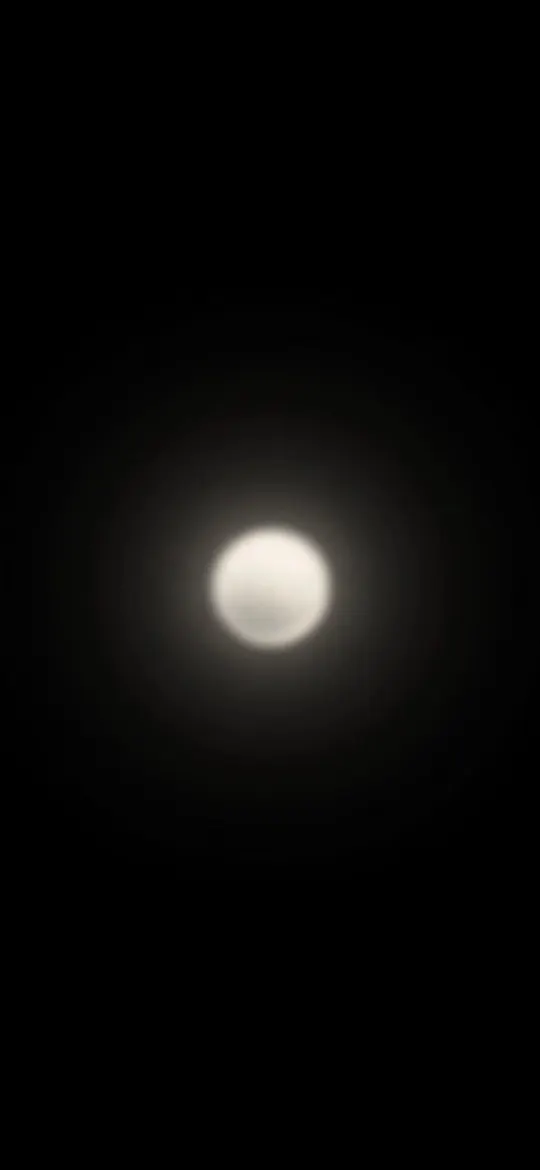 Minimalist Glowing Light Orb on Pitch Black
 Minimal S-Curve Glowing White Line OLED
 Minimal Zen Sun
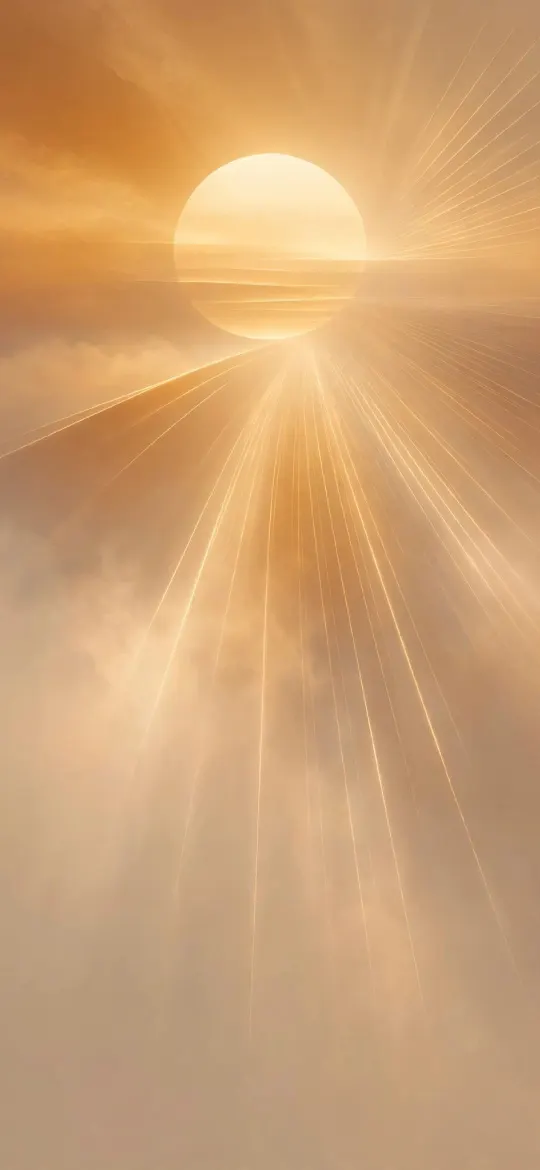 Golden Sun Through Amber Haze
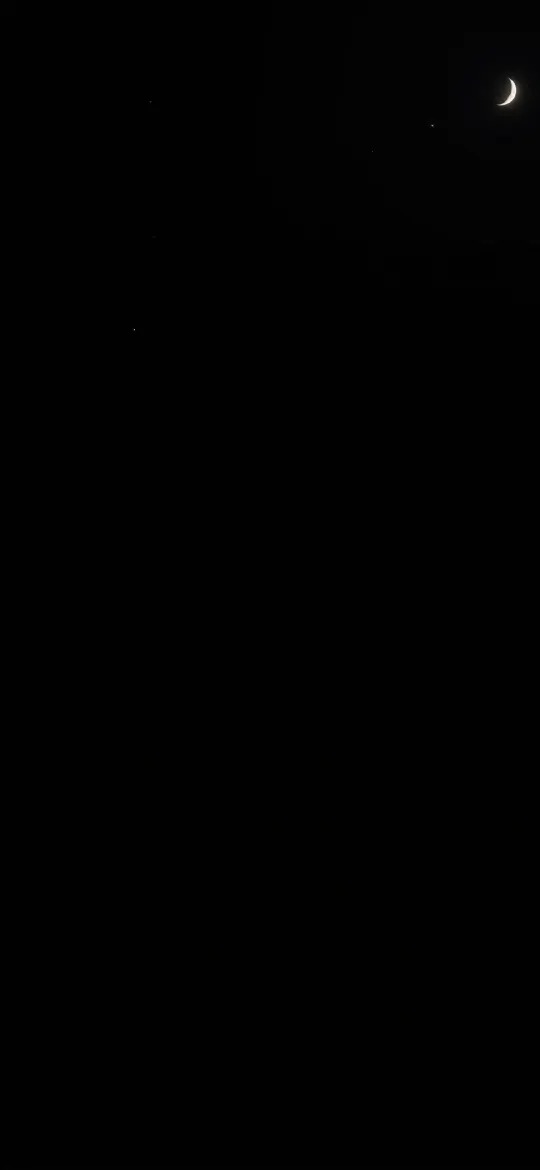 Dark Night Sky Crescent Moon & Tiny Stars
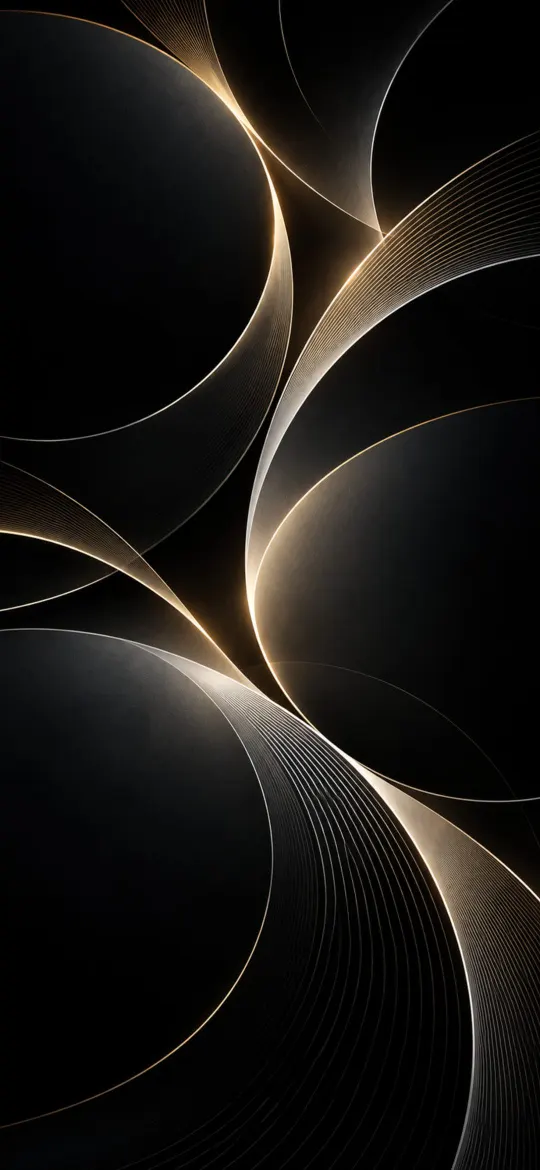 Abstract Eclipse Arcs
On iPhonesWallpaper, every iPhone wallpaper is cut to 15 exact iPhone screen sizes plus a 4K file, including the iPhone 18 Pro, 17 Pro, 17 and 16 Pro size (1206 × 2622), so the image fills the screen without zooming.
Does Always On display drain the battery?
Always On display uses some extra battery, but less than you might expect, because the locked screen is heavily dimmed. Apple turns it off automatically in Low Power Mode, which tells you it is a small but real cost. How much depends on what is shown:
| Setting | Relative battery use | Look |
|---|---|---|
| Always On off | Lowest | Screen fully dark when locked |
| Always On, wallpaper hidden | Low | Black screen with clock and widgets |
| Always On, dark wallpaper | Low to moderate | Dimmed wallpaper, mostly black |
| Always On, bright busy wallpaper | Highest of the four | Dimmed full scene |
If battery matters most, hide the wallpaper or pick a true-black one. Our post do dark wallpapers save battery explains why black pixels help on OLED screens.
Read next: Do Dark Wallpapers Save Battery on iPhone? The Honest Answer and Dark Appearance Dims Wallpaper: What It Does on iPhone.
Quick answers
How do I turn off the wallpaper on Always On display?
Go to Settings → Display & Brightness → Always On Display and turn off Show Wallpaper. The locked screen then shows only the clock, widgets and notifications on black.
Why does my iPhone wallpaper look dark when locked?
That is the Always On display dimming it to save power. If you want the screen fully off instead, turn off Always On Display in Display & Brightness settings.
Does Always On display use a lot of battery?
It uses a small amount more than a fully dark screen. Hiding the wallpaper or using a true-black wallpaper keeps the extra use to a minimum.
What is the best wallpaper for Always On display?
A dark wallpaper with one bright, simple element, such as a glowing line, the moon or an eclipse on black. It stays recognisable when dimmed and lights up fewer pixels.
Does Low Power Mode turn off Always On display?
Yes. Apple lists Low Power Mode among the times the Always On display turns itself off, along with Sleep Focus, CarPlay and the iPhone lying face down. It comes back when Low Power Mode ends.
Sources
- Keep the iPhone display on longer, Apple Support
- iPhone - Compare Models, Apple
- About the Super Retina display and Super Retina XDR display on your iPhone, Apple Support