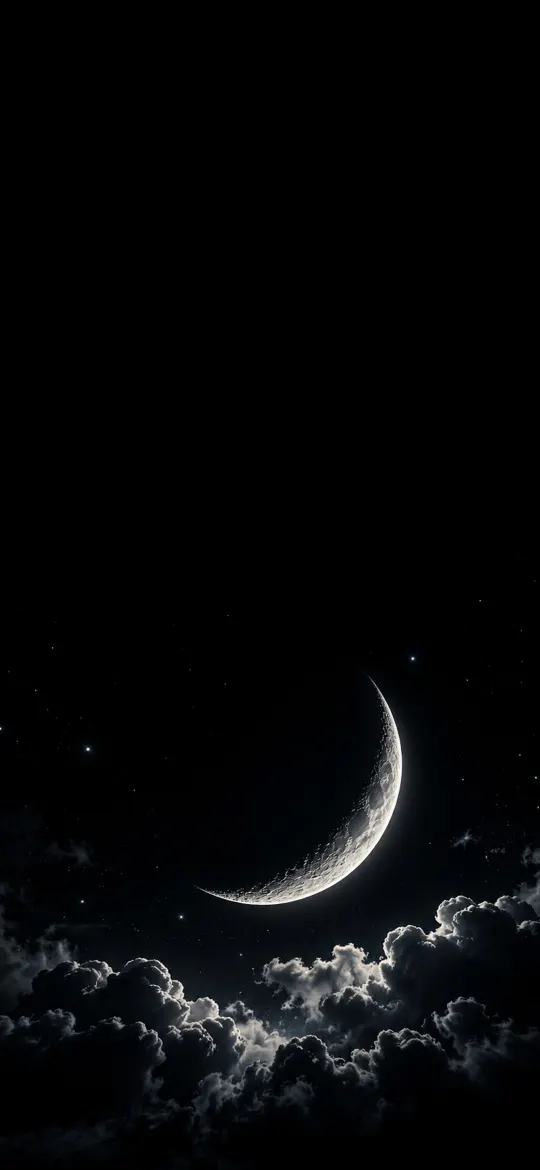
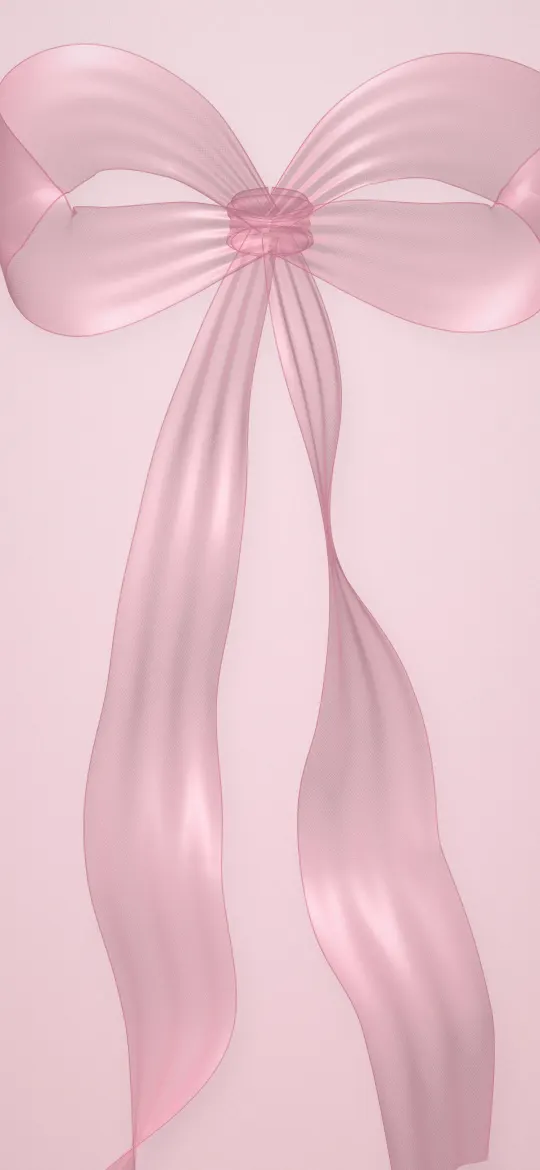
On iPhone, Dark Appearance Dims Wallpaper is a switch in Settings → Wallpaper that darkens your wallpaper whenever Dark Mode is on. If your wallpaper looks darker in the evening or after switching to Dark Mode, this setting is the cause. Turn it off and the wallpaper keeps its full brightness in both Light and Dark Mode.
In short
- The switch lives in Settings → Wallpaper, under the previews of your current Lock Screen and Home Screen.
- It only acts while Dark Mode is on. In Light Mode it changes nothing.
- If Dark Mode is set to Automatic (Settings → Appearance in iOS 27, Display & Brightness in iOS 26 and earlier), the wallpaper dims at sunset and brightens at sunrise, which looks like it changes by itself.
- Bright, white or pastel wallpapers change the most; black and very dark wallpapers barely change.
- The dimming does not alter the image file. Turning the switch off restores the original look straight away.
What does Dark Appearance Dims Wallpaper do?
Dark Appearance Dims Wallpaper lowers the brightness of your wallpaper while the iPhone is in Dark Mode. Dark Mode is the system-wide appearance that swaps white backgrounds in menus, apps and widgets for black and dark grey. The dimming makes the wallpaper match: a bright photo behind dark folders and a dark Dock would otherwise glare.
The effect is a darker overlay, not a new picture. Your original wallpaper is untouched in Photos, and the change is undone the moment Dark Mode turns off or you flip the switch.
Where is the setting, and how do I turn it off?
Open Settings → Wallpaper and look below the two wallpaper previews; the switch is labelled Dark Appearance Dims Wallpaper. Tap it to turn it off (grey) or on (green). Apple's user guide does not describe this switch, so if your iOS version does not show it there, the darker look comes from one of the other causes below.
- Open Settings.
- Tap Wallpaper.
- Scroll below the Lock Screen and Home Screen previews.
- Turn Dark Appearance Dims Wallpaper off.
If the wallpaper still looks darker after that, check two other things. Dark Mode itself lives in Settings → Appearance in iOS 27 (Display & Brightness in iOS 26 and earlier), with Light, Dark and an Automatic option whose schedule can follow sunset and sunrise. And a Home Screen set to the blurred version of your Lock Screen photo will always look softer and slightly muted, whatever this switch says.
Why does my wallpaper look darker in Dark Mode?
Your wallpaper looks darker in Dark Mode because Dark Appearance Dims Wallpaper is on. People notice it most when Dark Mode is set to Automatic, because the wallpaper seems to change on its own around sunset.
There are a few other reasons a wallpaper can look darker or flatter than you expect:
- Always-On display: on iPhones that have it, the locked screen dims heavily while the phone rests. Settings → Display & Brightness → Always On Display has a switch to hide the wallpaper entirely.
- Lower screen brightness or Auto-Brightness in a dim room.
- A Focus linked to a different Lock Screen. Switching Focus can switch to another wallpaper that happens to be darker.
- Night Shift warms colours in the evening, which makes whites look yellowish and slightly dimmer.
Should you keep it on or off?
Keep it on if your wallpaper is bright and you use Dark Mode at night; turn it off if your wallpaper is already dark or you want colours exactly as the photo shows them. The table sums it up by wallpaper type.
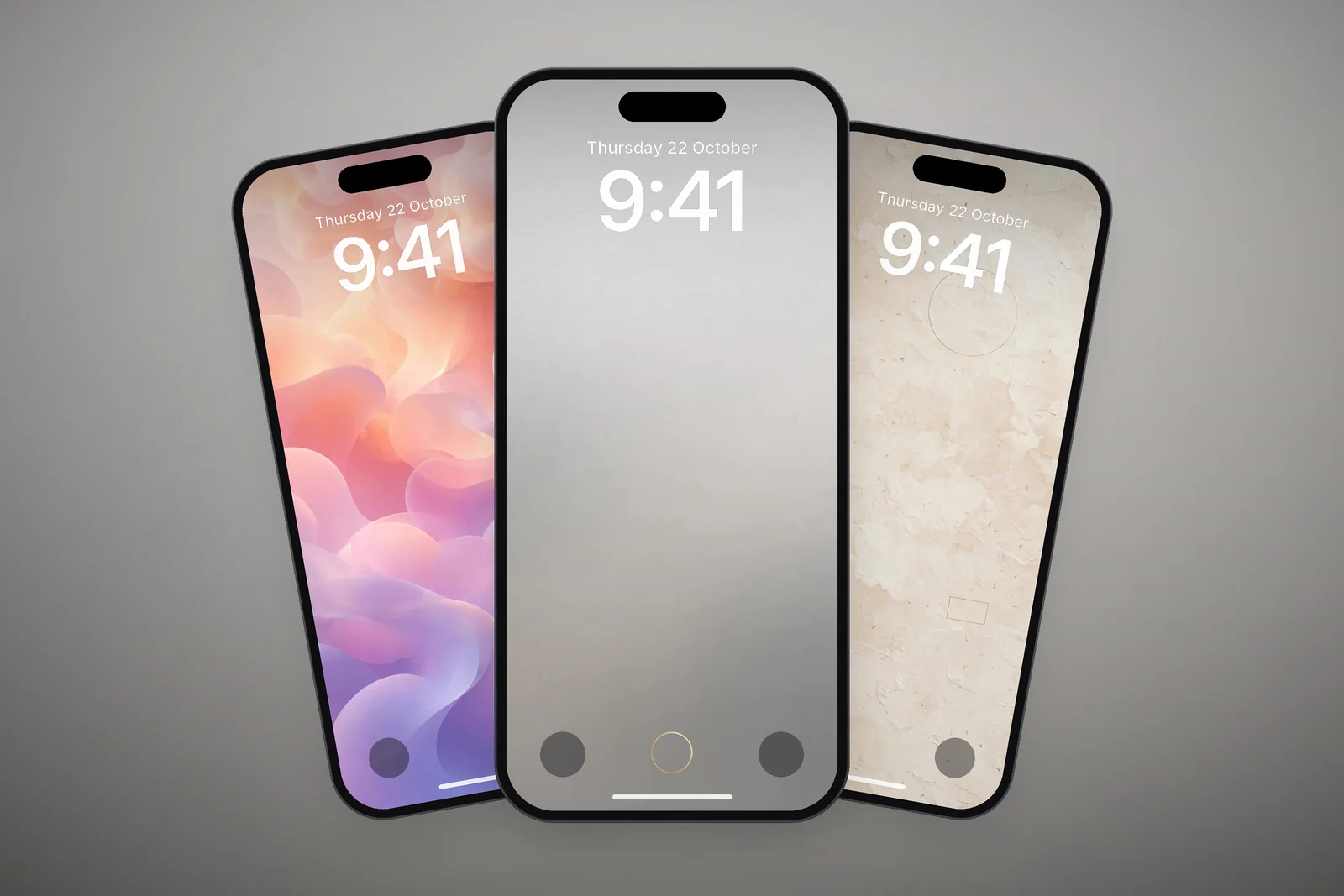
| Wallpaper type | Effect of dimming | Recommendation |
|---|---|---|
| White, cream or beige minimal | Strong: whites turn soft grey | Keep on at night; turn off if you want crisp white |
| Pastel gradients | Moderate: colours turn muted, still pleasant | Either works; on is easier on the eyes in the dark |
| Bright landscapes and sunsets | Moderate: highlights calmed, detail kept | Keep on if you read your phone in bed |
| Dark scenes, night skies | Small: shadows go a little deeper | Off, so faint details such as stars stay visible |
| True black (AMOLED) | Almost none: black stays black | Makes no difference; leave it as you like |
The pattern is simple. Dimming takes the most from bright pixels, so it helps light wallpapers fit Dark Mode and does almost nothing to dark ones. If your wallpaper is mostly black, the switch is effectively cosmetic, and on an OLED iPhone those black pixels are already off; the post on whether dark wallpapers save battery covers what that means in practice.
Which wallpapers look good dimmed?
Wallpapers with soft gradients, warm neutrals and a clear light area look best dimmed, because they lose glare without losing their shape. Fine detail in the shadows is what suffers, so busy dark scenes are better left at full brightness.
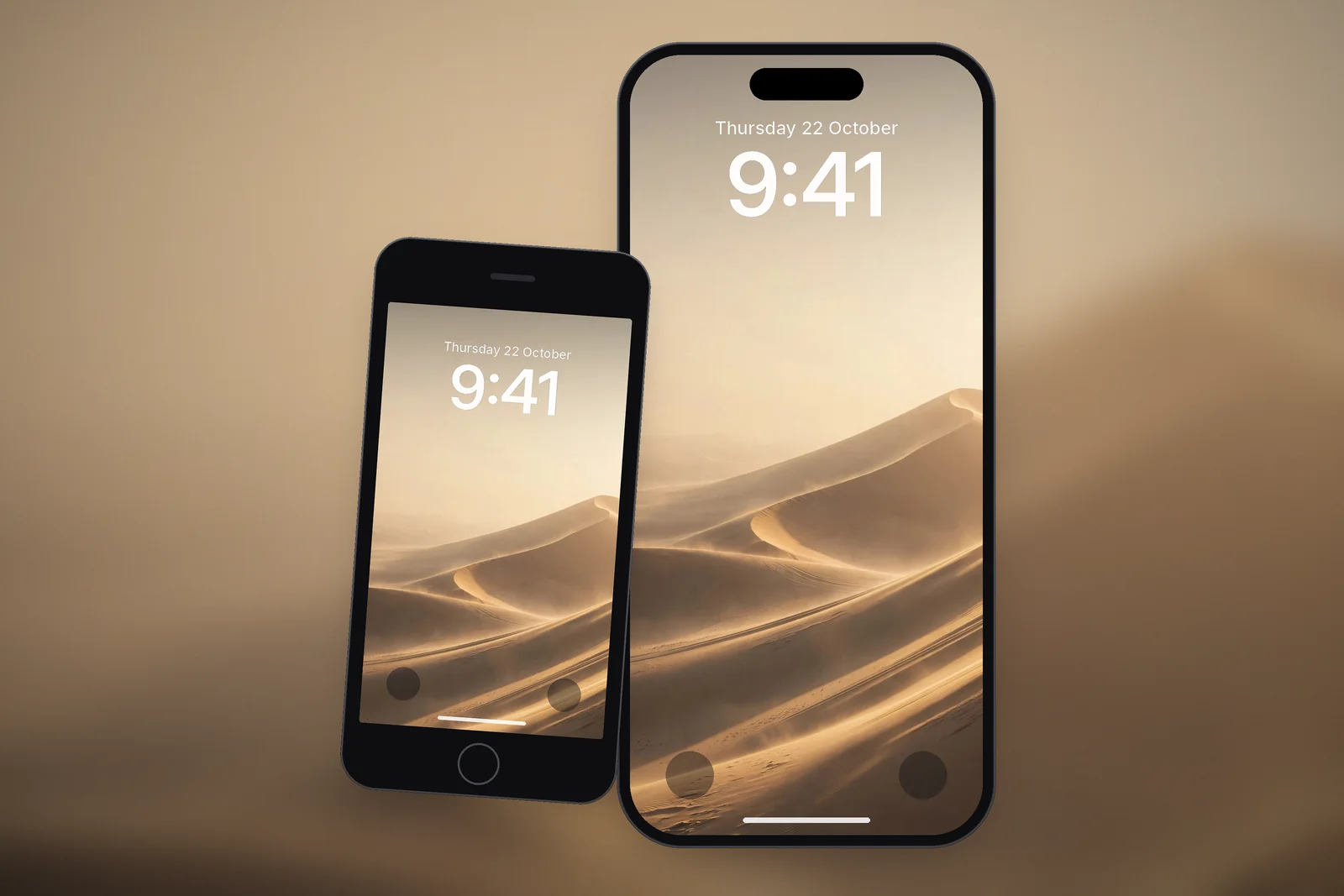
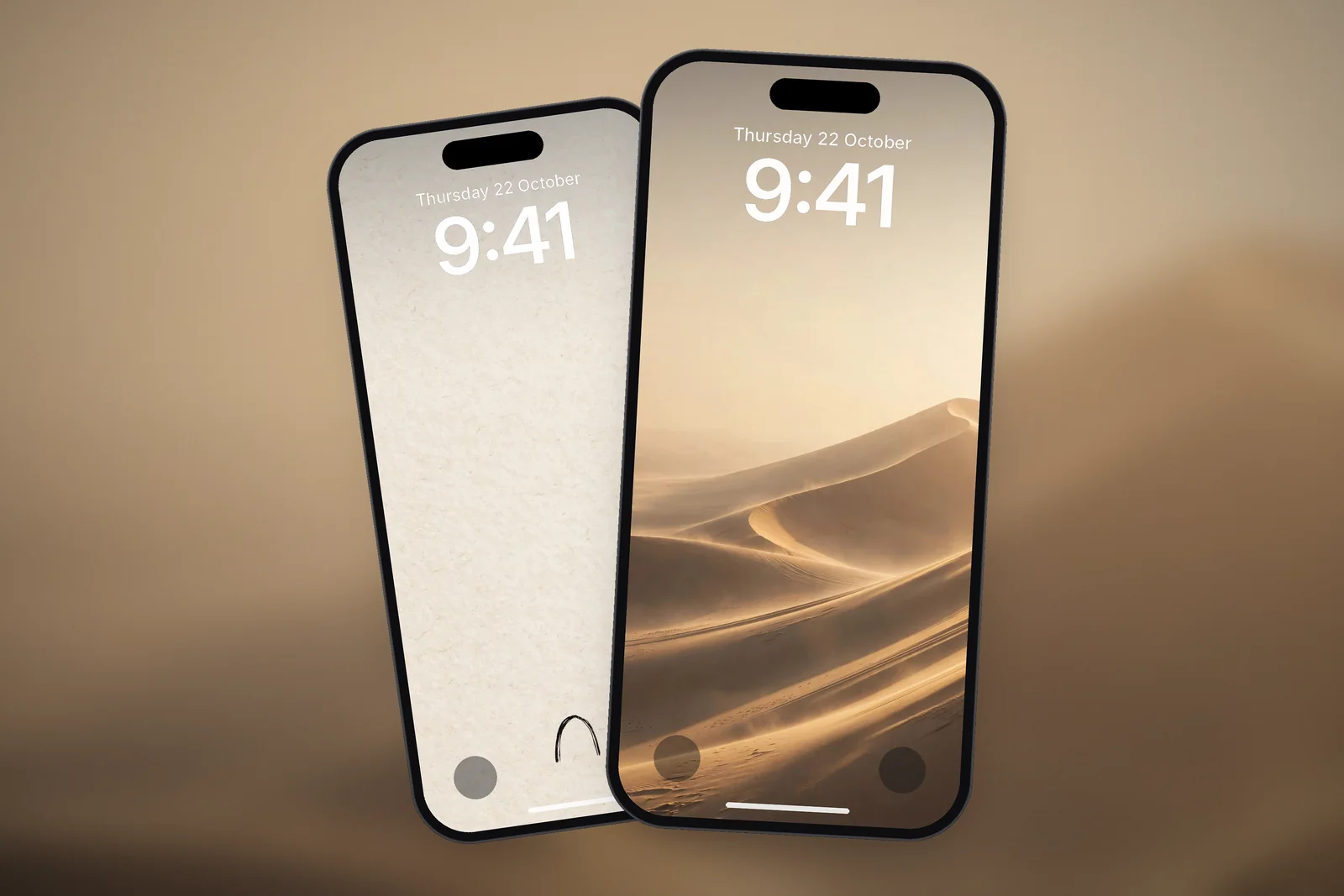
- Light minimal designs: a beige paper texture or a pale gradient turns into a calm mid-tone that sits well behind dark icons.
- Pastels: pinks and blues lose a little saturation but stay recognisable.
- Warm landscapes: sunsets and dunes keep their colour while the bright sky stops glaring.
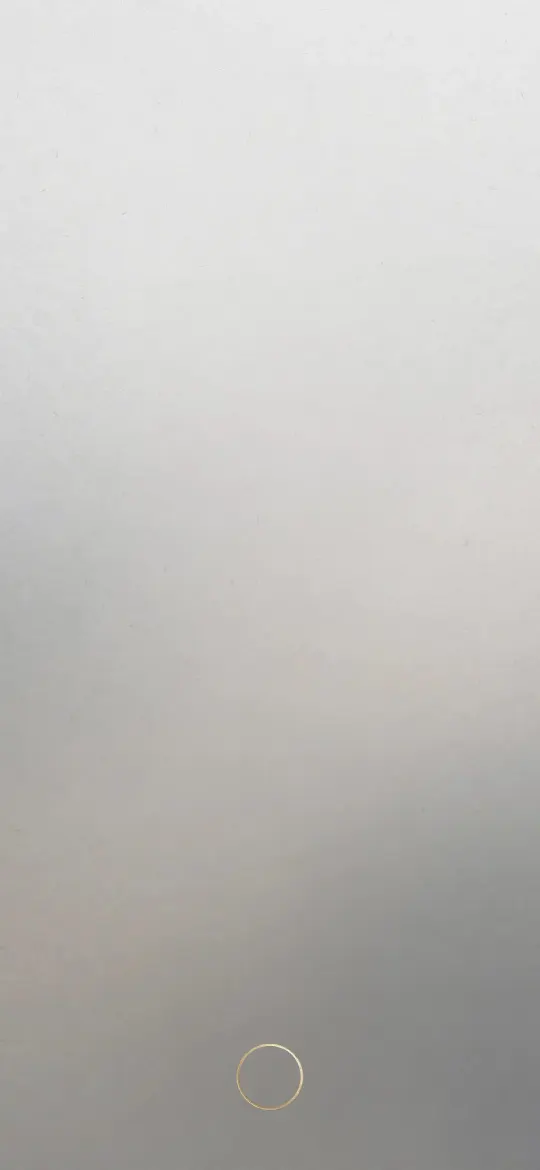 Minimal Zen Gray Gradient
 Wabi Sabi Beige Textured Minimal
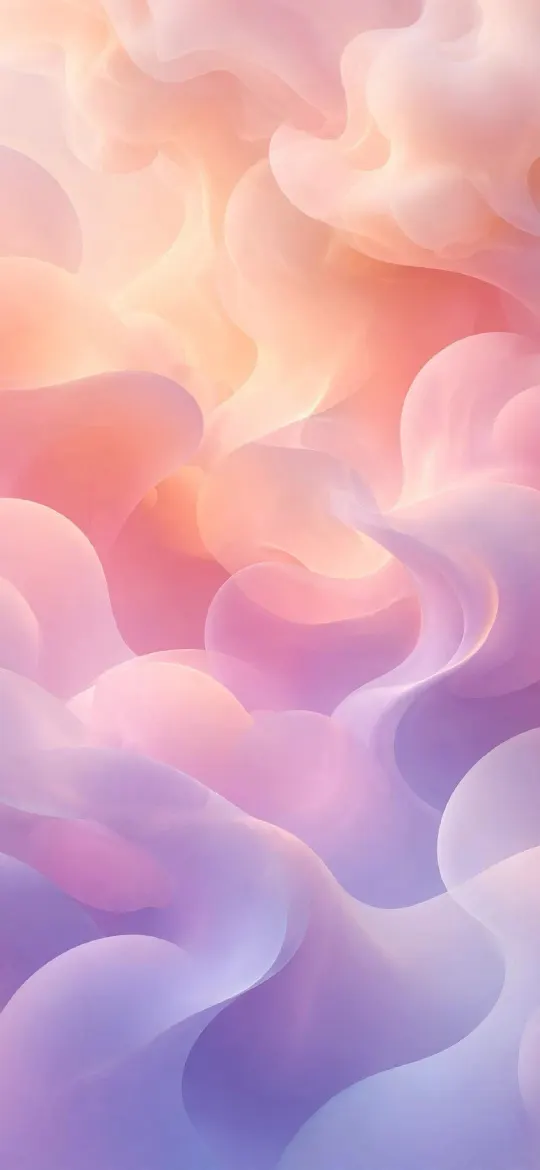 Pastel Gradient Blobs
 Golden Hour Desert Dunes
 Minimalist Arch Curve on Beige Textured Paper
If you would rather skip the dimming question altogether, choose a wallpaper that is already dark. The dark wallpaper category and the AMOLED tag collect designs that look the same in Light and Dark Mode. On iPhonesWallpaper, each one is cut to 15 exact iPhone screen sizes plus a 4K file, so it fills the screen without a crop. For keeping the clock readable on either kind, see how to choose a Lock Screen wallpaper that keeps the clock readable.
Read next: Always On Display Wallpaper on iPhone: Settings and Best Picks and Do Dark Wallpapers Save Battery on iPhone? The Honest Answer.
Quick answers
How do I turn off Dark Appearance Dims Wallpaper?
Open Settings → Wallpaper and turn off Dark Appearance Dims Wallpaper, found below the wallpaper previews. Your wallpaper then shows at full brightness even in Dark Mode.
Why is my iPhone wallpaper darker at night?
Dark Mode is probably set to Automatic, so it turns on at sunset, and Dark Appearance Dims Wallpaper darkens the wallpaper with it. Turn off the dimming switch, or choose Light in Settings → Appearance (Display & Brightness in iOS 26 and earlier).
Does Dark Appearance Dims Wallpaper save battery?
Slightly, on OLED iPhones, because darker pixels use less power; on LCD models the saving is negligible. The main reason to use it is comfort in the dark, not battery.
Does dimming change the wallpaper image itself?
No. The dimming is applied on screen only. The original photo in your library is unchanged, and switching the setting off restores the normal look immediately.
How do I schedule Dark Mode on iPhone?
Open Settings → Appearance, select Automatic, then tap Options and choose Sunset to Sunrise or a custom schedule. In iOS 26 and earlier the same options are under Display & Brightness.
Sources
- Use Dark Mode on your iPhone and iPad, Apple Support
- Adjust the screen brightness and color on iPhone, Apple Support
- Keep the iPhone display on longer, Apple Support