If your iPhone wallpaper is not fitting the screen, the picture almost always has a different shape from your display, so iOS fills the screen by zooming in and cropping the edges. The fix is to use an image made at your phone's exact resolution, or at least one with the same tall shape, and to turn off any zoom effects in the wallpaper editor.
Below is what actually causes the zoom, why you sometimes cannot pinch out any further, and a step-by-step routine that gets a clean, full-screen fit on any model.
In short
- iOS never stretches a wallpaper and never adds bars; it zooms until the screen is covered and crops what spills over.
- The smallest zoom the editor allows is the point where the picture just covers the screen, which is why it won't zoom out further.
- A file with your screen's exact shape and size (for example 1206 × 2622 on iPhone 17 or iPhone 18 Pro) fits with nothing cut off.
Why iOS zooms and crops your wallpaper
An iPhone will never stretch or squash a picture. It also will not leave black bars around it on the Lock Screen. So when an image's proportions don't match the screen, the only option left is to scale it up until it covers every pixel, then trim whatever spills over the edges.
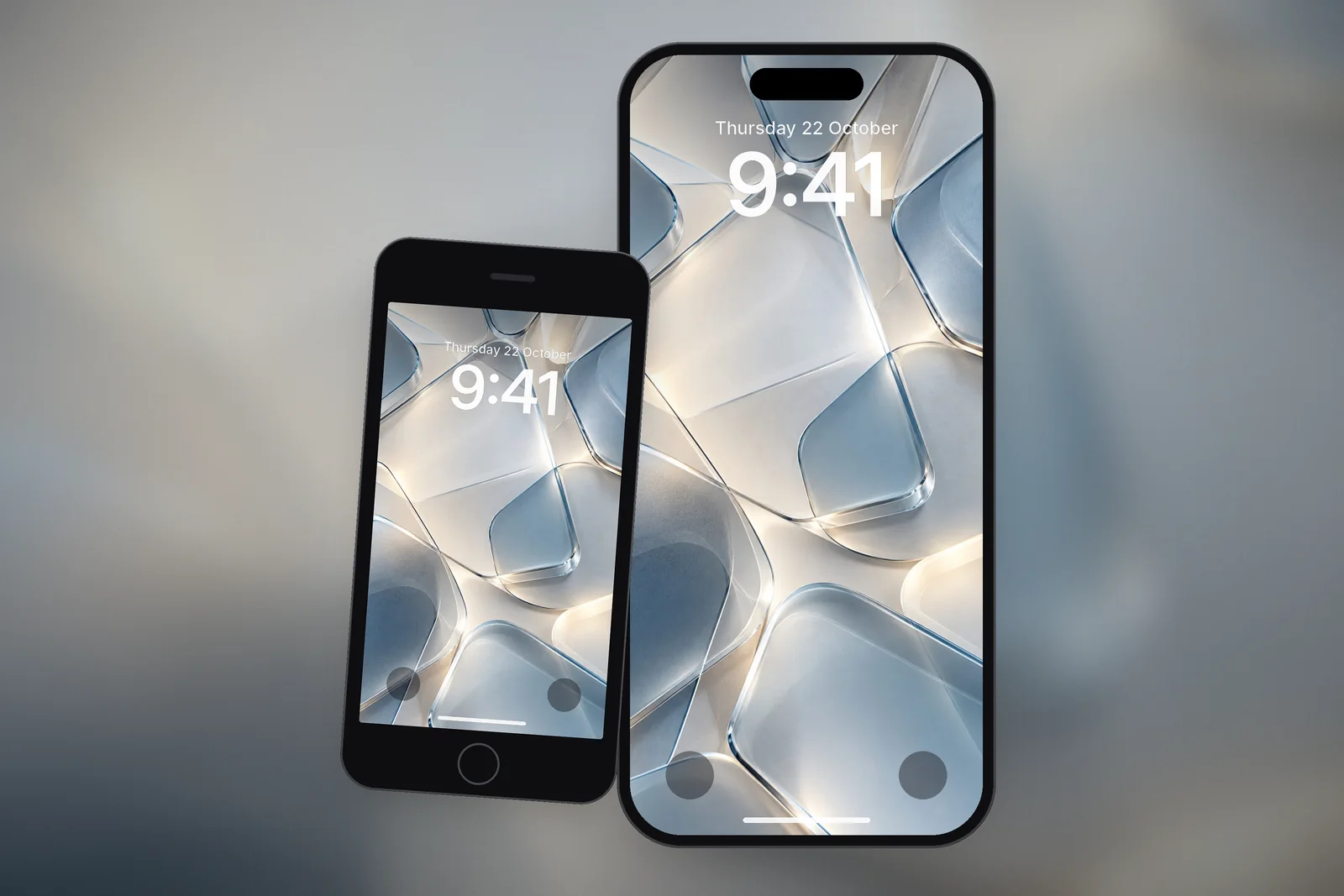
Modern iPhones are very tall and narrow. Apple lists the iPhone 17 and iPhone 18 Pro screens at 2622 by 1206 pixels, which works out to roughly 9 by 19.5. A typical photo from the camera is 3:4, and a lot of images saved from the web are square or landscape. Put a 3:4 photo on a 9:19.5 screen and iOS has to cut a large slice off the left and right to make it fill the height.
That is also why the wallpaper won't zoom out. The editor's smallest zoom level is the point where the picture just covers the screen. Pinching out any further would leave empty space, so iOS stops you there. If the subject still looks too big at that point, the image itself is the wrong shape.
Other things that make a wallpaper look too zoomed in
- Perspective Zoom. On some iOS versions, the wallpaper editor's "…" menu has a Perspective Zoom option. It makes the picture shift slightly as you tilt the phone, and to do that it enlarges the image a little so the edges never show. Turn it off if you want the full frame.
- Depth Effect. When Depth Effect is on, the subject is layered over the clock, so you may find yourself framing the picture higher or tighter than you would otherwise. Turn it off to judge the framing on its own.
- A small image. If the picture has fewer pixels than your screen, iOS upscales it to fill the display. It fits, but it looks soft and feels "too close".
- Screenshots and thumbnails. A screenshot of a wallpaper preview includes status bar space and often a tiny, low-resolution version of the image. Setting that as wallpaper adds an extra crop on top of the original one.
- Landscape pictures. A wide photo has to be zoomed enormously to fill a portrait screen. You will only ever see a narrow vertical strip of it.
Step-by-step: make a wallpaper fit properly
- Find your screen size. Check the model in Settings → General → About, then look it up in our iPhone wallpaper sizes guide.
- Download the exact size. Every wallpaper on this site is cut to 16 iPhone screen sizes. Pick your model on the wallpaper page, or browse by phone from the devices page, and download that file rather than a generic one.
- Save it to Photos. Open the download and use Share → Save Image so it lands in your library.
- Start a new wallpaper. Press the side button, touch and hold the Lock Screen, tap the + button, choose Photos and pick the image. You can also go to Settings → Wallpaper → Add New Wallpaper.
- Turn off zoom effects. Tap the "…" button in the editor. If Perspective Zoom is listed, switch it off. Try Depth Effect off as well to see the framing without it.
- Pinch out fully. Pinch closed to zoom out and drag with two fingers to reposition. With a correctly sized file, the smallest zoom level matches the screen exactly, so nothing is cropped.
- Tap Add, then choose Set as Wallpaper Pair or tap Customise Home Screen if you want a different treatment on the Home Screen.
If you already have a wallpaper set and just want to reframe it, touch and hold the Lock Screen, swipe to it, tap Customise and choose the Lock Screen. Pinch and drag with two fingers until it sits right, then tap Done.
Which size to download for your iPhone
Several iPhones share the same screen resolution, so one file covers a whole group. These are the sizes we cut every iPhone wallpaper to for the most common recent models:
| iPhone model | Wallpaper size (pixels) |
|---|---|
| iPhone Duo (inner screen, unfolded) | 1878 × 2670 |
| iPhone Duo (cover screen) | 1398 × 2034 |
| iPhone 18 Pro Max / 17 Pro Max / 16 Pro Max | 1320 × 2868 |
| iPhone 18 Pro / 17 Pro / 17 / 16 Pro | 1206 × 2622 |
| iPhone Air | 1260 × 2736 |
| iPhone 16 Plus / 15 Plus / 15 Pro Max / 14 Pro Max | 1290 × 2796 |
| iPhone 16 / 15 / 15 Pro / 14 Pro | 1179 × 2556 |
| iPhone 17e / 16e / 14 / 13 / 13 Pro / 12 / 12 Pro | 1170 × 2532 |
| iPhone 13 mini / 12 mini | 1080 × 2340 |
| iPhone 11 / XR | 828 × 1792 |
| iPhone SE (2nd & 3rd gen) / 8 / 7 | 750 × 1334 |
| 4K Universal (any phone) | 2160 × 3840 |
The 4K Universal file is handy if you switch phones often or want one file for several devices. It is a 9:16 shape, so on a modern iPhone iOS will still trim a thin strip from the sides, but the high resolution keeps it sharp. For a perfect fit, the model-specific file is the better choice. For example, the iPhone 16 Pro Max page lists every wallpaper ready at 1320 × 2868.
Choosing pictures that survive cropping
Even with the right file, some images are easier to frame than others. Pictures with the main subject in the middle third and plenty of plain space at the top and bottom work best, because the clock sits at the top and the Dynamic Island, widgets and Home Screen dock all cover parts of the screen.
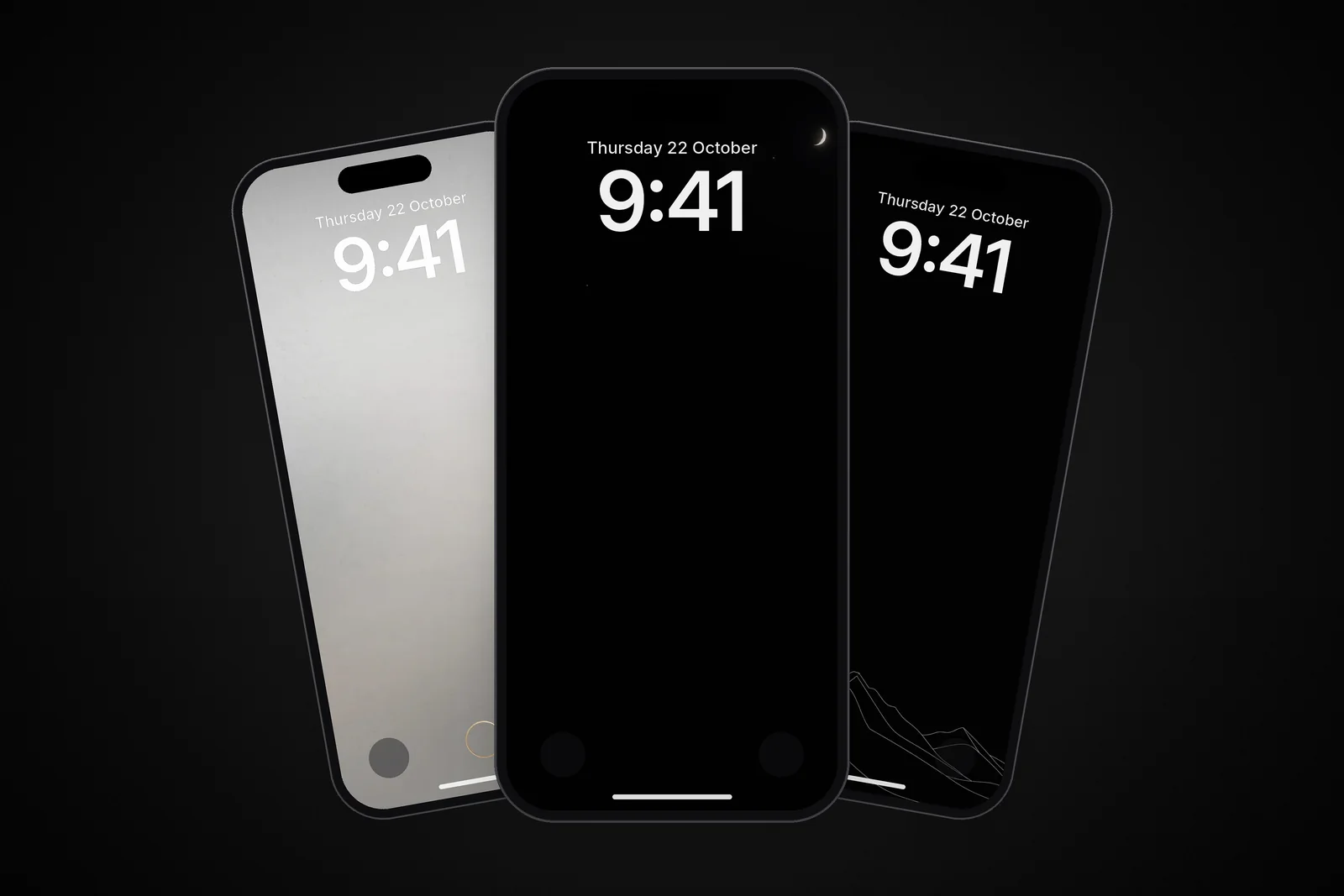
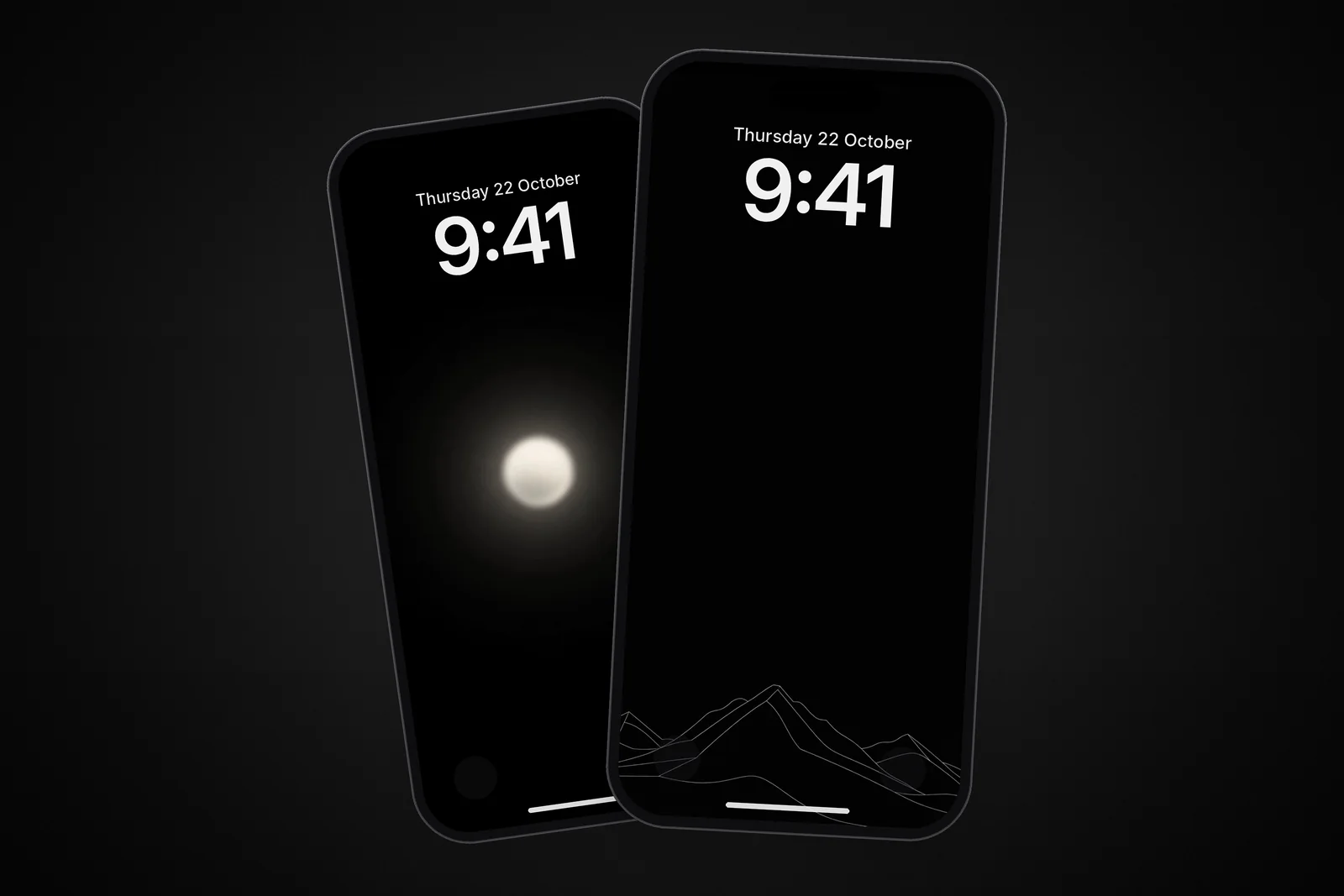
- Centred subjects, such as a single moon, an orb of light or a mountain peak, stay visible on every model.
- Gradients, textures and patterns have no edges to lose, so they look right even if cropped.
- Busy photos with important detail near the sides are the hardest to fit, especially on narrower phones.
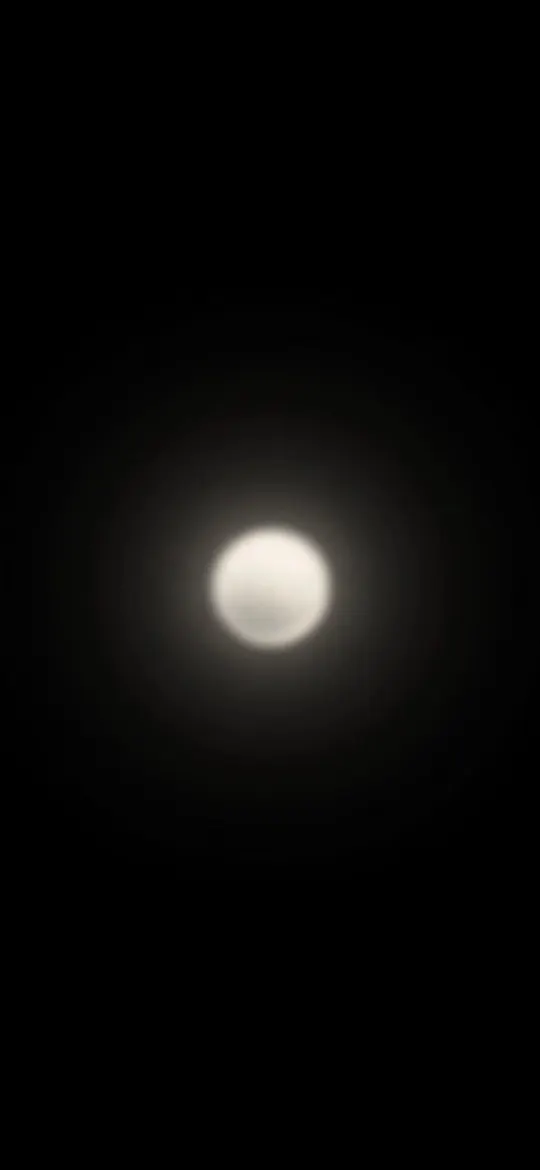 Minimalist Glowing Light Orb on Pitch Black
 Dark Night Sky Crescent Moon & Tiny Stars
 Minimal Zen Gray Gradient
 Frosted Glass Tiles
 Minimalist Wireframe Mountain Peaks Black
Our minimal wallpapers are a good place to start if you keep fighting the crop, since nearly all of them keep their focal point in the centre.
Read next: iPhone Wallpaper Blurry? The Real Causes and How to Fix Each and How to Make a Wallpaper for iPhone: Size, Safe Areas, Export.
Quick answers
Why won't my iPhone wallpaper zoom out?
The editor stops at the zoom level where the picture just fills the screen. If the image is a different shape from your display, that minimum zoom still crops it. Download a version made at your screen's exact size and it will fit fully zoomed out.
How do I make a wallpaper fit without stretching it?
iOS never stretches wallpapers, so the only way to see the whole picture is to use an image with the same proportions as your screen. Use the size for your model from the table above, and if the editor's … menu offers Perspective Zoom, turn it off.
Why is my wallpaper more zoomed in on the Home Screen?
It is cropped the same way, but the Home Screen can use a blurred version of the Lock Screen picture, which makes it look softer and closer. Touch and hold the Lock Screen, tap Customise, pick the Home Screen and switch Blur off.
How do I fit a landscape photo as my iPhone wallpaper?
iOS will always crop it to a narrow vertical strip. To keep the whole photo, place it on a portrait canvas at your screen size, with a plain band above and below, and set that file instead.
Do I need different files for the Lock Screen and Home Screen?
No. Both screens are the same size, so one file at your model's resolution fits both. Tap Set as Wallpaper Pair to use it on each, or Customise Home Screen to pick another photo.
Sources
- Create a custom iPhone Lock Screen (iOS 27), Apple Support
- Change the wallpaper on iPhone (iOS 27), Apple Support
- iPhone 18 Pro and 18 Pro Max – Technical Specifications, Apple
- iPhone Duo – Technical Specifications, Apple