An iPhone wallpaper usually looks blurry for one of two reasons: iOS is deliberately blurring it (the Home Screen blur option or Legibility Blur behind the clock), or the image simply has too few pixels for your screen. The first is a switch you can turn off in a few seconds. The second needs a sharper file, ideally one made at your phone's exact resolution.
Work out which situation you are in first. If the picture is sharp on the Lock Screen but soft on the Home Screen, it is a setting. If it is soft everywhere, it is the image.
In short
Soft only behind your apps? The Home Screen Blur option is on: touch and hold the Lock Screen, tap Customise, choose the Home Screen and tap Blur to switch it off. Soft everywhere? The picture has fewer pixels than your screen, so download your model's exact size (1206 × 2622 for iPhone 17 or iPhone 18 Pro, 1320 × 2868 for the Pro Max models) or the 2160 × 3840 file, and avoid zooming in when you frame it.
Blurry only on the Home Screen
This is the most common case, and it is intentional. When you tap Customise Home Screen after adding a wallpaper, iOS offers Blur, which Apple describes as blurring the wallpaper so the apps stand out. Lots of people turn it on by accident while setting up a new Lock Screen.
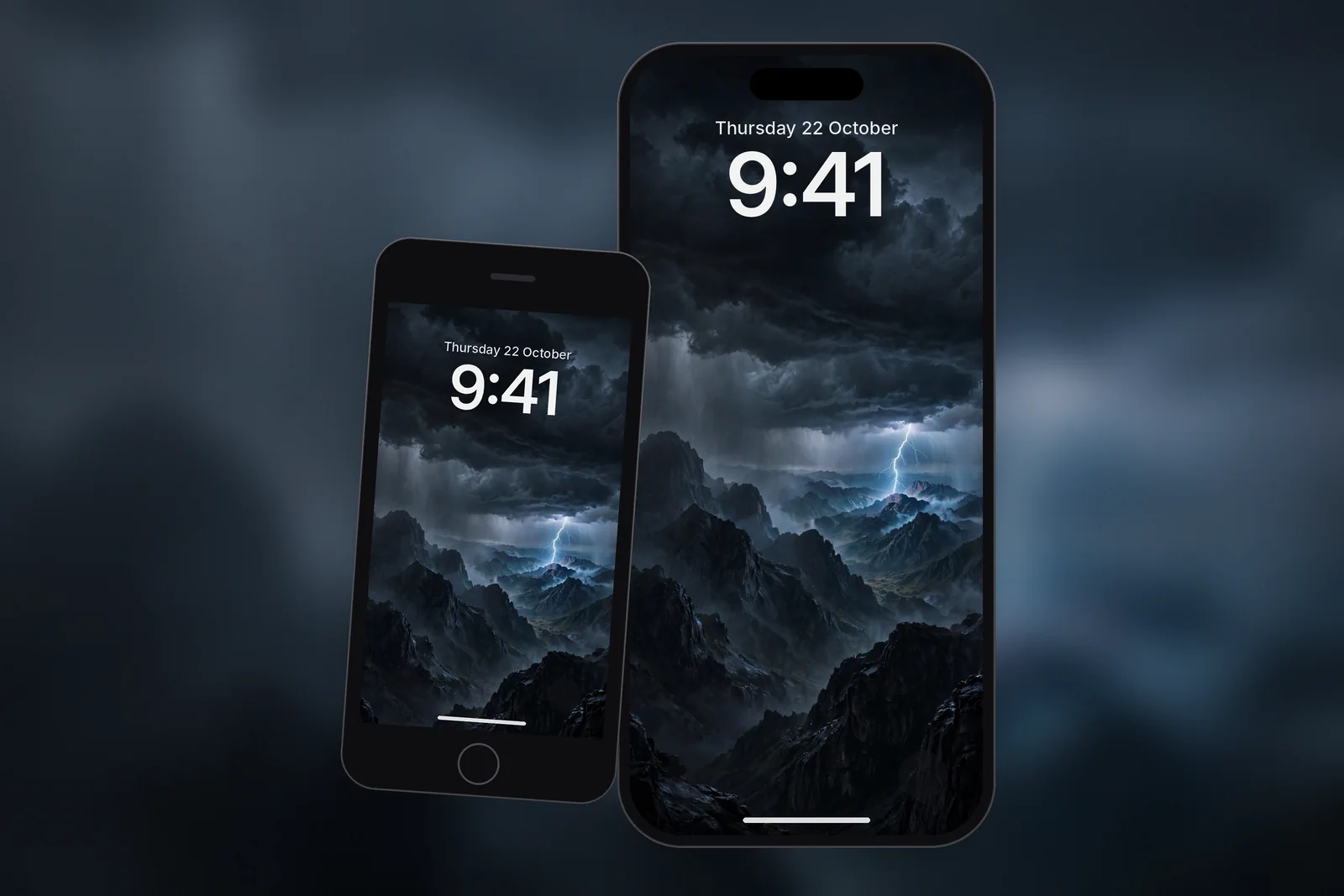
- Press the side button, then touch and hold the Lock Screen until the gallery appears, and tap Customise.
- Choose the Home Screen preview.
- At the bottom are the Home Screen options: a colour, a button for choosing a different photo, and Blur. Tap Blur so it is switched off.
- Tap Done and go back to the Home Screen.
You can also reach the same editor from Settings → Wallpaper, then tap Customise under the Home Screen preview. If you would rather have a different picture behind your apps, choose Photos in that editor and pick a separate image.
Blurry at the top of the Lock Screen
If the top of the picture, around the time and date, looks frosted or smudged, iOS is softening the area behind the clock on a busy picture so the numbers stay readable, an effect often called Legibility Blur. If your version shows a Legibility Blur switch in the Lock Screen editor's "…" menu, you can turn it off there. Apple's iOS 27 guide doesn't list that switch; it does let you tap the time to change the font or switch the clock to a more transparent look, which changes how much of the picture shows through.
If the option is not there on your version, the better fix is a picture with calmer space at the top. Night skies, gradients and dark photos with the detail lower down keep the clock crisp without any blur at all. Our guide to a Lock Screen wallpaper with a readable clock covers this in more detail.
Blurry everywhere: the image is too small
When a picture has fewer pixels than your screen, iOS stretches it up to fill the display. Every pixel in the original becomes a little block on the screen, and the result looks soft. A 750 × 1334 image, for example, sized for an iPhone SE, will look noticeably blurry on an iPhone 18 Pro Max, whose screen Apple lists at 2868 by 1320 pixels.
These are the usual culprits:
- Screenshots of a thumbnail. Screenshotting a wallpaper in a search result or social feed captures a tiny preview, not the real file.
- Images saved from messaging apps. Many chat apps compress photos heavily before sending them.
- Pictures saved from a web page. Long-pressing an image on a site often saves the small display version rather than the original download.
- Heavy cropping. If you only use a small part of a photo, you are only using a fraction of its pixels.
- iCloud storage optimisation. With Optimise iPhone Storage on, Photos may keep a smaller copy until the full version downloads. Open the photo and wait a moment before setting it.
The fix is to download the full file at your screen size. Every wallpaper here comes in 15 exact iPhone sizes plus a 2160 × 3840 universal 4K file. Find yours in the iPhone wallpaper sizes guide, then download the matching file from the wallpaper page.
| Where it looks blurry | Most likely cause | Fix |
|---|---|---|
| Home Screen only | Home Screen Blur option | Customise → Home Screen → turn Blur off |
| Top of Lock Screen, behind clock | Legibility Blur | "…" menu → Legibility Blur off, or use a calmer image |
| Everywhere | Low-resolution or compressed image | Download the exact size for your model |
| Everywhere, after zooming in | Image upscaled by pinching | Zoom out or use a larger file |
| Edges look smeared or soft | Perspective Zoom or Depth Effect | Turn them off in the "…" menu to compare |
Blurry after zooming or framing
Pinching to zoom in the wallpaper editor enlarges the image, which has the same effect as using a smaller file. Zoom in by 2x on a picture that only just matches your screen and you are effectively looking at half the resolution.
If you want a tighter crop of a subject, start from a bigger file. The 4K Universal size, at 2160 × 3840, has enough spare pixels to zoom in a little on any iPhone and still look sharp. If your editor's "…" menu offers Perspective Zoom, which enlarges the picture slightly so it can shift as you tilt the phone, switching it off gives you a touch more sharpness.
Wallpapers that stay sharp
Some pictures simply hold up better on a phone screen. Clean edges, strong contrast and smooth gradients look crisp even at small sizes, while very fine textures and noisy night photos tend to look muddy if the file has been compressed.
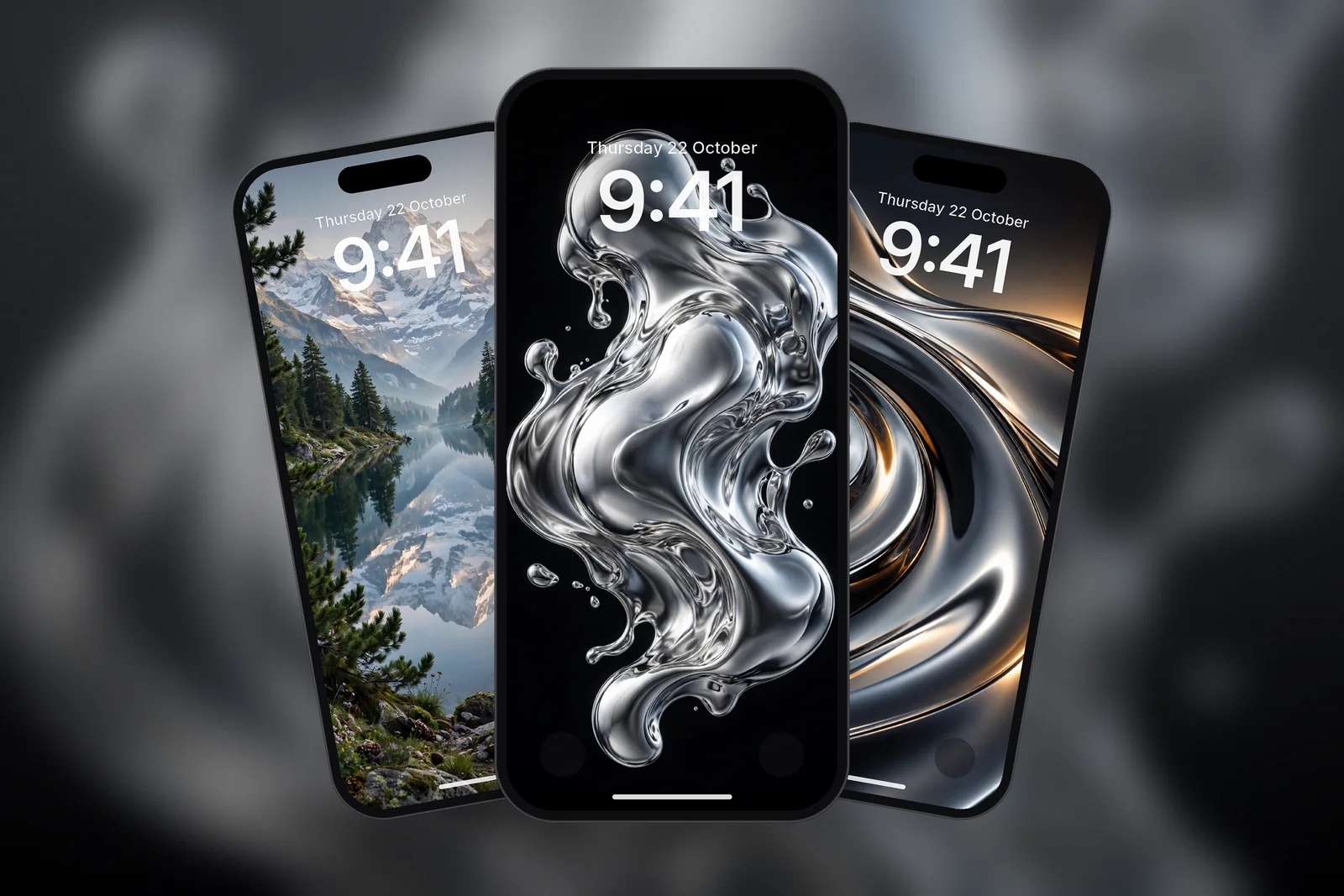
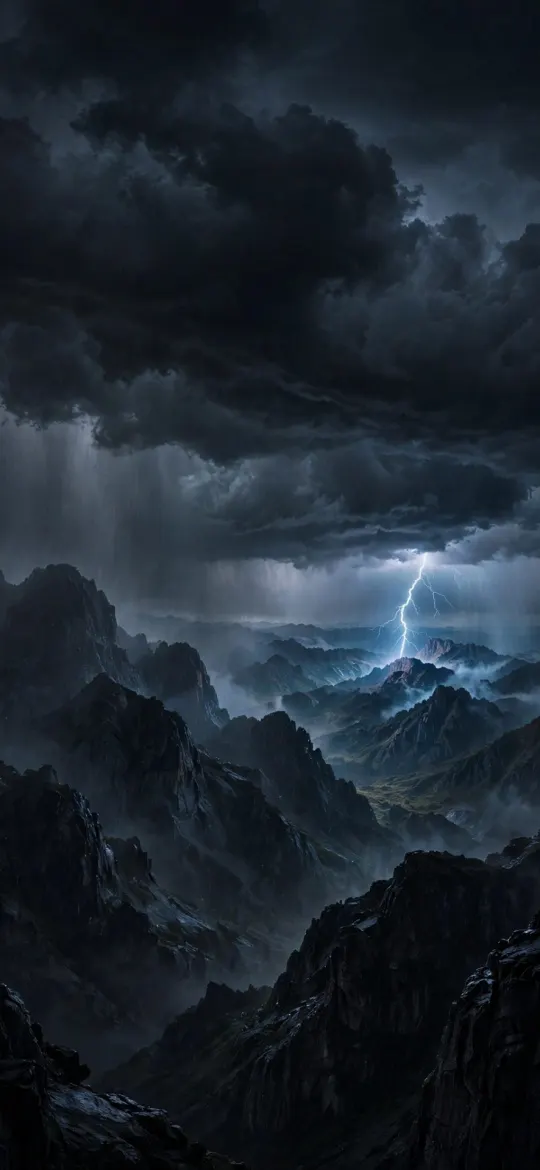 Night Thunderstorm Mountain Lightning
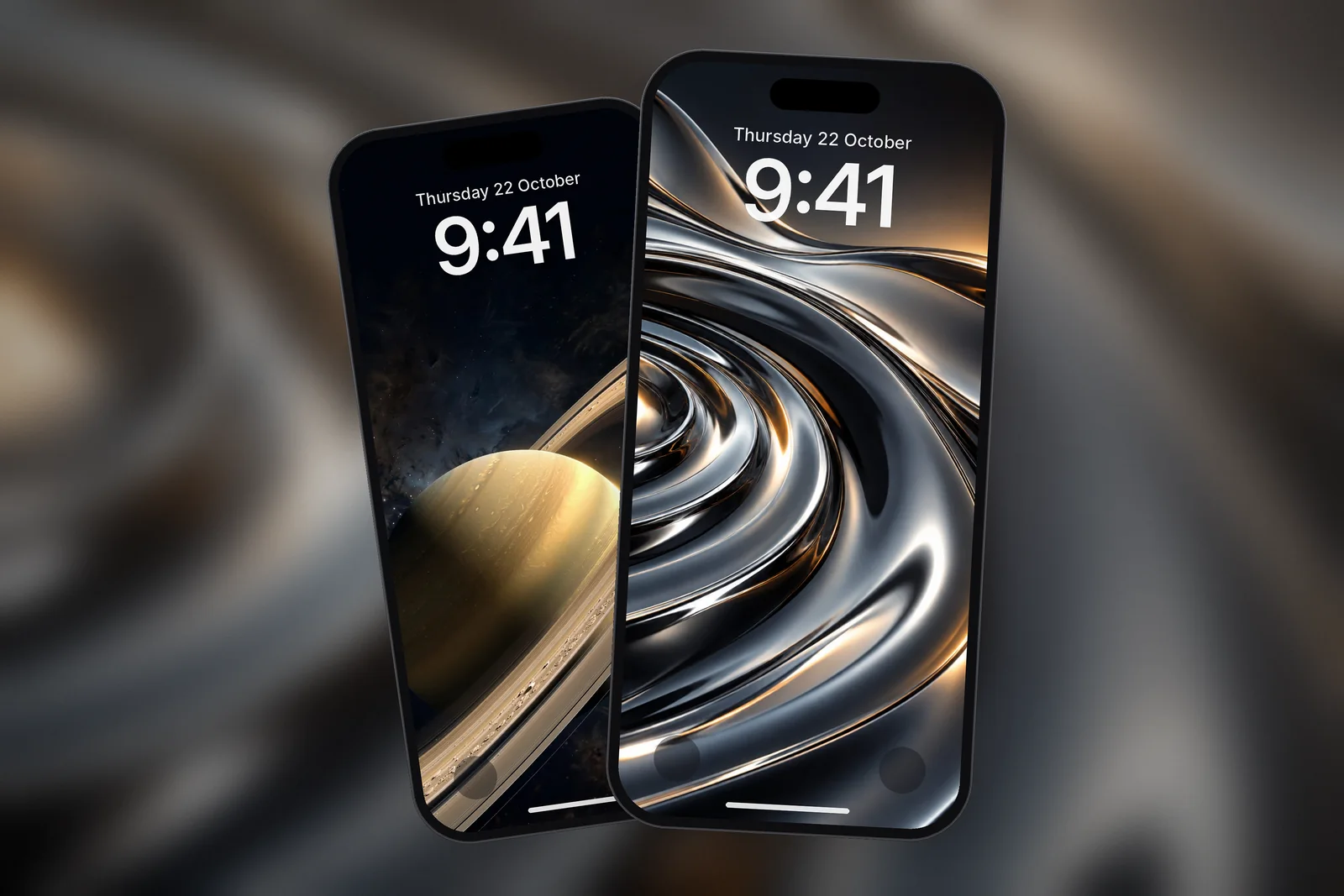
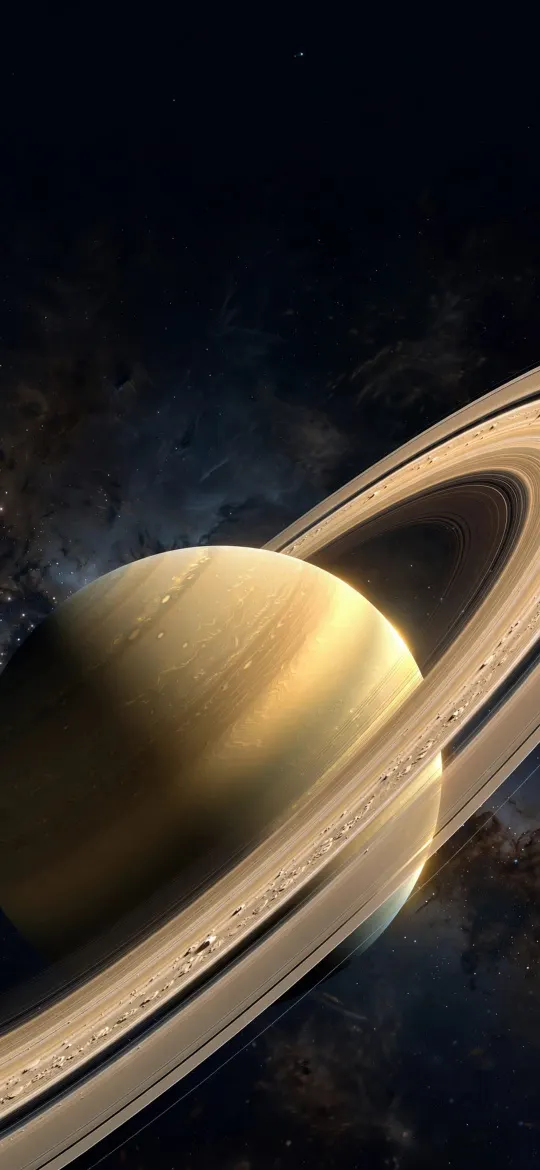 Saturn Rings Close-Up
 Liquid Chrome
 Alpine Mountain Lake Reflection & Pine Forest
 Chrome Ripple
Browse the most popular wallpapers for more ideas, or pick your phone from the devices page to see every wallpaper ready at your exact resolution.
Read next: iPhone Wallpaper Not Fitting the Screen? Why and How to Fix It and Depth Effect Wallpaper on iPhone: How It Works and How to Fix It.
Quick answers
Why is my wallpaper blurry on my Home Screen but not my Lock Screen?
Because the Home Screen Blur option is switched on. Touch and hold the Lock Screen, tap Customise, choose the Home Screen and tap Blur to turn it off.
Why is my iPhone wallpaper blurry at the top?
That is Legibility Blur softening the picture behind the clock. Turn it off in the "…" menu of the Lock Screen editor where available, or use an image with plainer space at the top.
What resolution should an iPhone wallpaper be so it isn't blurry?
At least your screen's own resolution, for example 1206 × 2622 for an iPhone 17 or 1320 × 2868 for an iPhone 18 Pro Max. A 2160 × 3840 file is sharp on any iPhone.
Why is my photo sharp in Photos but blurry as a wallpaper?
Photos fits the whole picture on screen, while a wallpaper is enlarged to fill the tall display and you may have zoomed in further. A landscape photo set as wallpaper uses only a narrow strip of its pixels.
Does a 4K wallpaper look sharper on iPhone?
It looks as sharp as an exact-size file, not sharper. At 2160 × 3840 it is larger than every iPhone screen, so iOS scales it down and trims a thin strip from the sides.
Sources
- Change the wallpaper on iPhone (iOS 27), Apple Support
- Create a custom iPhone Lock Screen (iOS 27), Apple Support
- iPhone 18 Pro and 18 Pro Max – Technical Specifications, Apple