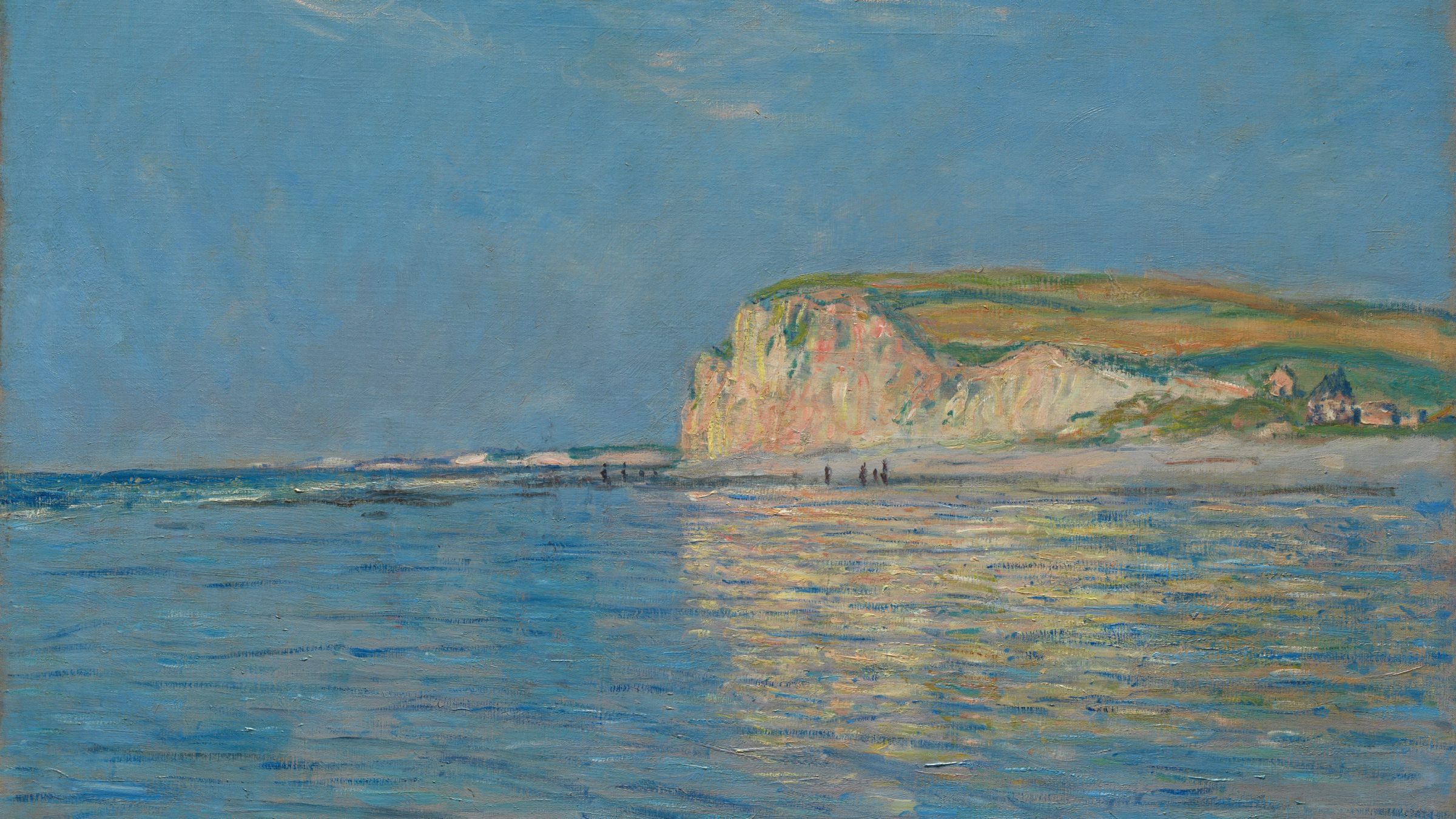
A 1920x1080 wallpaper is an image 1,920 pixels wide and 1,080 pixels tall, the Full HD (1080p) resolution with a 16:9 shape. On Windows, check your screen under Settings → System → Display → Display resolution. If it reads 1920 × 1080, a file of exactly that size fills the desktop pixel for pixel, with no cropping and no softening.
In short
- 1920 × 1080 is Full HD, also called 1080p, with a 16:9 aspect ratio (the same shape as most TVs).
- It is the native resolution of most 21.5 to 24-inch monitors and of many 14 to 15.6-inch budget and mid-range laptops.
- Many newer laptops use 1920 × 1200 instead: the same width but 120 pixels taller, a 16:10 shape.
- A 4K file (3840 × 2160) scales down to 1080p cleanly because it is exactly twice the width and twice the height.
- In Windows 11, set the picture with Settings → Personalisation → Background and choose Fill in “Choose a fit”.
What does 1920x1080 actually mean?
Resolution is the number of pixels a screen has across and down. Full HD means 1,920 columns and 1,080 rows, a little over 2 million pixels in total. The “p” in 1080p stands for progressive scan, a term carried over from TV, and on a computer screen it simply means 1,080 rows of pixels.
Aspect ratio is the shape of the screen, written as width to height. 1920 ÷ 1080 works out to 16:9, so a Full HD screen is wide and short. That shape matters more than the pixel count when you pick a wallpaper: a 16:9 image fits a 16:9 screen perfectly, while a 16:10 or 21:9 image has to be cropped to fit.
Which screens are 1920 × 1080?
Most 24-inch office and home monitors, nearly all 21.5 and 22-inch monitors, and a large share of laptops sold over the past decade are 1920 × 1080. It is also the standard resolution for many entry-level gaming monitors, where a lower pixel count helps games reach high frame rates.
The same number of pixels looks different depending on screen size. Pixel density is how many pixels fit in each inch of the screen, measured in PPI. On a 15.6-inch laptop, 1080p gives about 141 PPI and looks crisp at normal distance. On a 24-inch monitor it is about 92 PPI, still fine for a wallpaper. On a 27-inch monitor it drops to about 82 PPI, which is why 27-inch screens usually move up to 2560 × 1440.
| Screen | Typical resolution | Aspect ratio | Wallpaper to download |
|---|---|---|---|
| 21.5 to 24-inch monitor | 1920 × 1080 | 16:9 | Full HD 1080p |
| 14 to 15.6-inch laptop (older or budget) | 1920 × 1080 | 16:9 | Full HD 1080p |
| 13 to 16-inch laptop (newer) | 1920 × 1200 | 16:10 | WUXGA 1920 × 1200 |
| Small or very old laptop | 1366 × 768 | 16:9 | HD laptop 1366 × 768 |
| 27-inch monitor | 2560 × 1440 | 16:9 | QHD 1440p |
Is my laptop 1920 × 1080 or 1920 × 1200?
Check the second number in Settings → System → Display → Display resolution: 1080 means 16:9, 1200 means 16:10. Many laptops released in recent years, especially business and premium thin-and-light models, have switched to 16:10 because the extra height shows more of a document or web page.
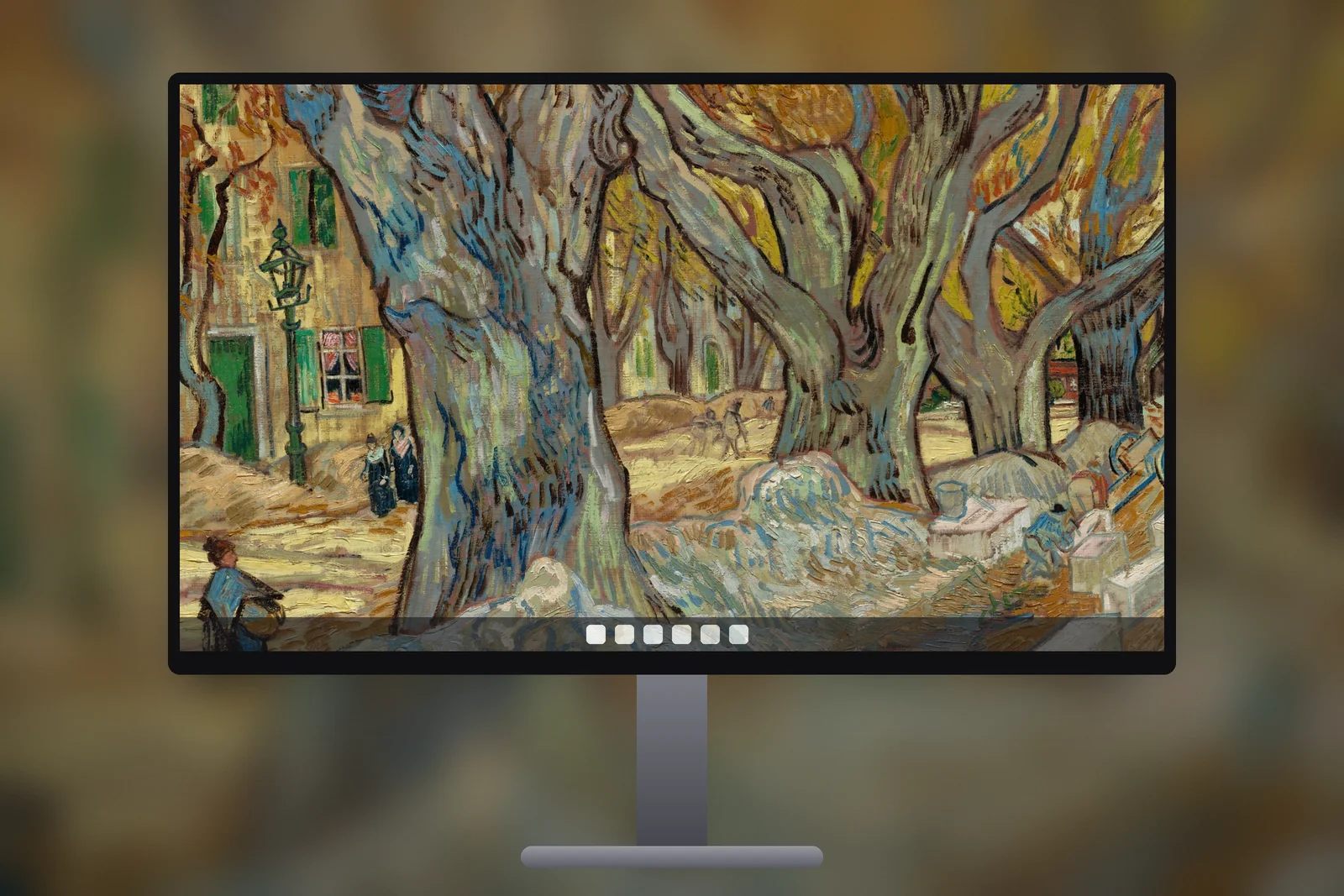
The difference is small but visible on a wallpaper. Put a 1920 × 1080 image on a 1920 × 1200 screen with the Fill option and Windows enlarges it slightly so it covers the extra 120 rows, then trims the sides. The picture looks a touch softer and a little of the left and right edges disappears. Use a 1920 × 1200 file instead and nothing is lost.
Why does a 4K wallpaper look fine on a 1080p screen?
A 4K wallpaper looks sharp on Full HD because Windows scales it down, and shrinking an image keeps detail while enlarging one invents it. 3840 × 2160 is exactly 2 × 1920 by 2 × 1080, so every block of four source pixels becomes one screen pixel and the result is clean.
There are two small costs. A 4K JPEG is usually a few megabytes rather than under one, and fine textures such as grain or thin lines can look a little busier when compressed into fewer pixels. For a desktop background neither matters much. The real advantage is flexibility: the same 4K file also works if you later connect a 1440p or 4K monitor.
Going the other way is the problem. A 1280 × 720 image stretched to 1920 × 1080 has to be enlarged by 50 percent, and edges turn soft. For more on why, the wallpaper resolution guide covers scaling in detail.
How do I set a 1080p wallpaper on Windows 11?
- Download the 1920 × 1080 (or 1920 × 1200) file to your Pictures folder.
- Open Settings → Personalisation → Background (Personalization on US-English Windows).
- Under “Personalise your background”, choose Picture, then Browse photos and pick the file.
- Set “Choose a fit for your desktop image” to Fill. With an exact-size file, Fill and Fit look identical.
A quicker route is to right-click the image file in File Explorer and choose Set as desktop background. The full walkthrough, including fixes for blurry results, is in how to change wallpaper on Windows 11.

What kind of picture suits a Full HD screen?
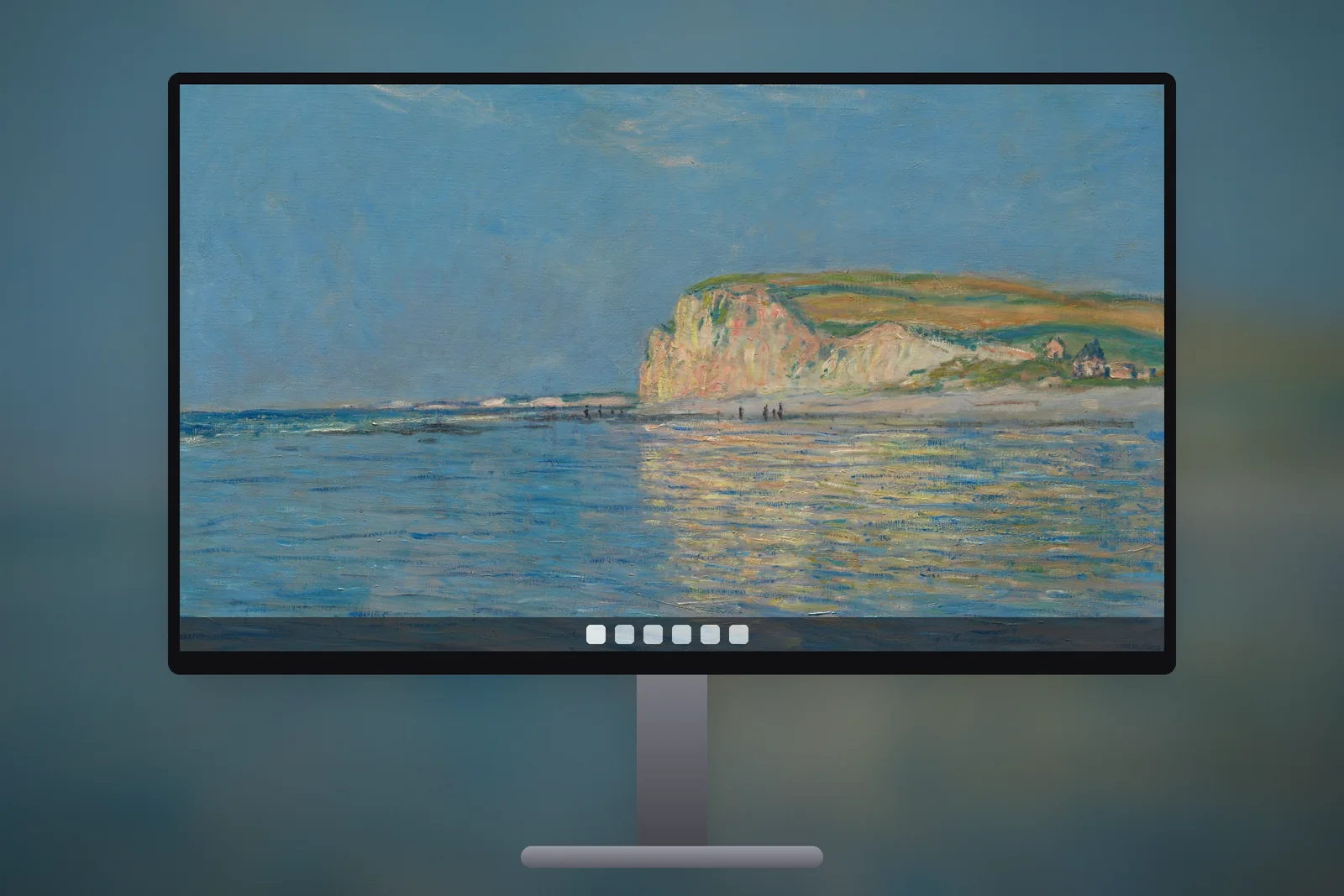
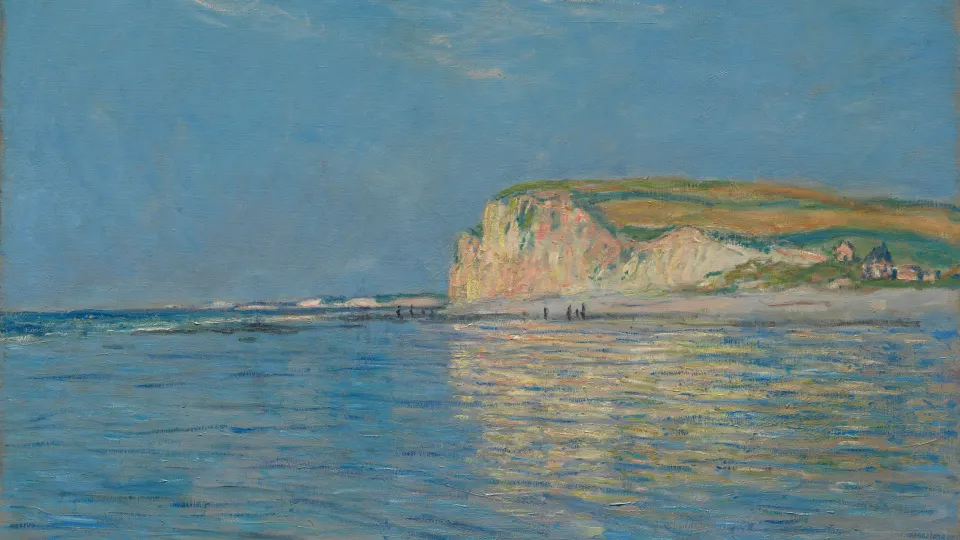
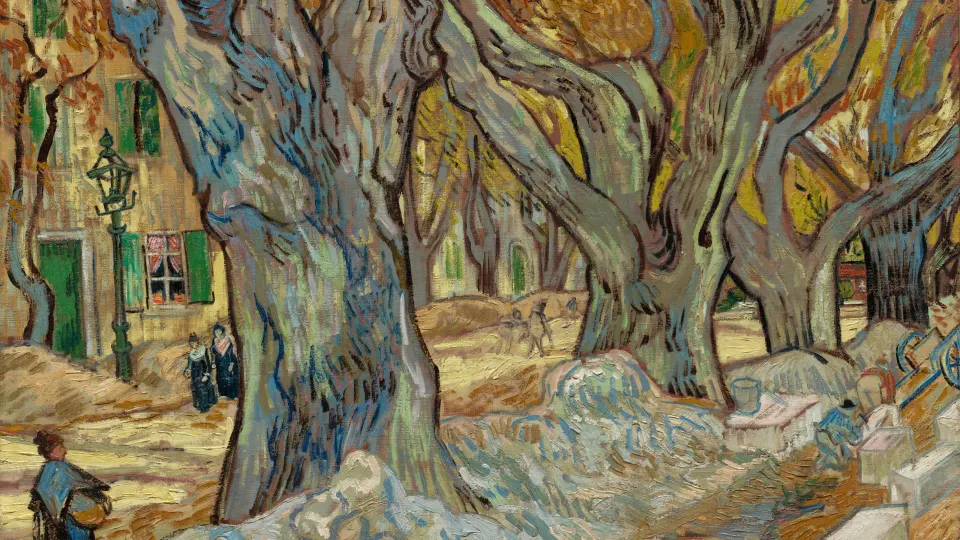
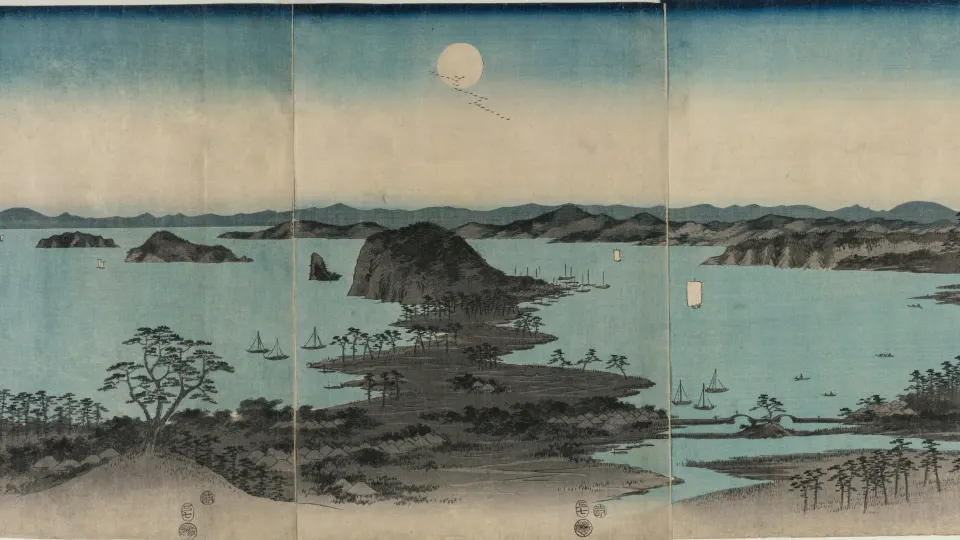
At around 90 PPI on a 24-inch monitor, very fine detail is lost, so pictures with clear shapes and broad areas of colour work best. Landscapes with a strong horizon, calm water, misty forests and gradients all hold up well. Busy scenes with tiny repeated detail can look noisy behind desktop icons.
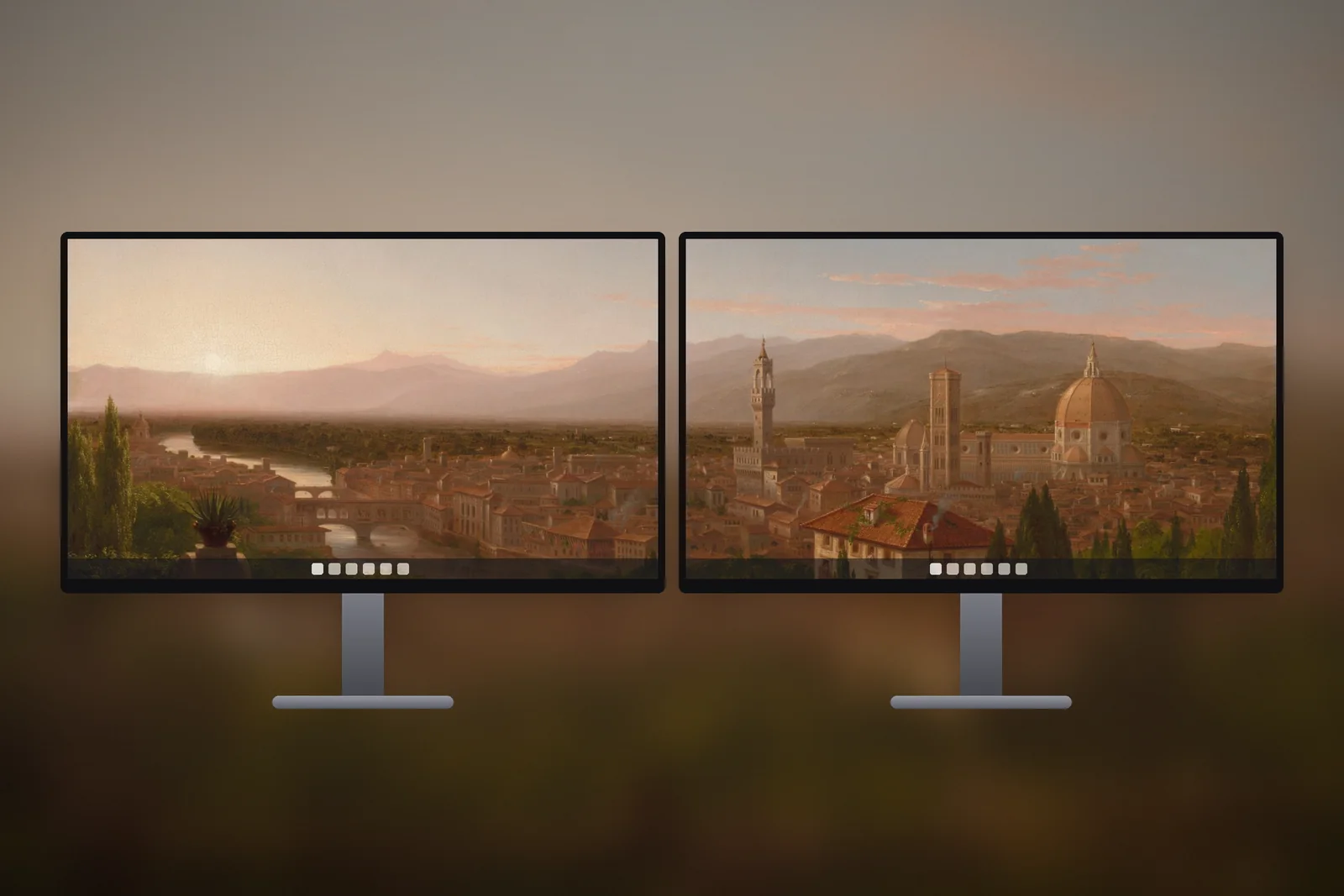
- Keep the left side calm if you use desktop icons: Windows lines them up from the top-left corner.
- Leave the bottom edge plain: the taskbar sits across it and hides any detail there.
- Mid-tone and darker images make white icon labels easier to read.
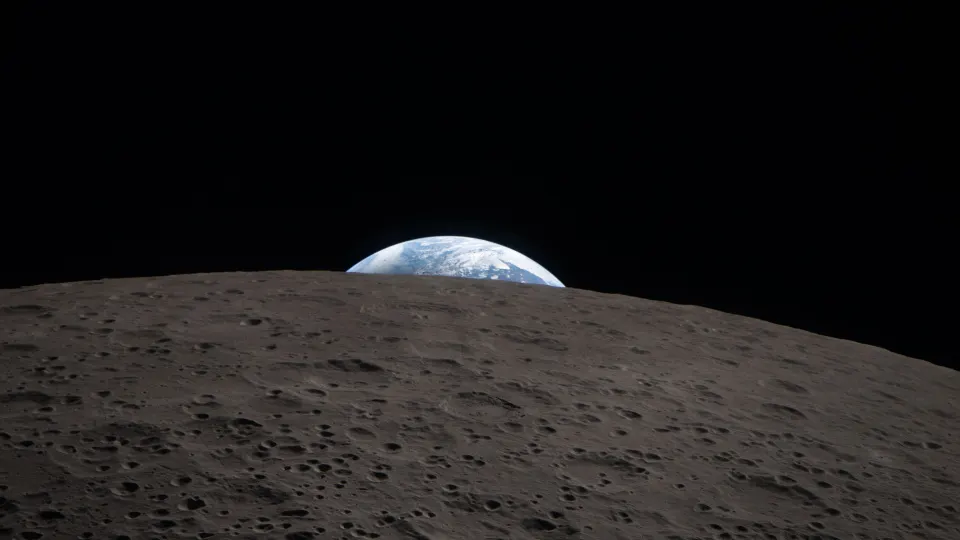
On iPhonesWallpaper, every PC wallpaper is cut to seven exact screen sizes, including Full HD 1080p, WUXGA 1920 × 1200 and 4K UHD, so you can download the one that matches your screen. Browse the full set in the PC wallpaper section, or try the space wallpapers for PC for dark scenes that keep icons readable.



Read next: 2560x1440 Wallpaper: QHD Sizes for 1440p and Gaming Monitors and Wallpaper Resolution Guide: What Size Do You Need?.
Quick answers
What size is a 1080p wallpaper?
A 1080p wallpaper is 1920 × 1080 pixels, a 16:9 aspect ratio. It fills a Full HD monitor or laptop screen exactly with no cropping.
Can I use a 4K wallpaper on a 1920x1080 screen?
Yes. A 3840 × 2160 image is exactly twice the size of Full HD in each direction, so Windows scales it down cleanly and it looks sharp. The file is just larger.
What wallpaper size is best for a full HD laptop?
Check Settings → System → Display first. Use a 1920 × 1080 file if it says 1080, or a 1920 × 1200 file if it says 1200, which is common on newer 16:10 laptops.
Why does my 1920x1080 wallpaper look blurry?
Usually the display resolution is set below the screen’s native one, or the image itself is smaller than 1920 × 1080 and was enlarged. Pick the resolution marked “(Recommended)” and use a file at least as large as the screen.
Will a 1920x1080 wallpaper fit a 1366x768 laptop?
Yes. Both are 16:9, so Windows shrinks the 1080p image to about 71 percent with no cropping, and it stays sharp. The 1366 × 768 file is smaller to download but looks the same.
Is a 1080p wallpaper sharp enough for a 27-inch monitor?
Only if the monitor is itself 1920 × 1080. Most 27-inch monitors are 2560 × 1440, where a 1080p image is enlarged by a third and looks soft; use the QHD or 4K file there.