Depth Effect is the iPhone Lock Screen feature that places the main subject of your wallpaper in front of the clock, so a mountain peak, a person or a pet appears to overlap the time. You switch it on from the "…" (More) button in the Lock Screen editor, and it only works when iOS can find a clear subject in the right place.
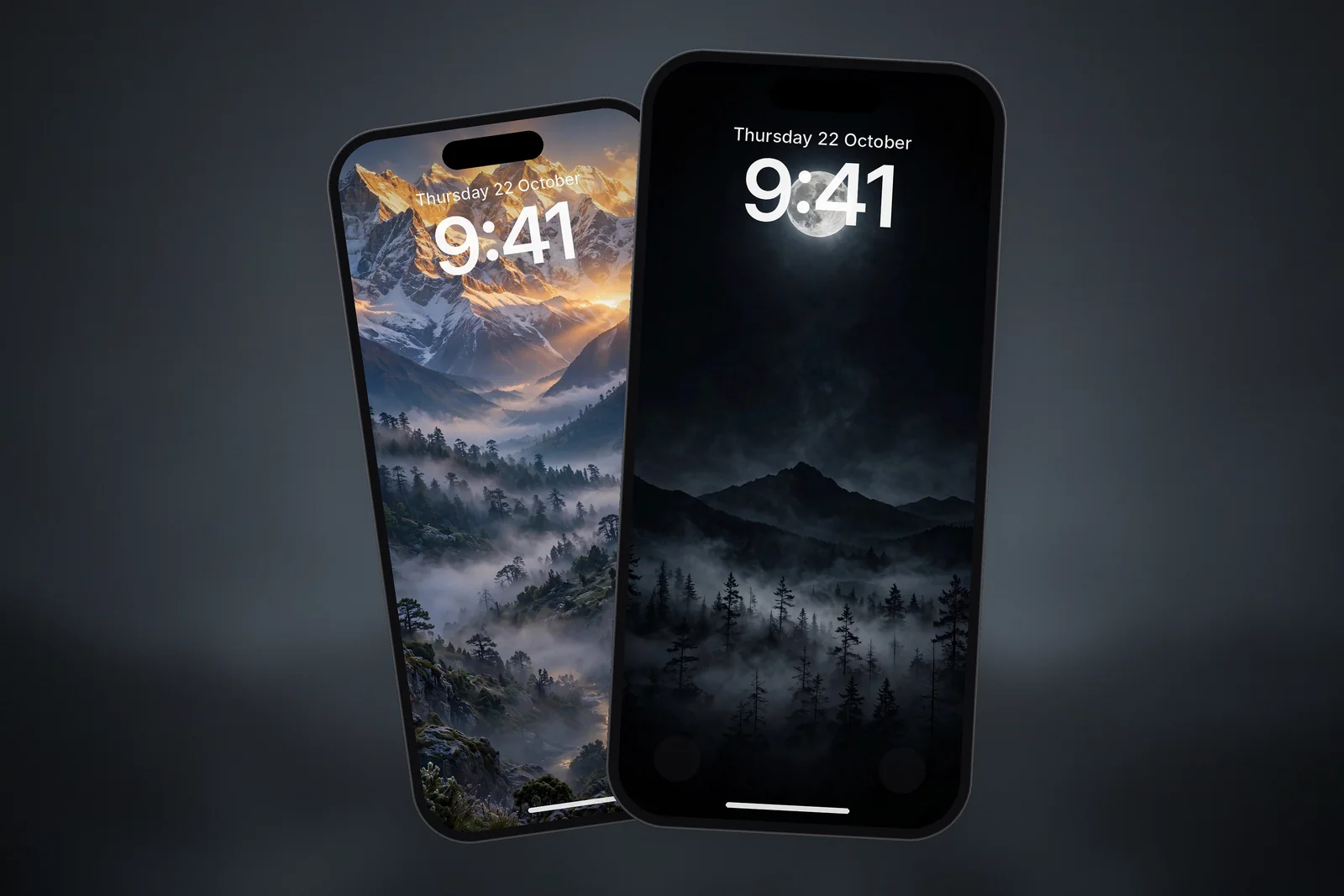
It arrived with the customisable Lock Screen in iOS 16 and has been part of the editor ever since. Here is how to use it and what to do when it refuses to cooperate.
In short
- Turn it on: touch and hold the Lock Screen, tap Customise, then tap the Depth Effect button or the … (More) button and choose Depth Effect.
- It needs a photo that supports layering; Apple's examples are images with people, pets or the sky.
- Frame the photo so the top of the subject just overlaps the bottom of the time. Apple says layering may not be available if the subject is too high, too low or would cover too much of the clock.
- On iPhone 12 and later, a spatial scene is a separate 3D effect that can work on photos where Depth Effect doesn't.
What does Depth Effect actually do?
When you pick a photo, iOS analyses it and separates the foreground subject from the background. With Depth Effect on, the clock is drawn between those two layers: the background sits behind the numbers and the subject sits on top. The result looks like the picture has real depth, rather than having the time stamped across it.
The effect only applies to the Lock Screen. Your Home Screen shows the wallpaper normally, and the subject only covers part of the clock so the time stays readable. If iOS thinks too much of the clock would be hidden, it will move the subject behind the time or switch the effect off.
How do I turn on Depth Effect?
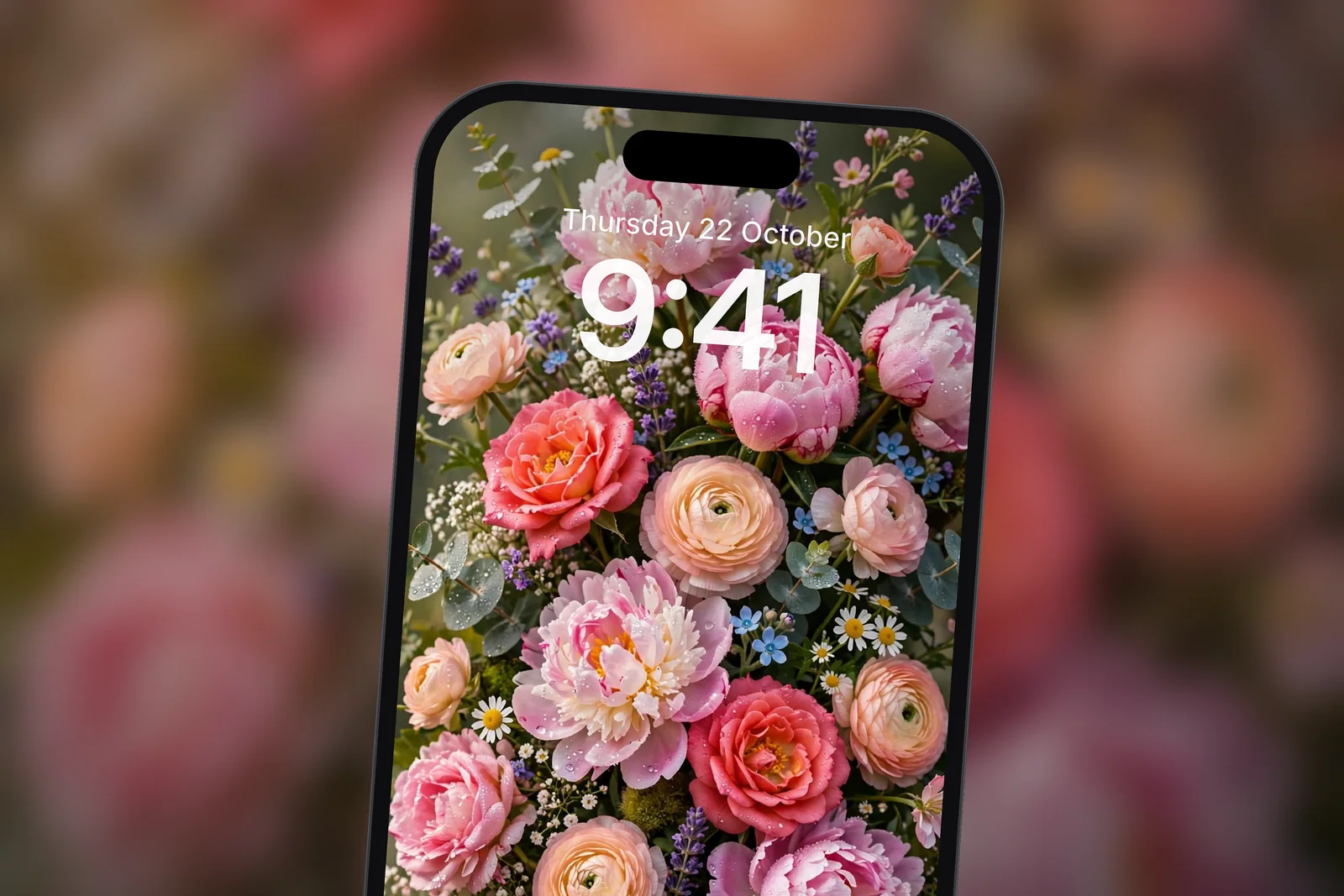
- Long-press the Lock Screen and tap Customise, or tap + to create a new Lock Screen.
- Choose Photos and pick a picture with a clear subject near the top half of the frame.
- Pinch and drag so the top of the subject sits just over the bottom of the clock.
- Tap the Depth Effect button if it appears, or tap the "…" (More) button and select Depth Effect so it has a tick.
- Tap Done (or Add for a new wallpaper) and lock the phone to check the result.
You can also start from Settings → Wallpaper → Add New Wallpaper → Photos. If you are new to the editor, our guide to setting a wallpaper on iPhone walks through every screen.
Why Depth Effect is greyed out or not working
If the option is greyed out, missing its tick, or simply does nothing, one of these is usually the reason:
- Widgets are in the way. The widget row sits right where the subject needs to rise into the clock. If the effect won't switch on, remove the widgets and try again.
- No clear subject. Abstract patterns, textures, flat gradients and busy scenes give iOS nothing to cut out. The option may stay available but nothing visibly changes.
- The subject is in the wrong place. If the subject is too low, it never reaches the clock. If it is too high or too large, it would hide most of the time, so iOS puts it behind instead.
- You zoomed in too far. Heavy zooming can push the subject off the area iOS needs, or cut it awkwardly. Pinch out and reframe.
- The clock takes up too much room. A very large clock leaves less space for the overlap. Try a smaller size or a different style in the clock editor.
What kind of picture works best for Depth Effect?
Depth Effect works best with a simple rule: one obvious subject, a clean background, and the subject's top edge close to where the clock sits. Contrast helps iOS find the edges, so a dark mountain against a bright sky, or a bright moon against a dark sky, separates far more reliably than a soft pastel scene.
| Works well | Works poorly |
|---|---|
| Single mountain peak against open sky | Flat gradients and solid colours |
| Person or pet photographed against a plain wall | Repeating patterns and textures |
| Tree, tower or building with clear edges | Crowded street scenes |
| Planet or moon with a dark background | Very low-contrast, misty shots |
| Flowers framed close with blurred background | Landscape photos zoomed in heavily |
Resolution matters too. iOS needs to see clean edges to cut the subject out, and a blurry or compressed picture gives it fuzzy outlines. A sharp file at your exact screen size, or a 2160 × 3840 4K version, gives the cleanest cut. The 4K universal wallpapers are a good fit for this, because you can zoom slightly to position the subject and still keep detail.
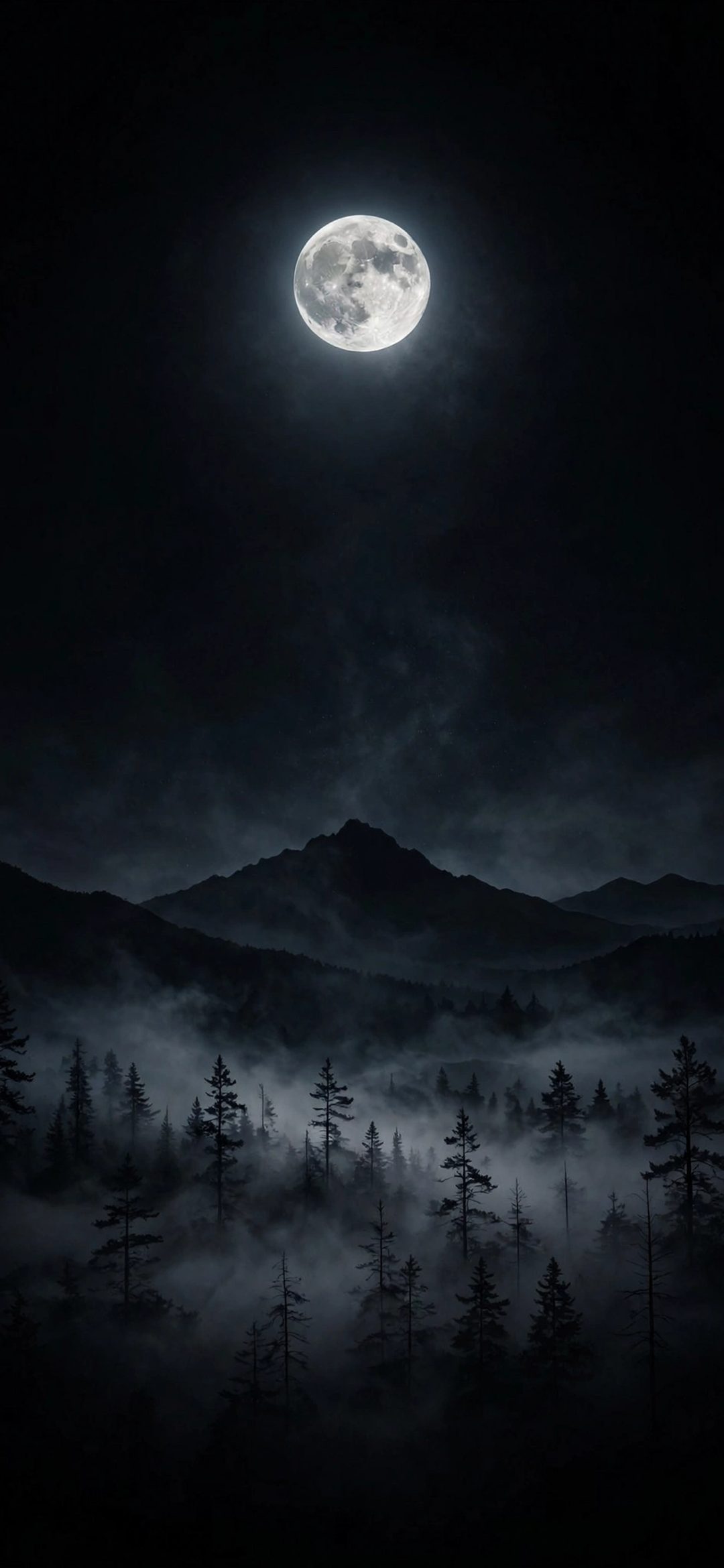
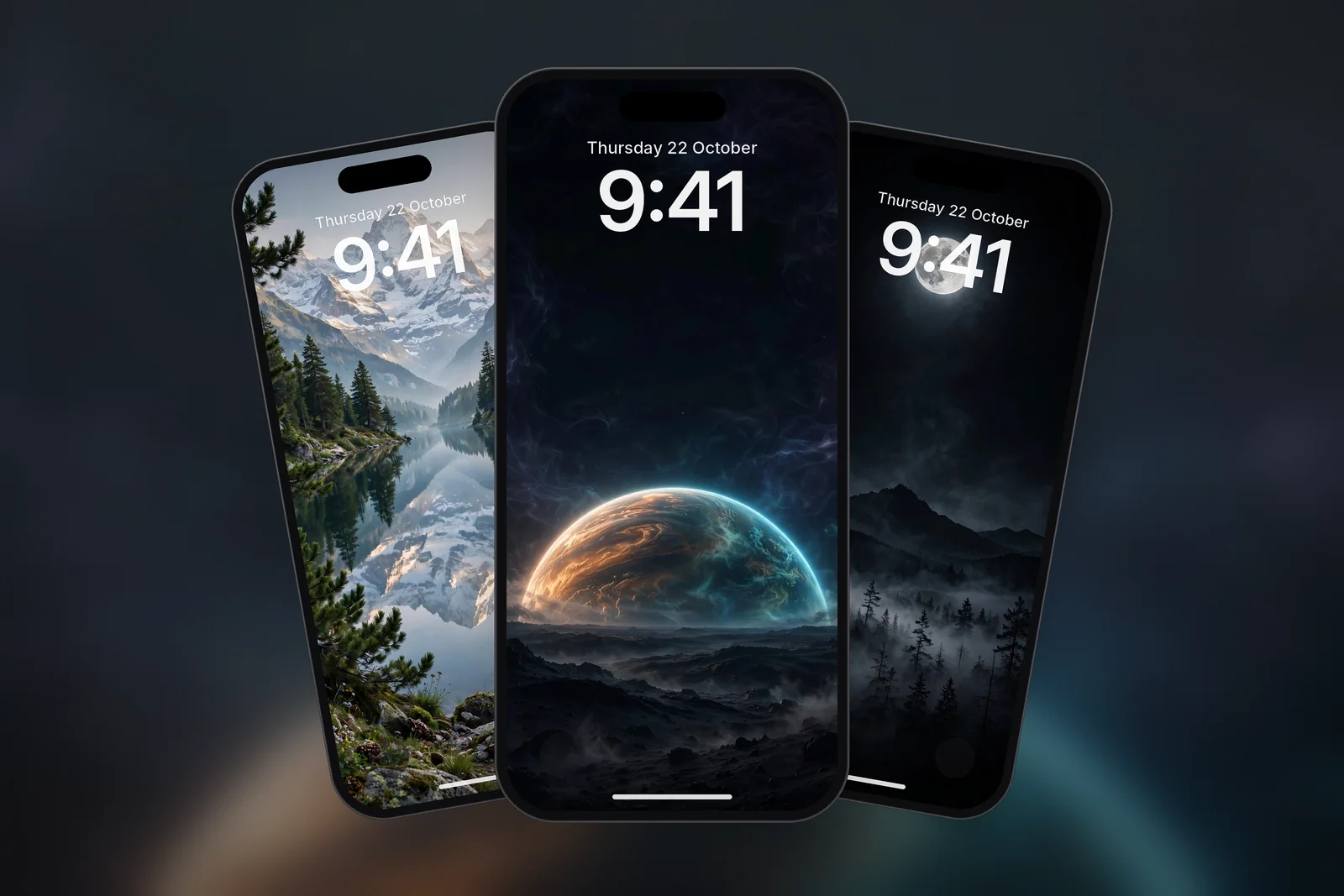
 Full Moon Over Misty Pine Forest Mountain
 Himalayan Snow Peaks Sunrise Valley
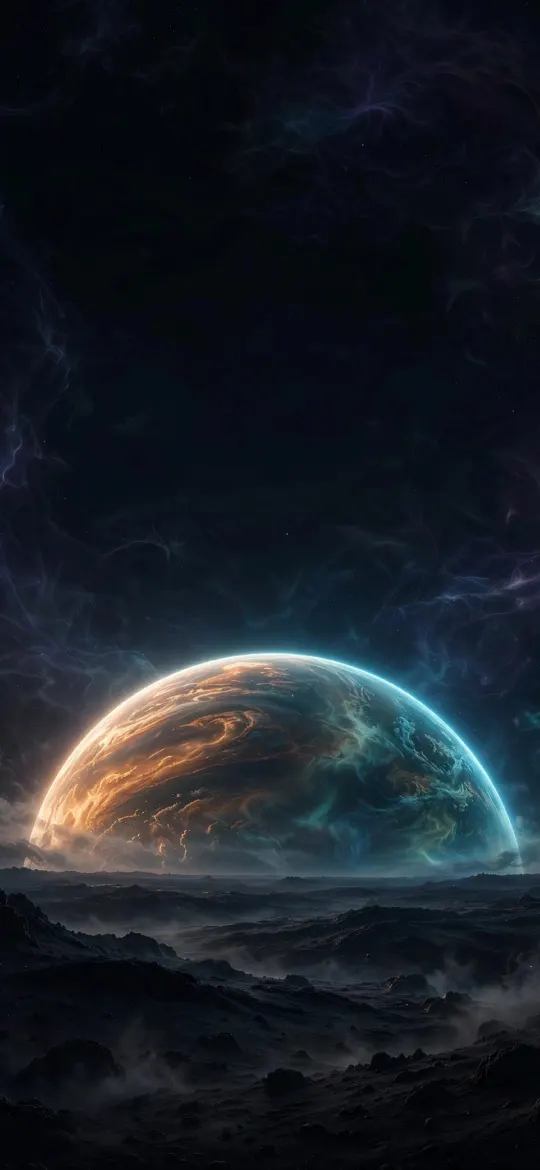 Massive Planet Rising Cosmic Horizon
 Alpine Mountain Lake Reflection & Pine Forest
 Elegant Pink Peonies & Roses Floral Bouquet
Mountain shots are the easiest place to start, since the peak naturally rises into the clock area. Browse wallpapers tagged mountains or the wider nature category and try a few in the editor.
Depth Effect and Photo Shuffle
With Photo Shuffle, each photo in the set is different, so iOS can only layer the ones where it finds a usable subject in the right place. In a shuffle of ten pictures, you may see the layered clock on some of them and a normal clock on the rest. That is expected behaviour, not a fault. If you want the effect every time, choose photos manually and pick ones with a strong, centred subject.
Read next: iPhone Wallpaper Not Fitting the Screen? Why and How to Fix It and Home Screen Wallpaper Ideas That Keep Your Apps Readable.
Quick answers
Why is Depth Effect greyed out on my iPhone?
Usually because widgets are placed under the clock, or iOS can't find a clear subject in the photo. Remove the widgets, choose a picture with one obvious subject and reframe it so the top of the subject meets the clock.
Can I use Depth Effect with widgets?
Sometimes, but widgets sit exactly where the subject needs to overlap the clock. If the effect switches off or does nothing, remove the widget row; leaving it empty gives the most reliable result.
Do I need a special depth effect wallpaper in 4K?
No special file is needed. Any sharp photo with a clear subject works. A 4K or exact-size image simply gives iOS cleaner edges to cut out, which makes the effect look neater.
What is the difference between Depth Effect and a spatial scene?
Depth Effect puts the subject of a photo in front of the clock. A spatial scene, on iPhone 12 or later with iOS 26 or later, turns an eligible photo into a 3D wallpaper on the Lock Screen; turn it on with the Spatial Scene button while customising.
Which photos support Depth Effect on iPhone?
Photos with one clear subject: Apple's examples are people, pets and the sky. Mountains, trees and the moon against a plain background also separate well; flat patterns and gradients don't.
Sources
- Create a custom iPhone Lock Screen, Apple Support
- Create a custom iPhone Lock Screen (iOS 16), Apple Support
- Change your iPhone wallpaper, Apple Support