On iPhone, you can link a Lock Screen and its Home Screen to a Focus so the wallpaper switches when that Focus turns on. Long-press the Lock Screen, swipe to the wallpaper you want, tap the Focus button at the bottom and choose a Focus such as Work, Sleep or Personal. When the Focus ends, the iPhone returns to your usual wallpaper.
In short
- A Lock Screen can be linked to a Focus from the Lock Screen gallery: long-press → Focus button → pick a Focus.
- The link also works the other way: Settings → Focus → choose a Focus, then choose the Lock Screen (or Home Screen page) to switch to.
- Each Focus can also show a chosen Home Screen page set, so work apps only appear during Work.
- A linked Focus that turns on by schedule, location or app is the most common reason an iPhone wallpaper changes by itself.
- To stop the switching, tap the Focus button on that Lock Screen and deselect the Focus.
What is a Focus on iPhone?
A Focus is a profile on iPhone that filters notifications and calls for a set time or activity, for example Work, Sleep, Personal, Driving or Do Not Disturb. Since iOS 16, a Focus can also change what the iPhone looks like: which Lock Screen is shown, which Home Screen pages appear and which widgets are visible.
That makes a Focus a simple way to have different wallpapers for different parts of the day without changing them by hand.
How do I link a wallpaper to a Focus?
You link a wallpaper to a Focus from the Lock Screen gallery, and it takes about ten seconds.
- Unlock with Face ID or Touch ID and stay on the Lock Screen.
- Touch and hold the Lock Screen to open the gallery.
- Swipe to the Lock Screen you want to use, or tap + to create a new one.
- Tap the Focus button at the bottom of that Lock Screen preview.
- Choose the Focus to link, then tap the Close button.
- Tap the Lock Screen to make it current.
The Home Screen paired with that Lock Screen switches too. To also limit which Home Screen pages appear, go to Settings → Focus, choose the Focus, then choose the Home Screen page you want to switch to while it is on.
Practical Focus wallpaper setups
The best setups give each Focus a wallpaper that matches the mood and a widget set that matches the task. Here are three that work well day to day:
| Focus | Wallpaper style | Widgets that help | How it turns on |
|---|---|---|---|
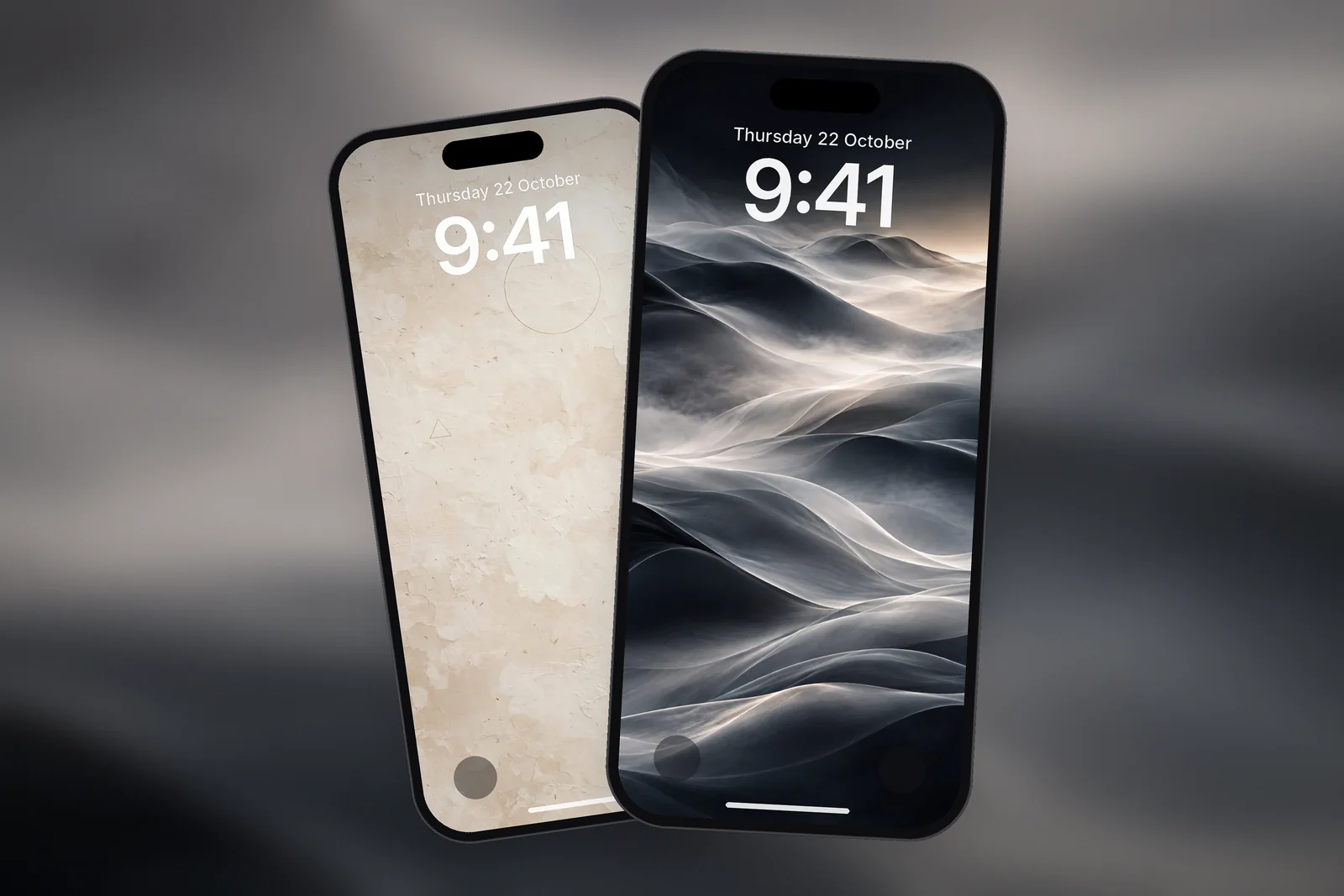
| Work | Calm, low-detail gradient or texture | Calendar (rectangular), Reminders, battery | Schedule (e.g. 9:00 to 17:30) or arriving at work |
| Sleep | True black or a dark night sky | Alarm, weather; keep it minimal | Your sleep schedule (set in the Health app) |
| Personal | A favourite photo, landscape or colour | Weather, activity rings, music | Manually from Control Centre or on weekends |
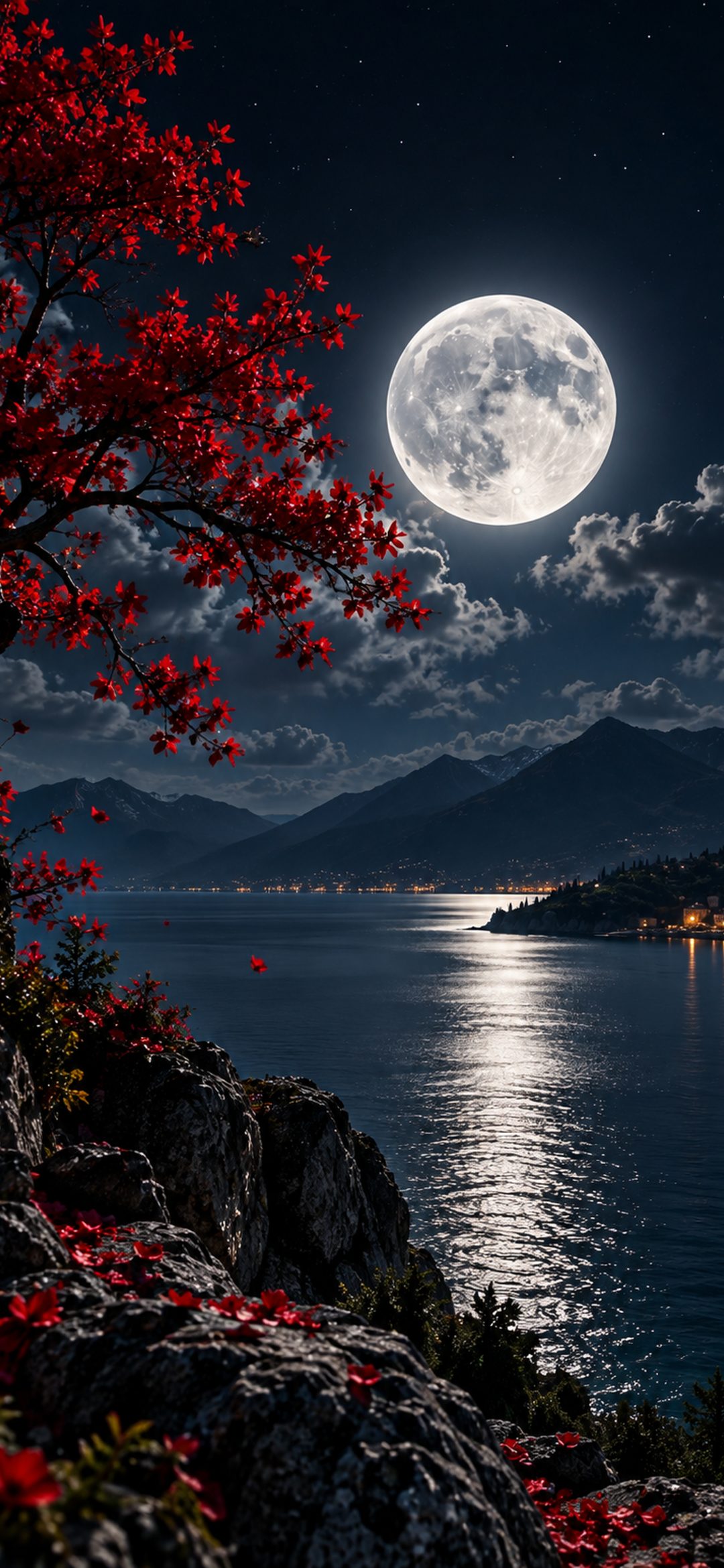
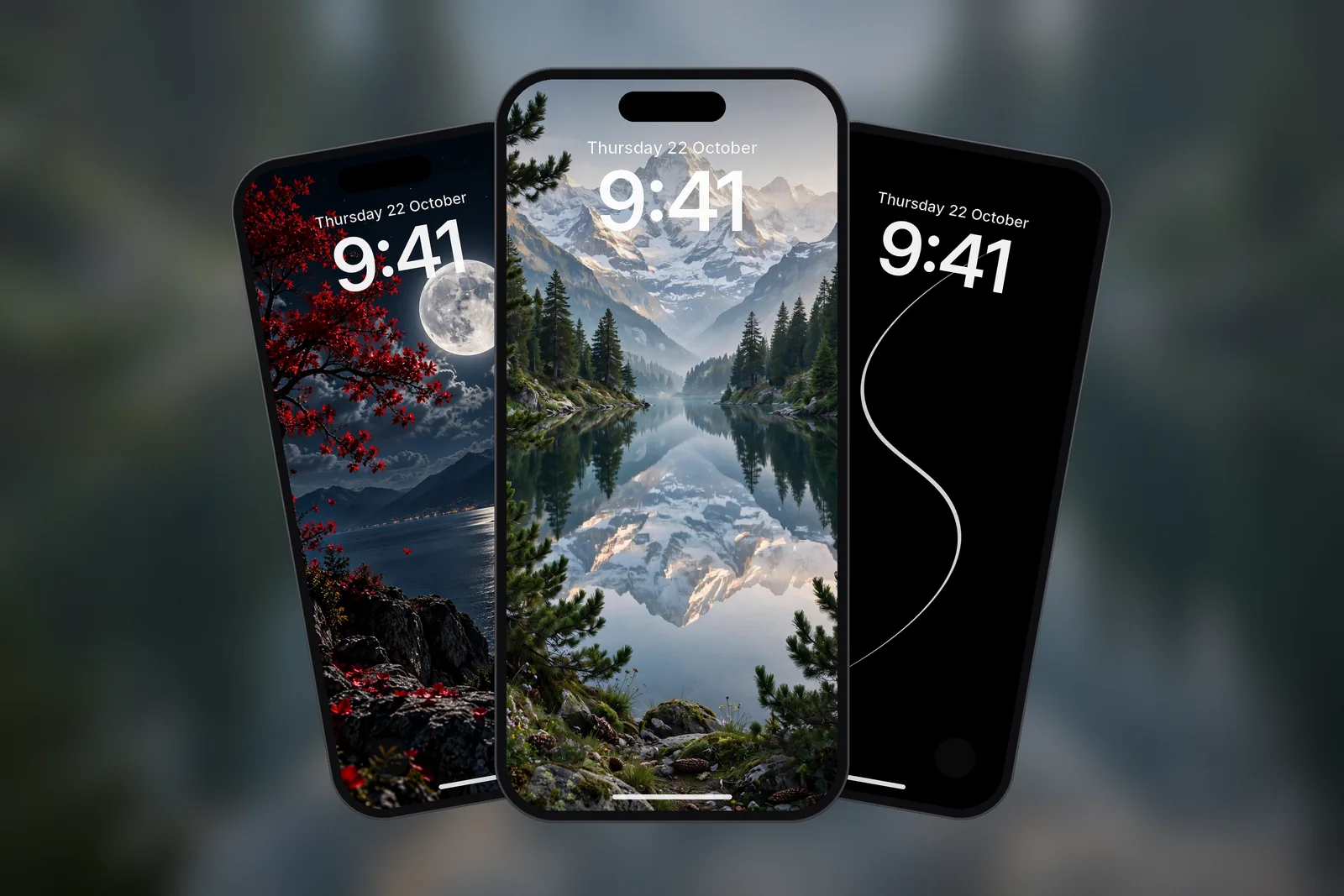
For Sleep, a near-black wallpaper is easy on the eyes at night and on OLED iPhones the black pixels are switched off. Our post on true-black iPhone wallpapers has more options, and the dark category holds night skies and moonlit scenes.
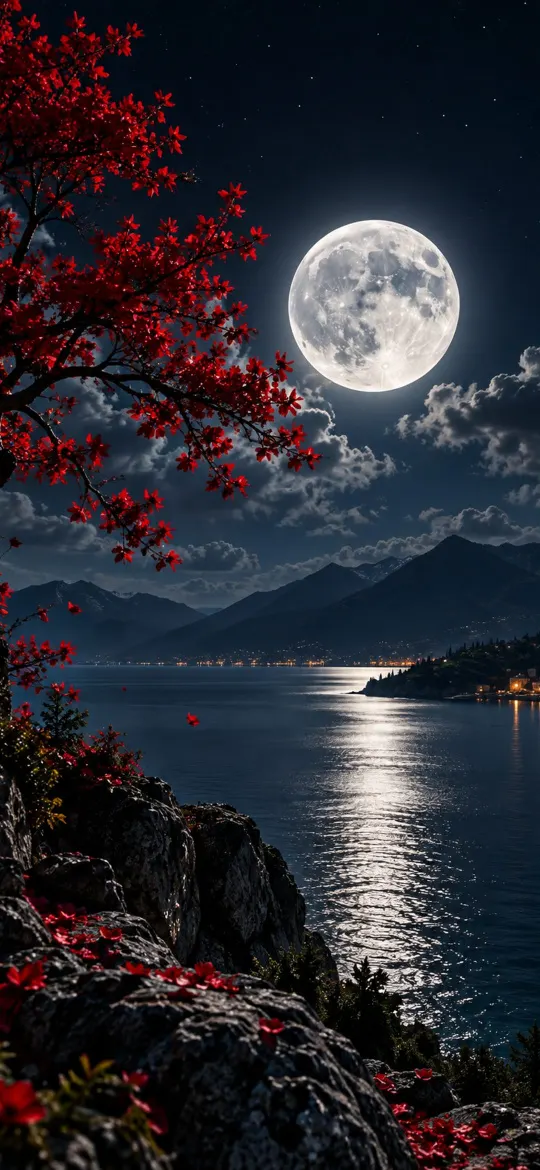 Moonlit Lake 4K Wallpaper – Full Moon Night Landscape
 Minimal S-Curve Glowing White Line OLED
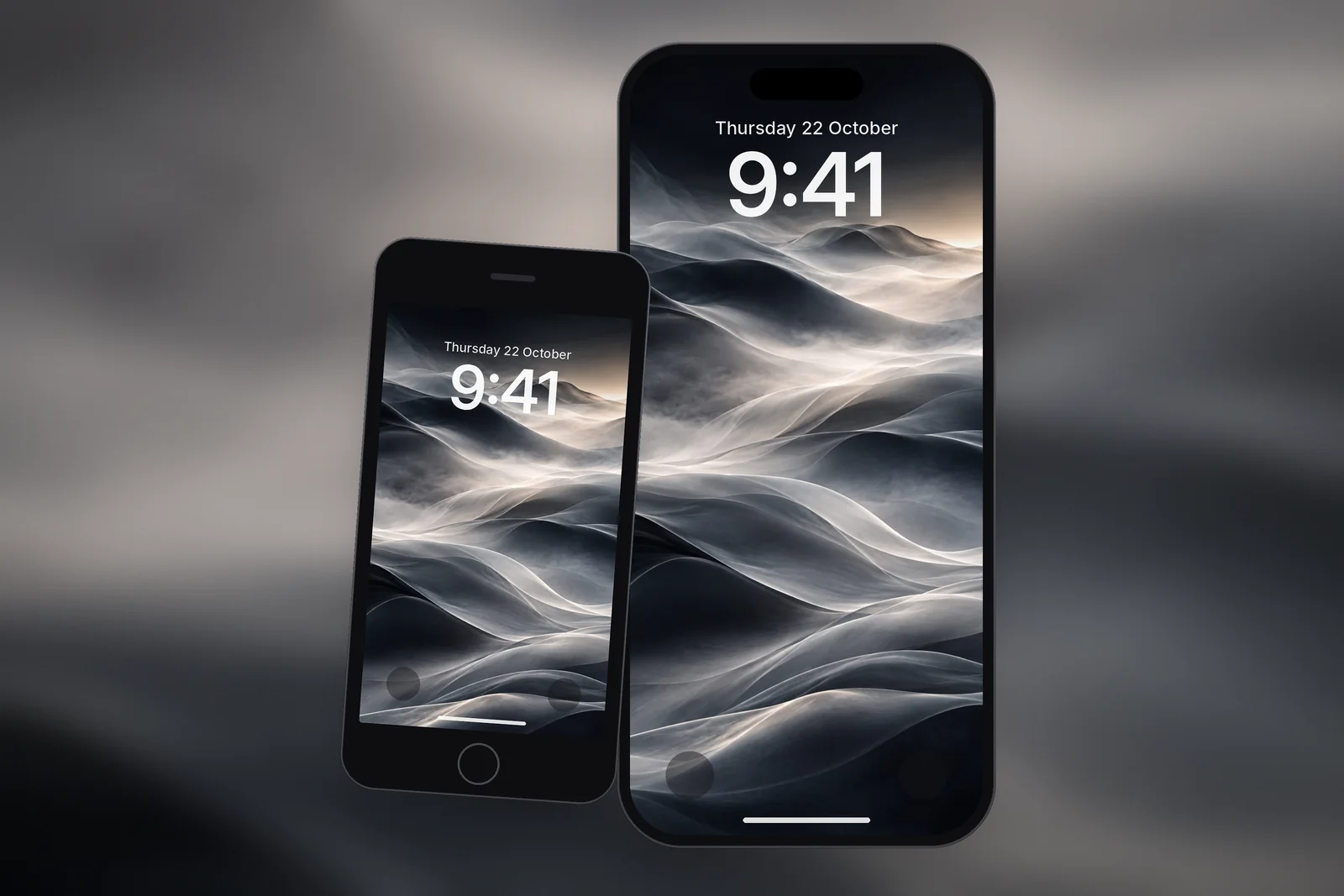
 Minimal Fog
 Wabi Sabi Beige Textured Minimal
 Alpine Mountain Lake Reflection & Pine Forest
On iPhonesWallpaper, every iPhone wallpaper is cut to 15 exact iPhone screen sizes plus a universal 4K file, so each Focus wallpaper fits your model without zooming. If you need the steps for saving and setting a download, see how to set a wallpaper on iPhone.
Why is my iPhone wallpaper changing by itself?
An iPhone wallpaper that changes on its own is almost always caused by a linked Focus or by Photo Shuffle. The table below shows how to tell them apart.
| What you see | Cause | Where to check |
|---|---|---|
| Wallpaper switches at the same time each day | A Focus with a schedule is linked to a Lock Screen | Settings → Focus → the Focus → its schedules (Add Schedule) |
| Wallpaper switches when you arrive at work or home | A Focus turns on by location | Settings → Focus → the Focus → its location schedule |
| Wallpaper switches at bedtime | Sleep Focus from your sleep schedule | Settings → Focus → Sleep |
| A different photo each time you lock or tap | Photo Shuffle is set to On Tap, On Lock, Hourly or Daily | Long-press the Lock Screen → Customise |
| Shared Focus on iPad or Mac switched your iPhone | Share Across Devices is on | Settings → Focus → Share Across Devices |
If Photo Shuffle is the cause, our guide to Photo Shuffle frequency and fixes explains each setting.
How do I stop a Focus from changing my wallpaper?
To stop the switching, unlink the Focus from the Lock Screen while keeping the Focus itself.
- Touch and hold the Lock Screen to open the gallery.
- Swipe to the Lock Screen that shows a Focus name at the bottom.
- Tap the Focus button and tap the selected Focus again to deselect it.
- Repeat for any other Lock Screen with a Focus label.
Your notification filters still work; only the wallpaper link is removed. You can also turn off a Focus schedule or Share Across Devices if you don't want the Focus itself switching on automatically.
Read next: Lock Screen Widgets on iPhone: Add, Remove and Fix Them and Photo Shuffle Wallpaper on iPhone: Setup, Frequency and Fixes.
Quick answers
Can each Focus have its own wallpaper on iPhone?
Yes. Each Focus can be linked to its own Lock Screen and paired Home Screen. Create one Lock Screen per Focus and link it with the Focus button in the gallery.
Why does my Lock Screen change at night?
The Sleep Focus is probably linked to a Lock Screen and turns on with your sleep schedule. Unlink it with the Focus button in the Lock Screen gallery.
How do I unlink a Lock Screen from a Focus?
Long-press the Lock Screen, swipe to the linked one, tap the Focus button and deselect the Focus. The Lock Screen stays saved and the Focus keeps working.
Does a Focus wallpaper work on the Home Screen too?
Yes. The Home Screen paired with the linked Lock Screen switches with it, and in Settings → Focus you can choose a Home Screen page to show only while that Focus is on.
Can a Focus make my Lock Screen darker?
Yes. In Settings → Focus, choose the Focus and tap Options; Apple lists a setting there to darken the Lock Screen while the Focus is on. It suits Sleep, together with a dark wallpaper.
Sources
- Set up a Focus on iPhone, Apple Support
- Create a custom iPhone Lock Screen, Apple Support
- Change your iPhone wallpaper, Apple Support