On iPhone, Lock Screen widgets are small live panels shown on the locked screen. You can place up to 4 small widgets (or 2 rectangular ones) in the row under the clock, plus one inline widget above the time. To add them, touch and hold the Lock Screen, tap Customise, tap Add Widgets, then tap or drag the widgets you want and tap Done.
In short
- Lock Screen widgets arrived with iOS 16 and sit in two places: one inline line above the clock and one row below it.
- The row under the clock holds up to 4 small widgets, 2 rectangular widgets, or a mix such as 1 rectangular plus 2 small.
- Add or remove them from touch and hold the Lock Screen → Customise → Add Widgets; tap the Remove button on a widget to make room.
- Widgets read best on a wallpaper that is calm and even in the top third of the screen, where the clock and widget row sit.
- If a widget is blank or missing, the usual causes are an app that doesn't offer a Lock Screen widget, Low Power Mode, missing location access or an app that needs updating.
What does "Lock Screen widget" mean?
A Lock Screen widget is a small, glanceable panel from an app that shows live information on the locked iPhone without opening anything. Think battery level, next calendar event, weather, air quality or a world clock. Many widgets are interactive: Apple's guide says you can perform tasks by tapping widgets on the Lock Screen, Home Screen or in StandBy, such as checking off a reminder. Others simply open their app.
They are different from Home Screen widgets. Lock Screen widgets are monochrome, tinted to match the clock, and much smaller. They also use a fixed set of shapes, which is why only a handful fit at once.
How many widgets fit on the iPhone Lock Screen?
The Lock Screen has room for one inline widget and one widget row of four "slots". A small (circular or square) widget takes one slot and a rectangular widget takes two. That gives you these combinations:
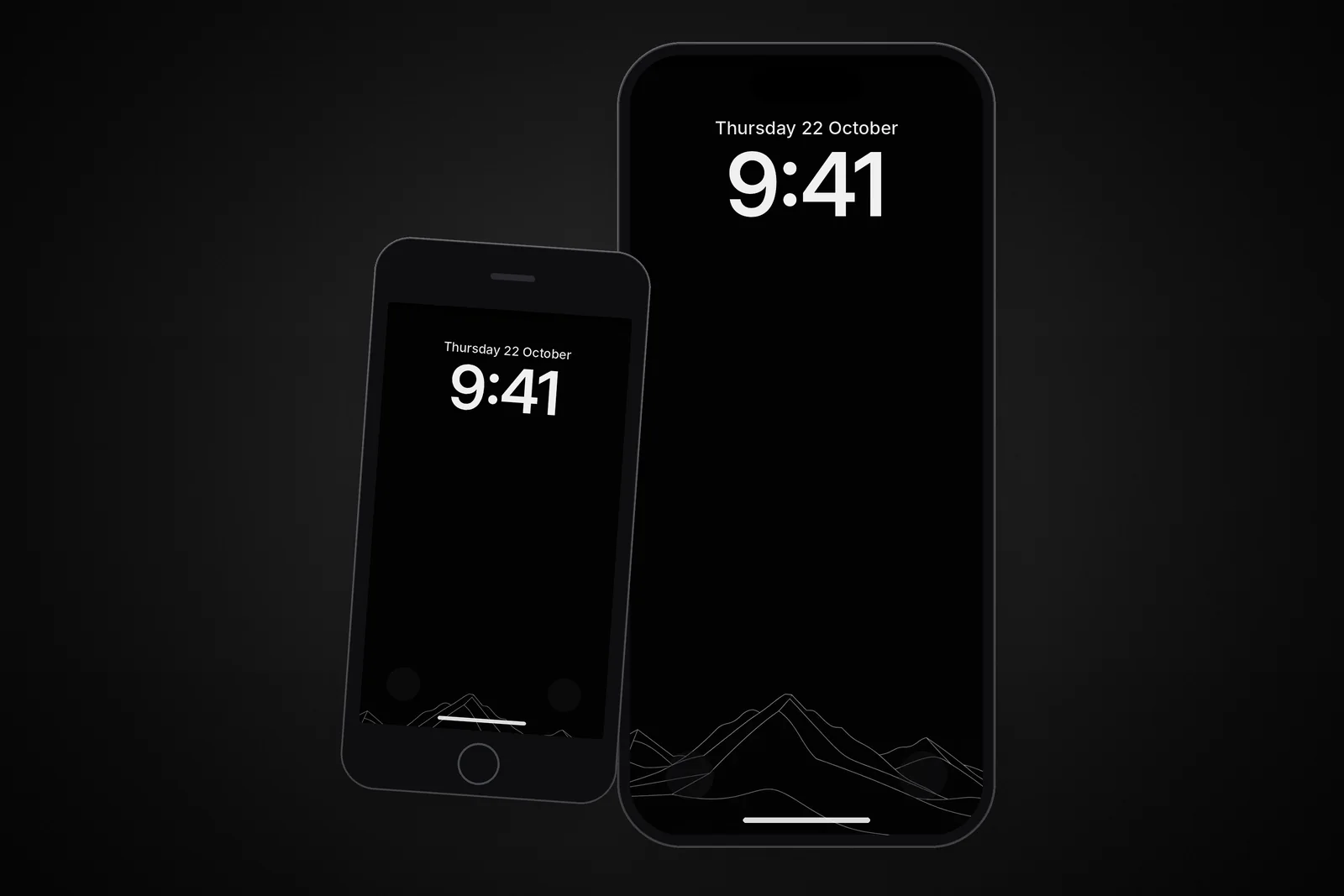
| Layout under the clock | Slots used | Good for |
|---|---|---|
| 4 small widgets | 4 of 4 | Battery, activity rings, alarm, weather temperature |
| 2 rectangular widgets | 4 of 4 | Calendar event plus weather forecast |
| 1 rectangular + 2 small | 4 of 4 | Next event plus battery and alarm |
| Inline widget above the clock | Separate line | Date with weather, next alarm or a reminder |
The inline widget replaces the date line above the time with a short text line, such as the date plus the temperature. You can't add a second row or move widgets lower on the screen.
How do I add widgets to the Lock Screen?
You add Lock Screen widgets from the Lock Screen editor, and the change takes effect as soon as you tap Done.
- Press the side button to wake the iPhone and unlock it with Face ID or Touch ID, but stay on the Lock Screen.
- Touch and hold the Lock Screen until the Customise button appears, then tap it.
- Choose Lock Screen (not Home Screen) if iOS asks which to edit.
- Tap Add Widgets (or your existing widgets), then tap or drag the widgets you want into the row under the clock.
- Tap the date line above the clock to choose the inline widget.
- When you're finished, swipe down on the widget list and tap Done.
To remove a widget, open the same editor, tap the widget row and tap the Remove button (a small minus) on the widget you no longer want. If there's not enough room for a new widget, Apple's advice is the same: remove one first to make space. Drag widgets to change their order.
Which wallpapers keep Lock Screen widgets readable?
Widgets stay readable on wallpapers that are calm and evenly toned behind the clock and widget row, roughly the top third of the screen. Busy detail, sharp edges or a mix of light and dark right behind the widgets makes the thin tinted text hard to read.
- Dark, low-detail tops: night skies, deep gradients and true-black designs keep white widgets crisp.
- Soft gradients: a smooth tone shift reads well with any widget colour.
- Subject low in the frame: a mountain, sun or object in the lower half leaves the top clear.
- Avoid Depth Effect clashes: Depth Effect only works when widgets don't cover the subject, so adding widgets often turns it off.
Our guide to choosing a Lock Screen wallpaper that keeps the clock readable goes further on contrast, and minimalist wallpapers that work with widgets covers layouts. The minimal category is a safe starting point. These four keep the top of the screen quiet:
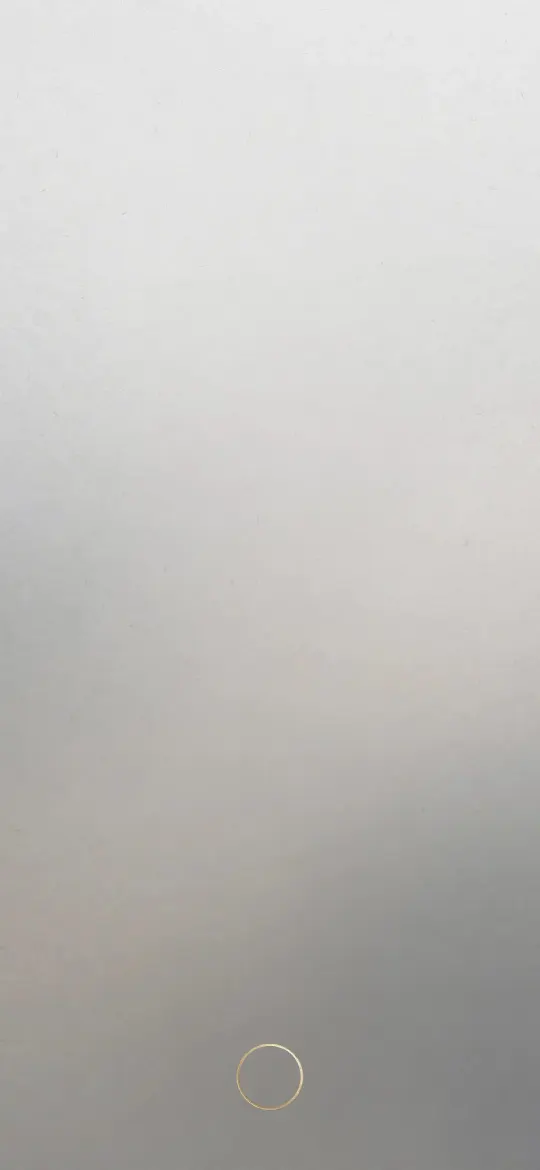 Minimal Zen Gray Gradient
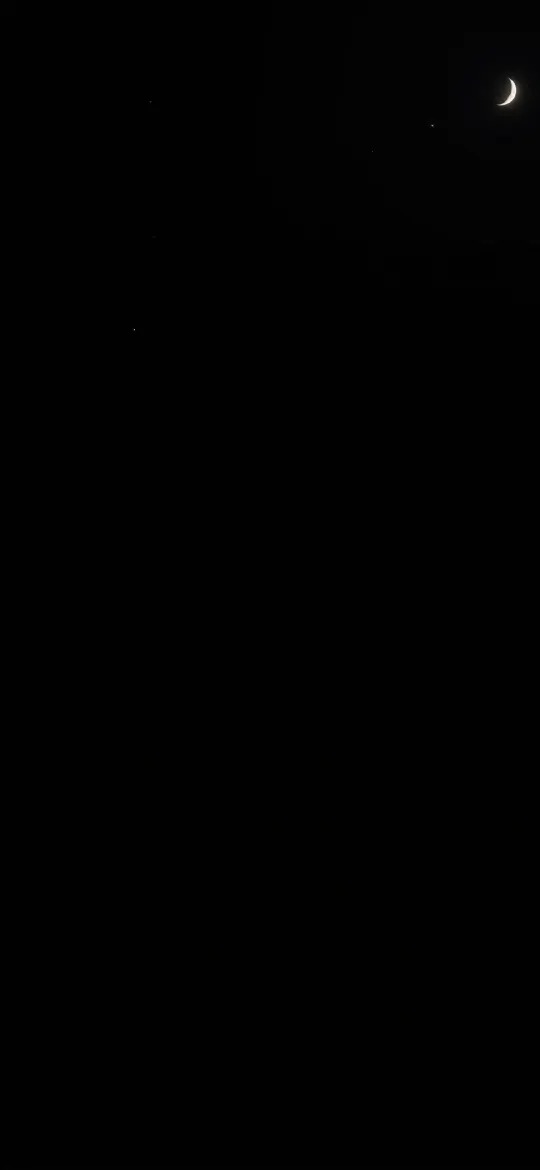 Dark Night Sky Crescent Moon & Tiny Stars
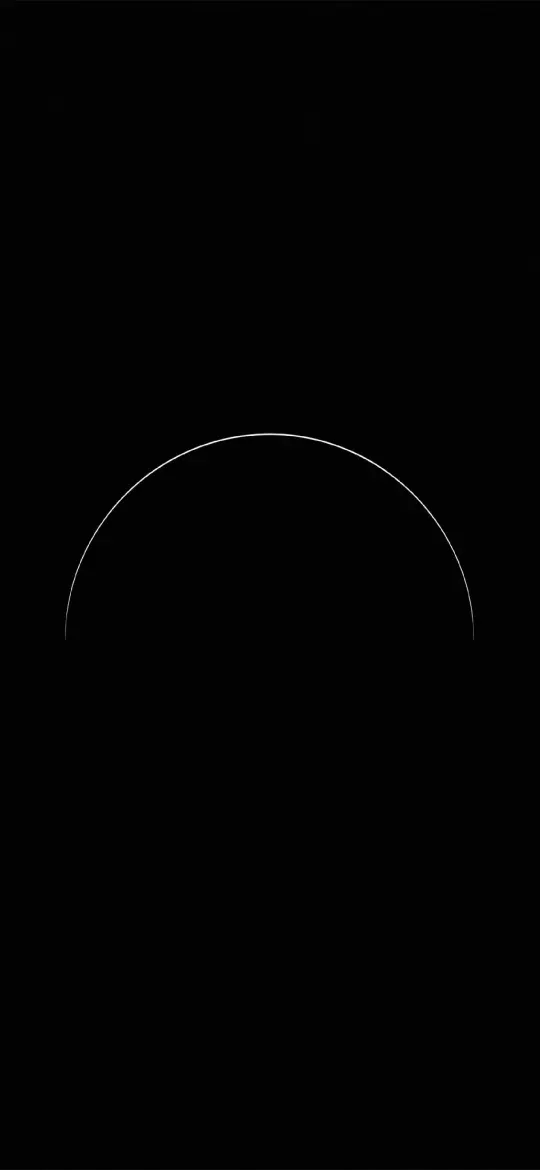 Pure Black OLED Minimal Arch
 Minimalist Wireframe Mountain Peaks Black
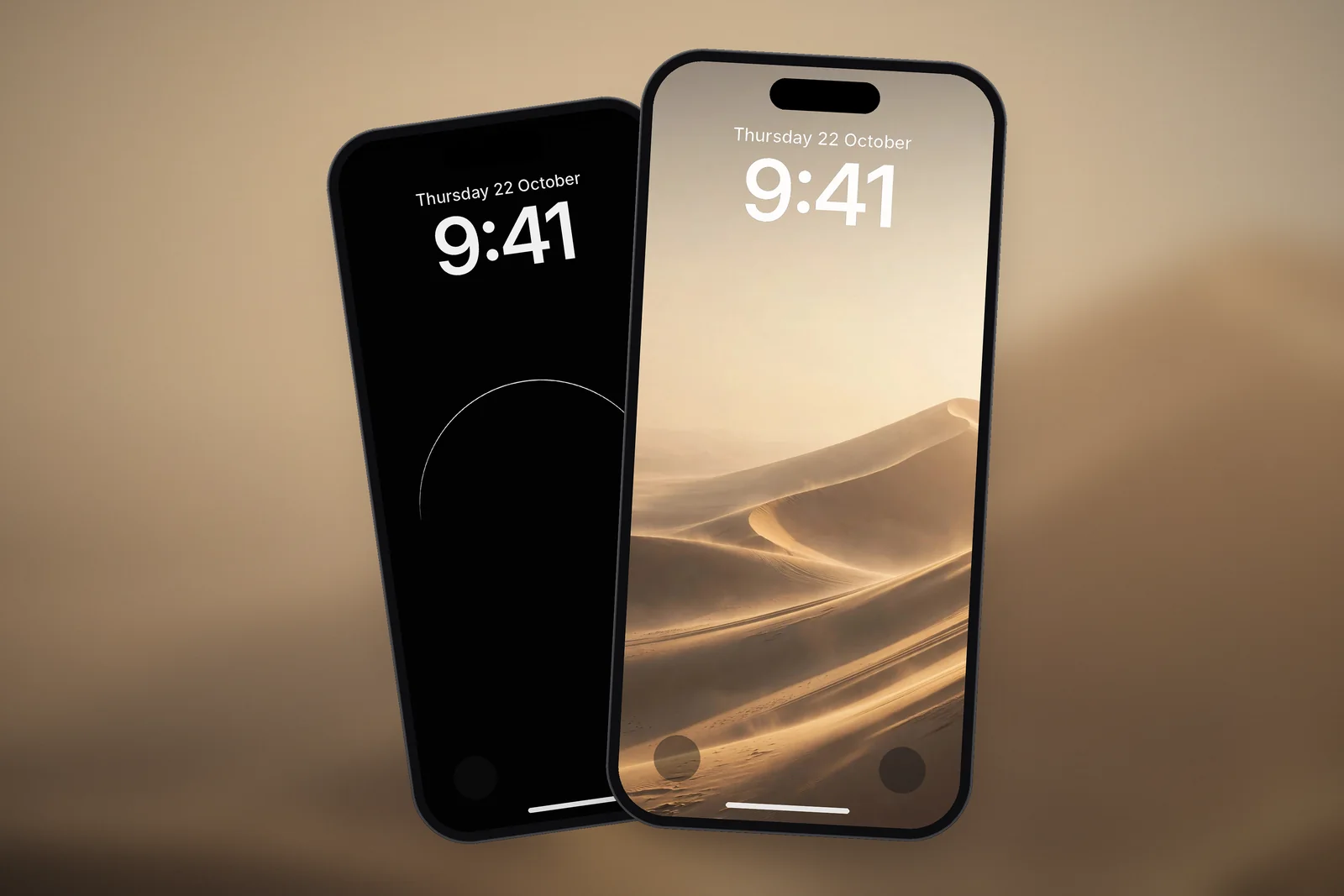
 Golden Hour Desert Dunes
On iPhonesWallpaper, every iPhone wallpaper is cut to 15 exact iPhone screen sizes plus a universal 4K file (2160 × 3840), so the empty space you see in the preview lands where the clock and widgets sit on your model. The iPhone wallpaper sizes guide lists every resolution.
Why are my Lock Screen widgets not working?
Lock Screen widgets usually fail for one of five reasons, and each has a quick fix.
| Symptom | Likely cause | Fix |
|---|---|---|
| An app is missing from the widget list | The app has no Lock Screen widget, or it needs an update | Update the app in the App Store, then check the list again |
| Widget shows dashes or old data | Low Power Mode or Background App Refresh is limiting updates | Turn off Low Power Mode; check Settings → General → Background App Refresh |
| Weather widget is blank | Weather has no location access | Allow location for Weather under Settings → Privacy & Security → Location Services |
| Widget hides details when locked | Privacy setting for that app's data | Unlock with Face ID to reveal it; this is expected for some apps |
| Widgets changed or disappeared | A different Lock Screen or a Focus is active | Long-press the Lock Screen and swipe back to the one you set up |
If none of these fit, restart the iPhone and re-add the widget: remove it in the editor, tap Done, then add it again. That clears most stuck widgets.
Read next: Focus Mode Wallpaper on iPhone: Link a Lock Screen to a Focus and Home Screen Wallpaper Ideas That Keep Your Apps Readable.
Quick answers
How many widgets can you put on the iPhone Lock Screen?
You can add up to 4 small widgets or 2 rectangular widgets in the row under the clock, plus one inline widget above the time.
Can I put Lock Screen widgets at the bottom of the screen?
No. On iPhone, Lock Screen widgets only go in the row under the clock and the inline line above it. The bottom corners hold two controls, the torch and camera by default, which you can swap for other controls in the editor.
Why can't I add widgets to my Lock Screen?
Check that you tapped Customise on the Lock Screen rather than the Home Screen, and that your iPhone runs iOS 16 or later. If the row is full, remove a widget first, and update apps that are missing from the list.
Do Lock Screen widgets drain the battery?
Very little. Widgets refresh on a schedule set by iOS, not constantly. Weather and location-based widgets use slightly more than a static battery or alarm widget.
Can I use Lock Screen widgets without unlocking?
Many are interactive: you can tap a widget to do a task, such as ticking off a reminder, right from the Lock Screen. Widgets that show private details may hide them until you unlock with Face ID or Touch ID.
Sources
- How to add and edit widgets on your iPhone, Apple Support
- Add, edit, and remove widgets on iPhone (iOS 27), Apple Support
- Create a custom iPhone Lock Screen (iOS 27), Apple Support