To change the wallpaper on an iPad, long-press the Lock Screen, tap + (or Customise), choose a photo and tap Add, then pick Set as Wallpaper Pair or Customise Home Screen. You can also go to Settings → Wallpaper → Add New Wallpaper. On iPadOS 17 and later both routes open the same Lock Screen editor used on iPhone.
In short
- Fastest route: unlock with Face ID or Touch ID but stay on the Lock Screen, long-press it, then tap + to add a new wallpaper.
- Settings route: Settings → Wallpaper → Add New Wallpaper → Photos → pick an image → Add.
- Home Screen only: Settings → Wallpaper → tap Customise under the Home Screen preview and choose a colour, Blur or another photo.
- The iPad wallpaper rotates with the device, so a square image (2360 × 2360 for an iPad Air 11-inch, for example) fits both portrait and landscape.
- The picker reads the Photos app, so save a downloaded image to Photos first.
How do I change the iPad Lock Screen wallpaper?
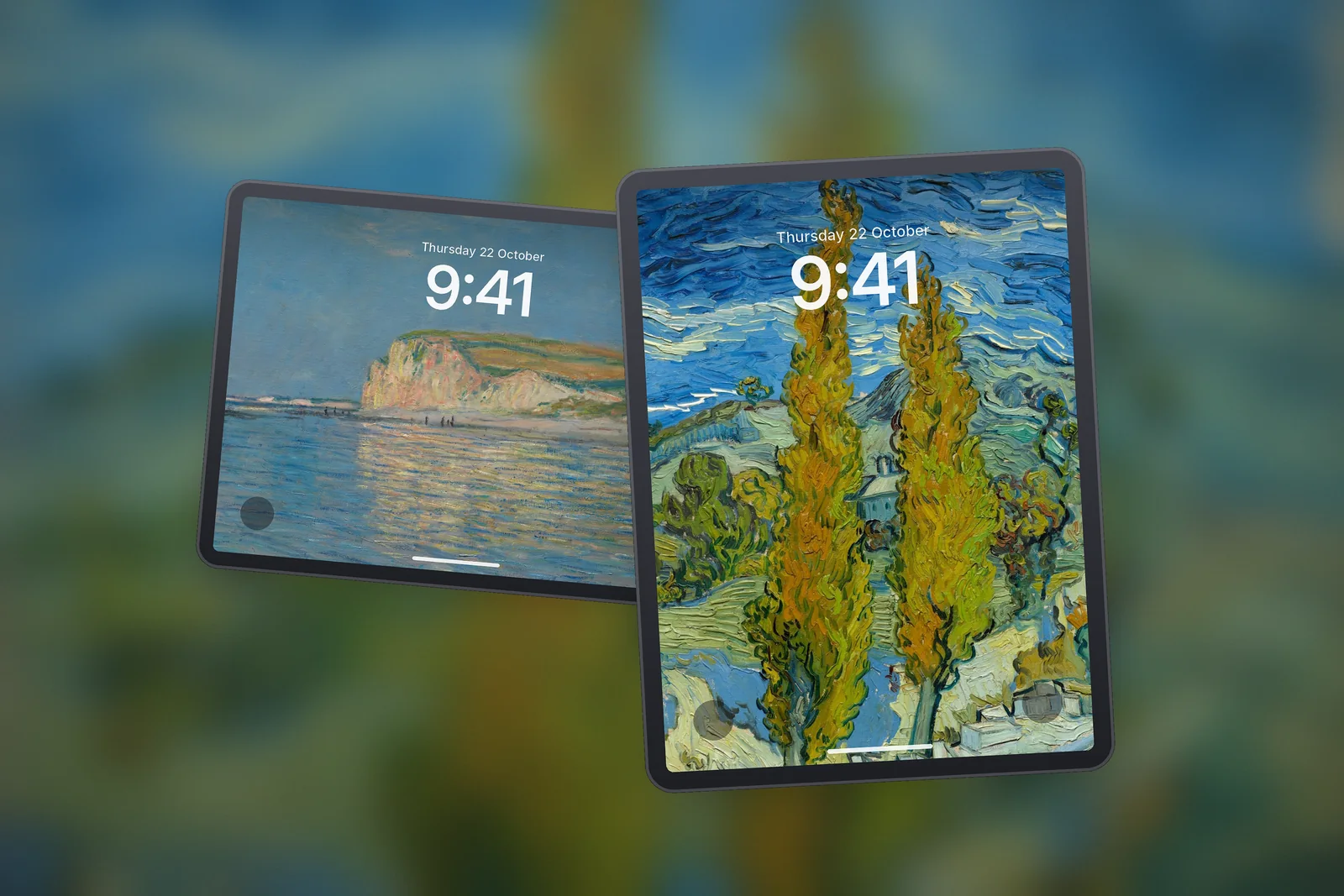
The Lock Screen editor is the quickest way, and it lets you keep several Lock Screens to switch between. The Lock Screen editor is the full-screen view where you choose the photo, clock style and widgets for the screen you see before unlocking.
- Wake the iPad and unlock it with Face ID or Touch ID, but do not swipe up.
- Touch and hold an empty part of the Lock Screen until the gallery of Lock Screens appears.
- Tap the + button to make a new one, or Customise to change the current one.
- Choose Photos, pick your picture, then pinch to zoom and drag to frame it.
- Tap Add (or Done), then choose Set as Wallpaper Pair to use the same picture behind your apps, or Customise Home Screen to change it.
If the + and Customise buttons don't appear, Apple's advice is simple: touch and hold the Lock Screen again, then enter your passcode.
How do I change the wallpaper from Settings?
Open Settings → Wallpaper. You will see your current Lock Screen and Home Screen side by side. Tap Add New Wallpaper to start a fresh pair, or tap Customise under either preview to edit that side only.
The built-in gallery under Add New Wallpaper has buttons at the top, such as Photos, Astronomy and Weather, and featured sets below them, such as Nature. If an option you want isn't shown, scroll down and tap Get below it. Photo Shuffle is a Lock Screen that cycles through a set of photos on a schedule, and it works on iPad the same way it does on iPhone; our Photo Shuffle guide covers the frequency options.
How do I change the wallpaper on the iPad Home Screen only?
Go to Settings → Wallpaper and tap Customise under the right-hand (Home Screen) preview. Your Lock Screen stays exactly as it is. From there you have four choices:
| Home Screen option | What it does | Best for |
|---|---|---|
| Pair (original) | Uses the Lock Screen picture unchanged | Calm images with space in the middle |
| Blur | Shows a softened copy of the Lock Screen picture | Busy photos that make icons hard to read |
| Colour | Fills the screen with a single colour you pick | A tidy, distraction-free work screen |
| Photo | Lets you pick a completely different picture | A detailed Lock Screen with a quieter Home Screen |
A common setup is a detailed landscape on the Lock Screen and the blurred version behind the apps. Your widgets and Dock stay readable, and the two screens still match in colour.
Why does my iPad wallpaper look zoomed in when I rotate it?
The iPad wallpaper rotates with the device, so iPadOS needs an image that covers the screen in both portrait and landscape. A tall phone-shaped photo has to be zoomed in a long way to fill the wide landscape view, which crops off the top and bottom and can make it look soft.
The fix is a square file whose side matches the longest edge of your screen. In portrait iPadOS shows one slice of the square, in landscape it shows another, and nothing ever needs to be scaled up. On iPhonesWallpaper, every iPad wallpaper in the iPad section is cut as a square at these sizes:
| iPad model | Square file to download |
|---|---|
| iPad Pro 13-inch (M4 and later) | 2752 × 2752 |
| iPad Air 13-inch / iPad Pro 12.9-inch | 2732 × 2732 |
| iPad Pro 11-inch (M4 and later) | 2420 × 2420 |
| iPad Air 11-inch / iPad (A16) / iPad 10th gen | 2360 × 2360 |
| iPad mini (6th gen and later) | 2266 × 2266 |
| iPad 10.2-inch (7th to 9th gen) | 2160 × 2160 |
Not sure which model you have? Check Settings → General → About and match the model name, or read the iPad wallpaper size guide for the full list.
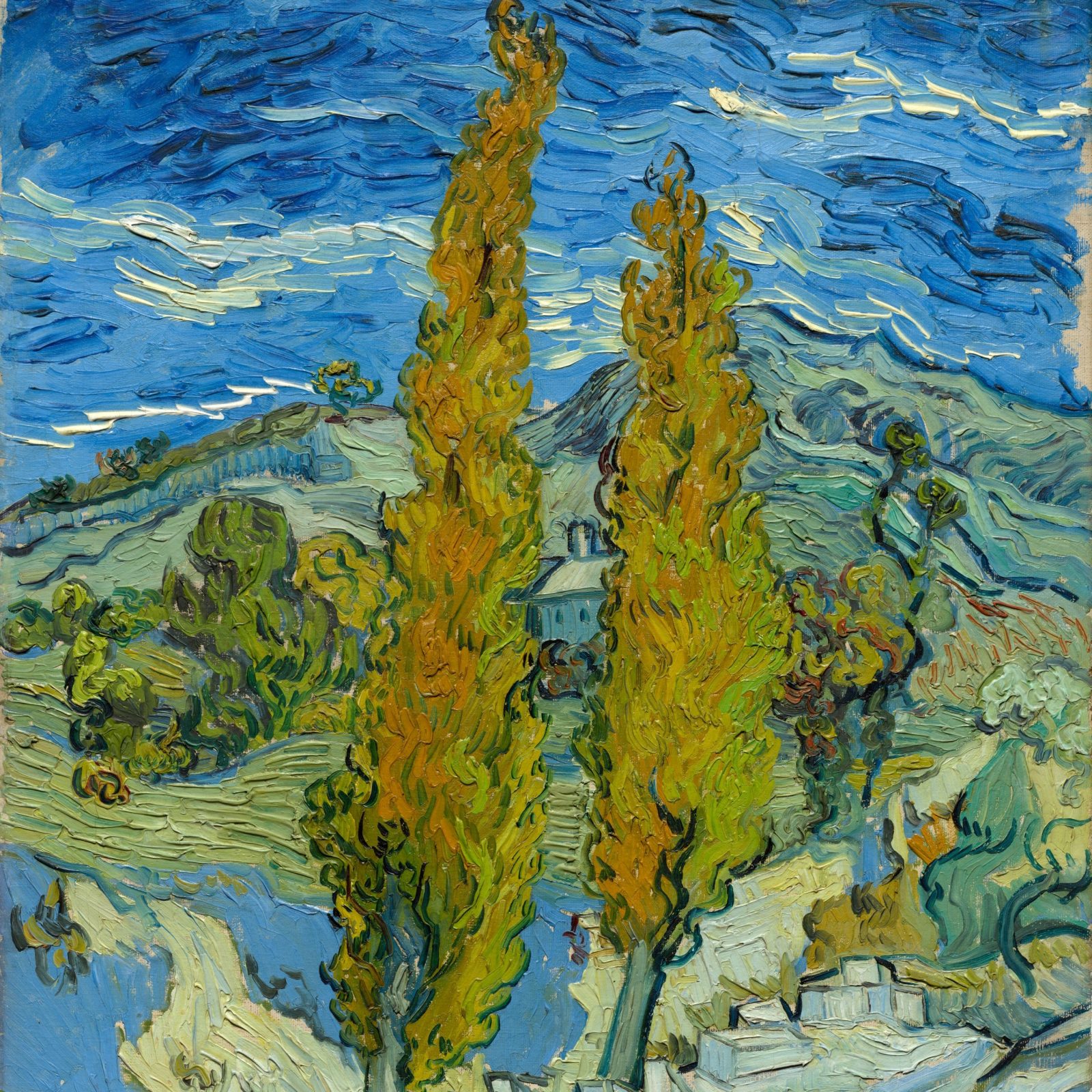
 Twin Poplars in the Hills
 Seaside Chalk Cliff
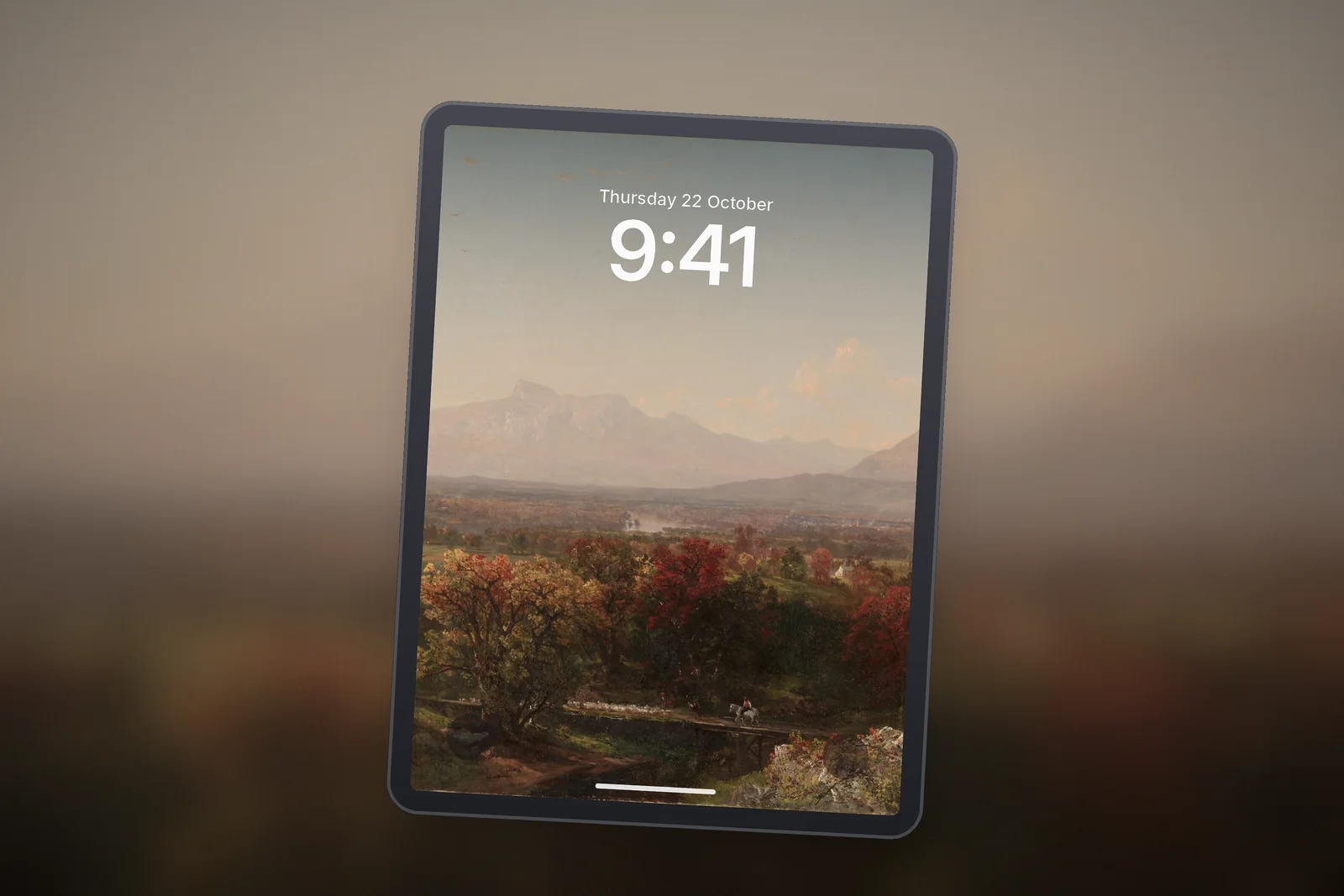
 October Mountain Valley
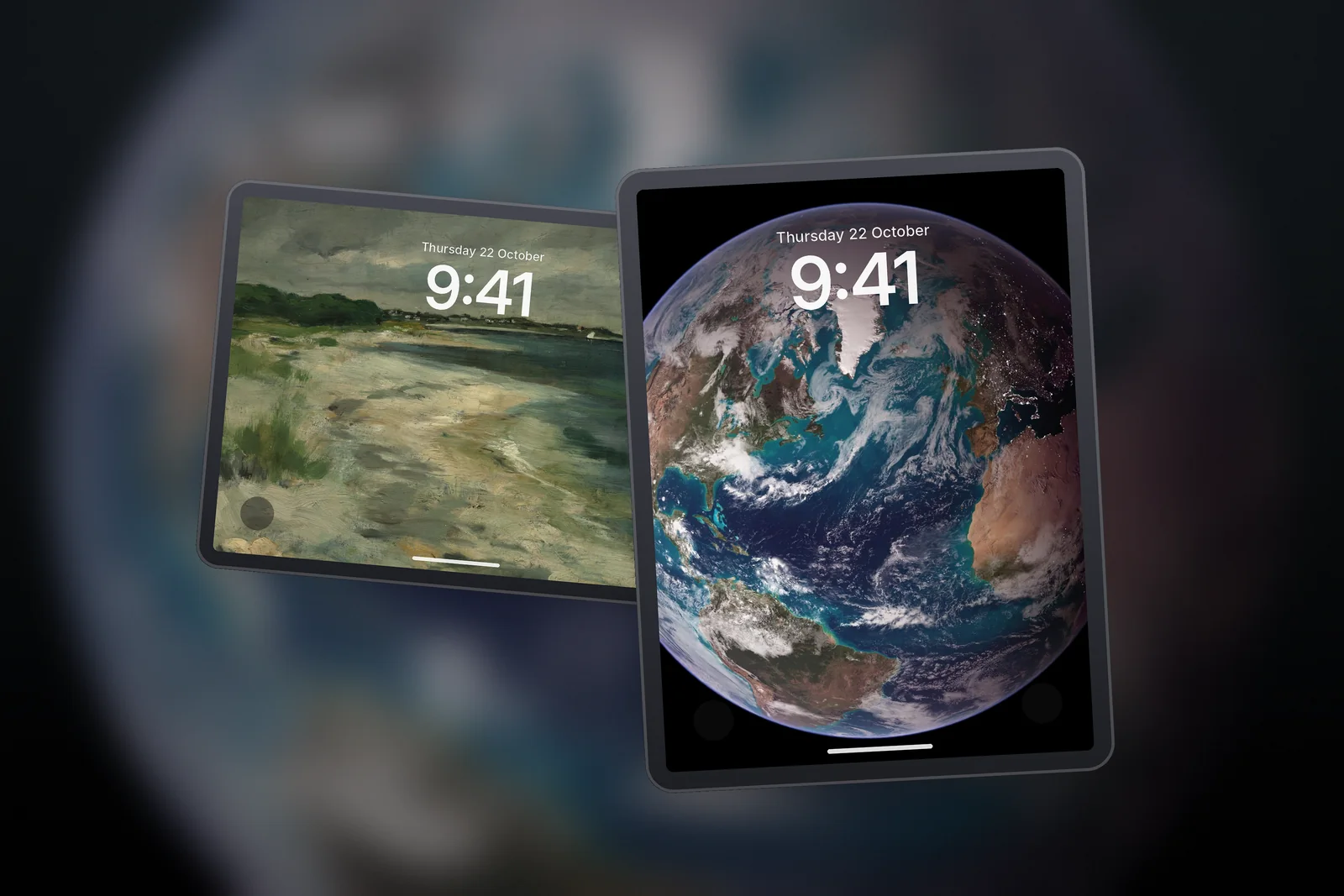
 Blue Marble Earth
 Grey Storm Shoreline
How do I get a downloaded wallpaper into Photos?
The wallpaper picker only reads the Photos app. If you download an image in Safari it usually lands in the Files app, in the Downloads folder, which the picker cannot see.
- In Safari, touch and hold the image and tap Save to Photos (sometimes labelled Add to Photos).
- If the file is already in Files, open it, tap the Share button and choose Save Image.
- Then open Settings → Wallpaper → Add New Wallpaper → Photos, and the picture is there to choose.
Calm subjects suit a big screen well. The iPad nature wallpapers are a good place to start because landscapes still look balanced when the iPad turns sideways.
What if the wallpaper does not change or keeps switching?
- It switches by itself: the Lock Screen is probably linked to a Focus. Long-press the Lock Screen, tap the Focus button under it and remove the link.
- You cannot long-press: the iPad must be unlocked but still on the Lock Screen, and the iPad needs iPadOS 17 or later for the editor.
- It changes colour at night: some built-in wallpapers have light and dark versions that follow Dark Mode; check the appearance button in the editor, or Dark Mode in Settings.
- To delete an old one: long-press the Lock Screen, swipe up on the one you no longer want and tap the bin icon.
Read next: iPad Wallpaper Size: Exact Resolutions for Every Model and iPad Wallpaper Aesthetic: Styles That Suit a Big Screen.
Quick answers
Can I have a different wallpaper on my iPad Home Screen?
Yes. Go to Settings → Wallpaper, tap Customise under the Home Screen preview and choose Photo to pick a different picture. The Lock Screen keeps its own image.
Why can't I change my iPad wallpaper?
Make sure the iPad is unlocked while you long-press the Lock Screen (or touch and hold again and enter your passcode), and that the image is saved in Photos rather than Files.
What size should an iPad wallpaper be?
Use a square image matching the longest side of your screen, for example 2360 × 2360 for an iPad Air 11-inch or 2752 × 2752 for an iPad Pro 13-inch (M4). A square fills the screen in both portrait and landscape.
Does the iPad have the same Lock Screen editor as iPhone?
Yes, from iPadOS 17. You can add several Lock Screens, change the clock font and colour, add widgets and link a Lock Screen to a Focus, just as on iPhone.
Can I use a 3D spatial wallpaper on iPad?
On supported models, yes. When you create a new Lock Screen, Apple's iPadOS guide says you can try a spatial scene for a 3D effect, and turn it on for an eligible photo while customising.
Sources
- Change the wallpaper on iPad, Apple Support
- Create a custom iPad Lock Screen, Apple Support
- iPad Air - Technical Specifications, Apple