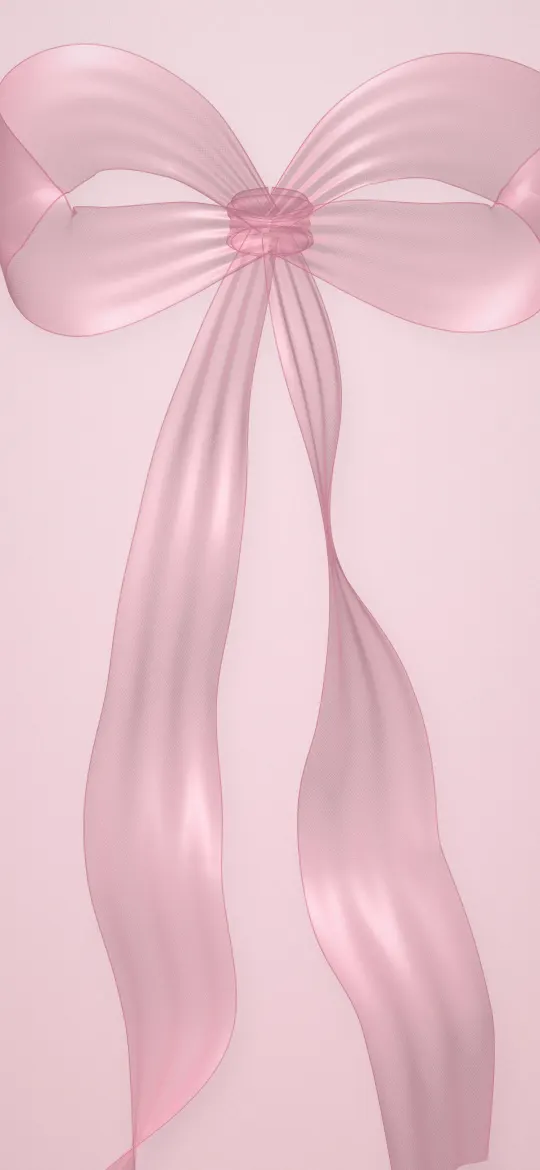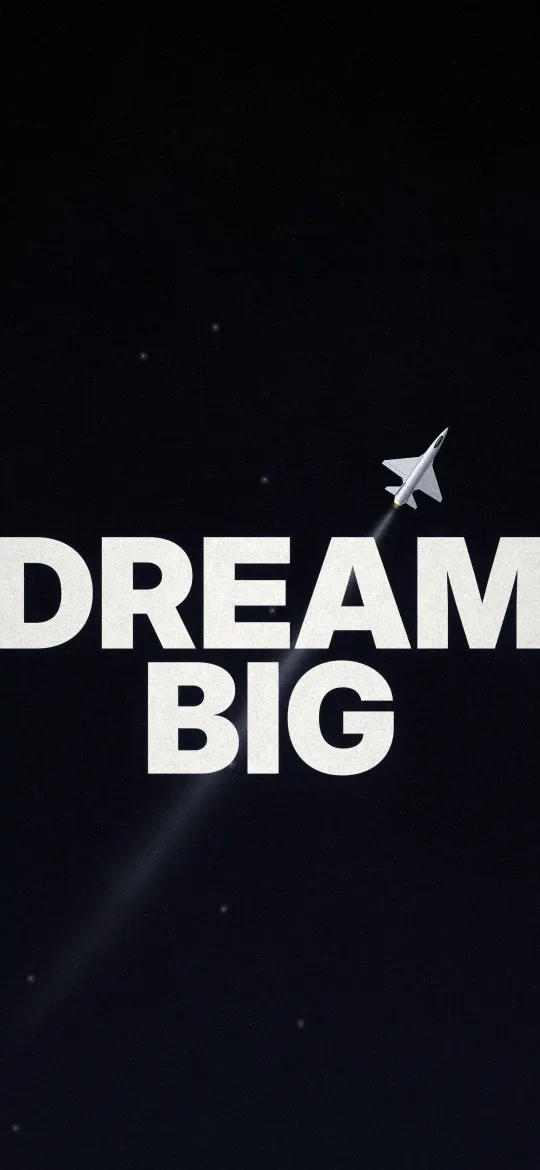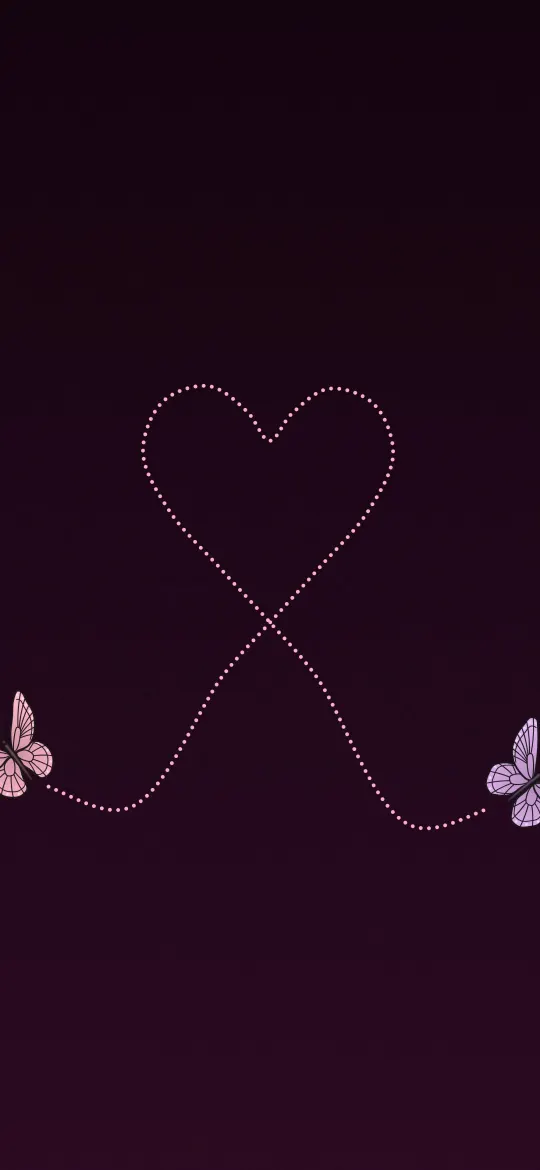
An aesthetic iPad wallpaper works best when it is calm, detailed and centred: art prints, space views and quiet landscapes look good at iPad size because the screen is big enough to show texture. Pick an image with its subject in the middle, a palette of two or three colours, and download it as a square file (for example 2360 × 2360) so it fits both portrait and landscape.
In short
- Large screens reward detail: woodblock-style prints, painted landscapes and photos of Earth from orbit hold up well at 2000+ pixels.
- Keep the subject in the centre, because the iPad wallpaper rotates and only the centre shows in both orientations.
- Dark wallpapers (black, navy, deep teal) make widgets and the clock easy to read and suit evening use.
- Use one main colour plus one accent; more than three strong colours looks noisy behind a grid of apps.
- Download the square file that matches your model, such as 2752 × 2752 for an iPad Pro 13-inch (M4 and later, including the current M5).
What makes an iPad wallpaper look aesthetic?
An aesthetic wallpaper is one where the colours, subject and empty space feel deliberate, so the screen looks styled rather than busy. On a phone you see a narrow strip of a picture. On an iPad you see almost all of it, which changes what works.
Three things matter most on a big screen. First, real detail: a low-resolution image that looked fine on a phone turns soft when stretched over 11 or 13 inches. Second, a balanced composition, because the image is seen in two orientations. Third, quiet areas where the clock, widgets and app icons can sit without fighting the picture.
Which styles suit a big screen?
Some styles that look cramped on a phone come into their own on an iPad. These are the three that work most reliably.
| Style | Why it works on iPad | Watch out for |
|---|---|---|
| Art prints (woodblock, painted) | Fine linework and paper texture show at full size | Text or signatures near the edges get cropped |
| Space and Earth from orbit | Mostly black, so icons and widgets stand out | Very bright stars directly behind the clock |
| Calm landscapes | Horizon lines look natural in portrait and landscape | A horizon placed near the top or bottom edge |
| Minimal textures | Quiet behind a full Home Screen | Can feel flat on the Lock Screen alone |
Art prints
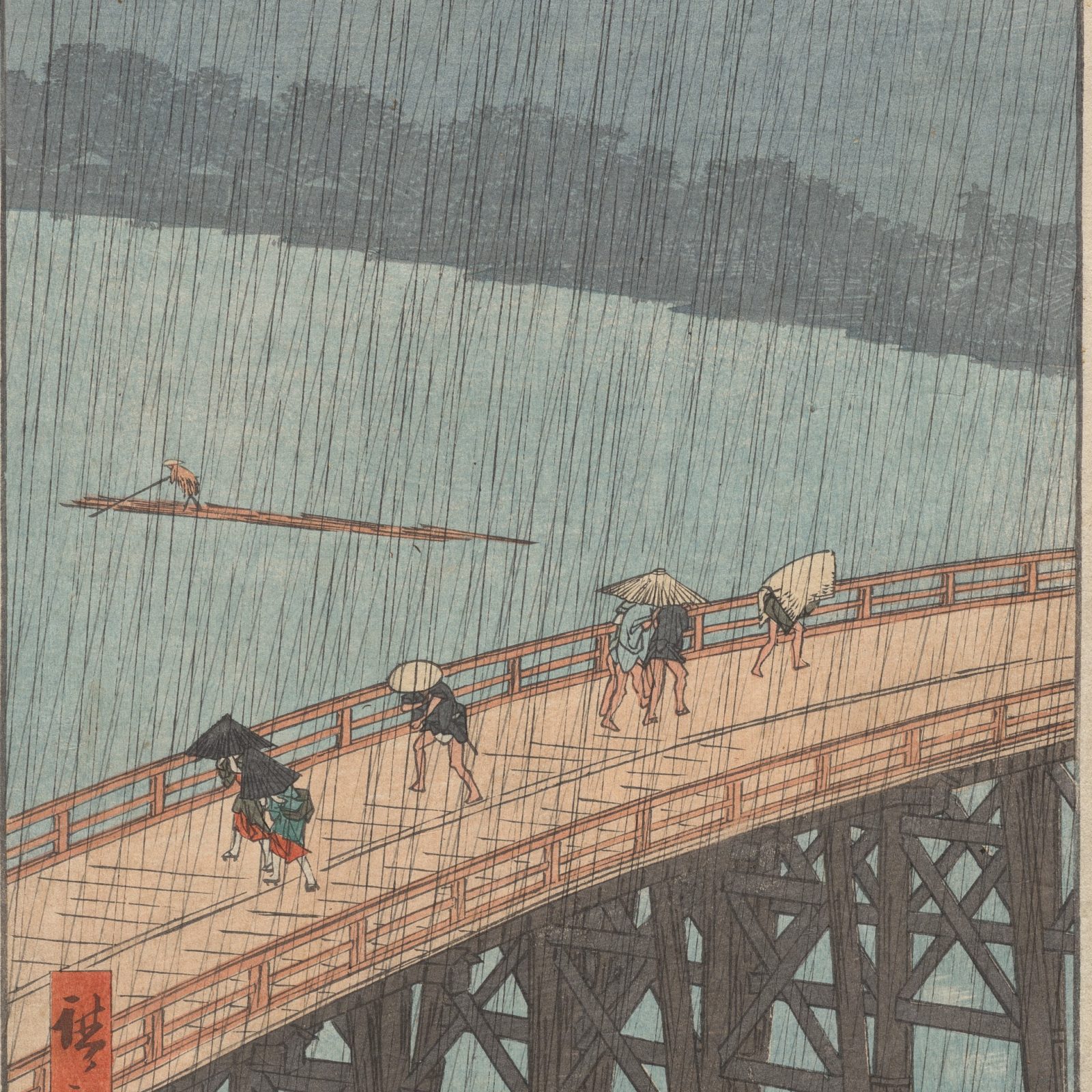
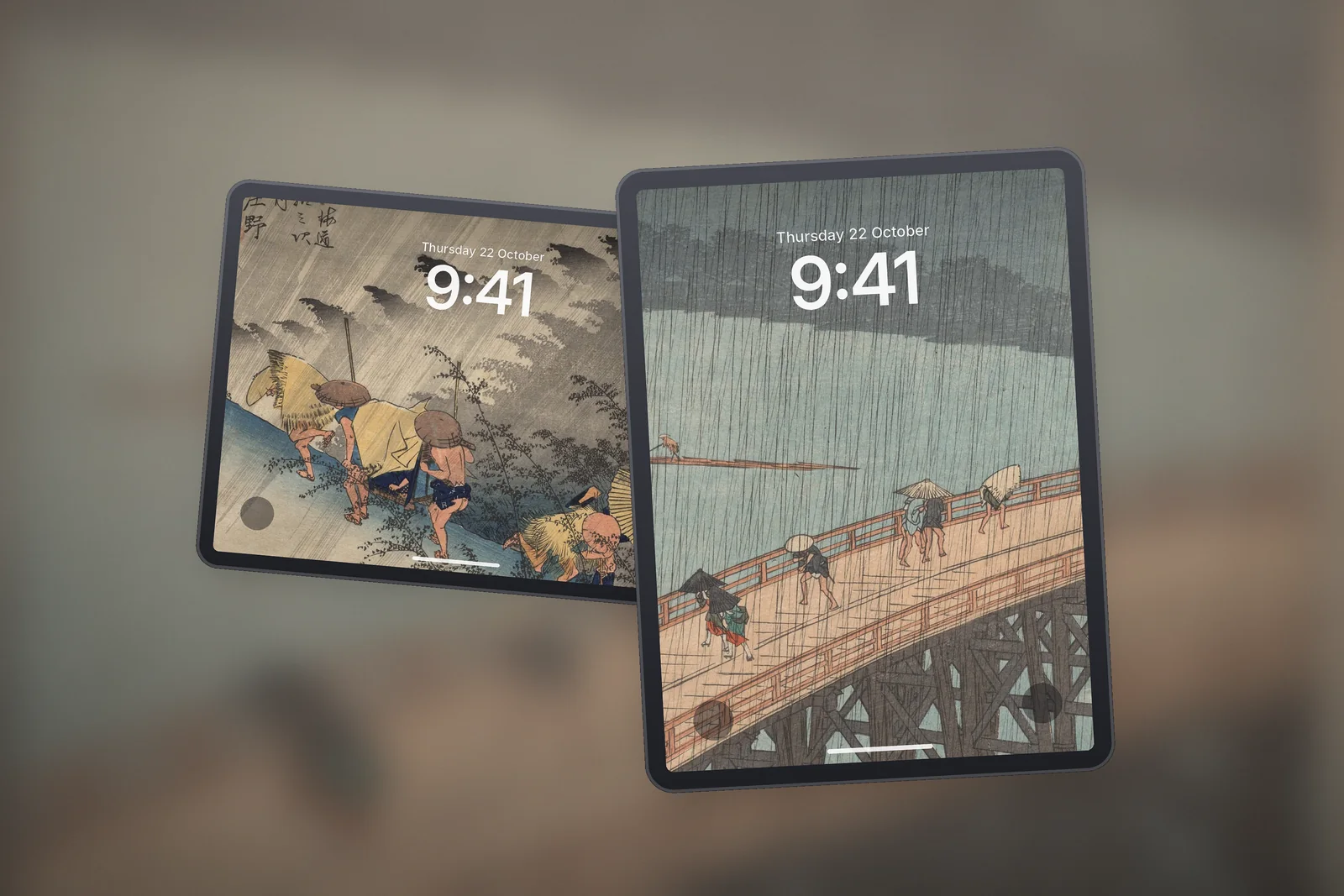
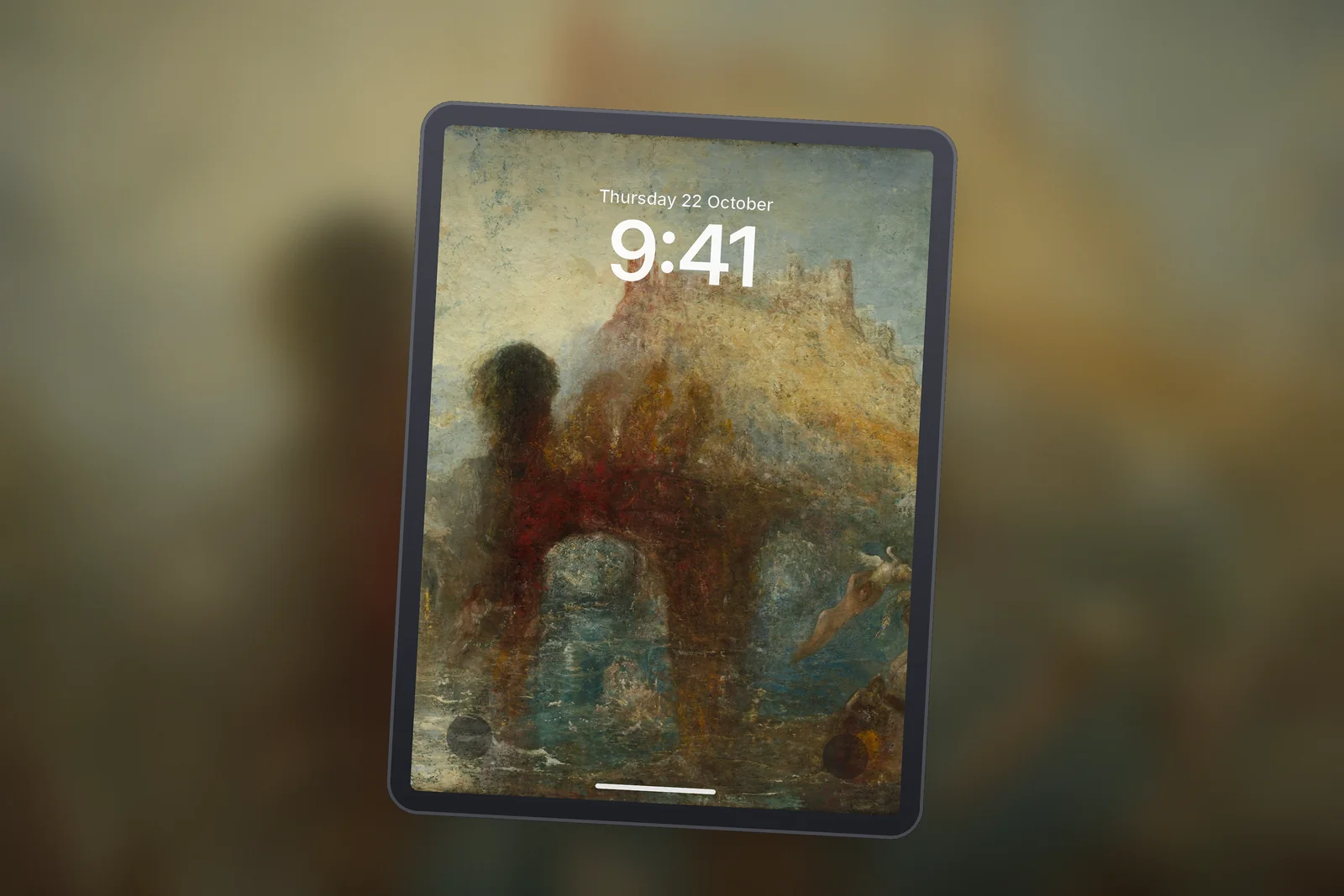
Art prints feel at home on an iPad because the screen is close to the proportions of a printed page. Rain scenes, woodblock-style landscapes and still lifes give a gallery feel, especially on a Lock Screen with a simple clock. They also pair well with the Blur Home Screen option, which turns the print into a soft wash of its colours behind your apps.
 Rain Over the Wooden Bridge
 Driving Rain Woodblock
 Golden Cave Dreamscape
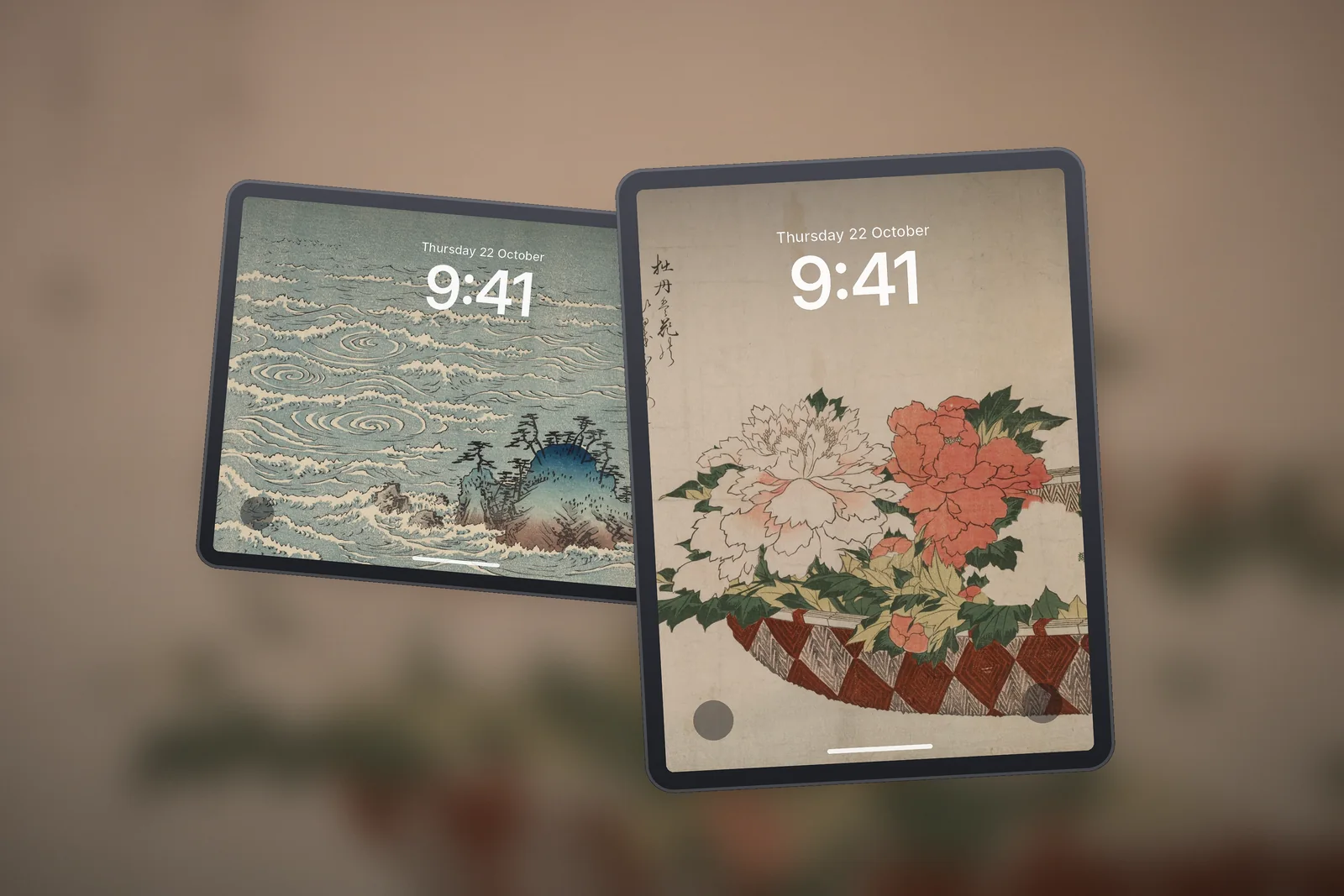
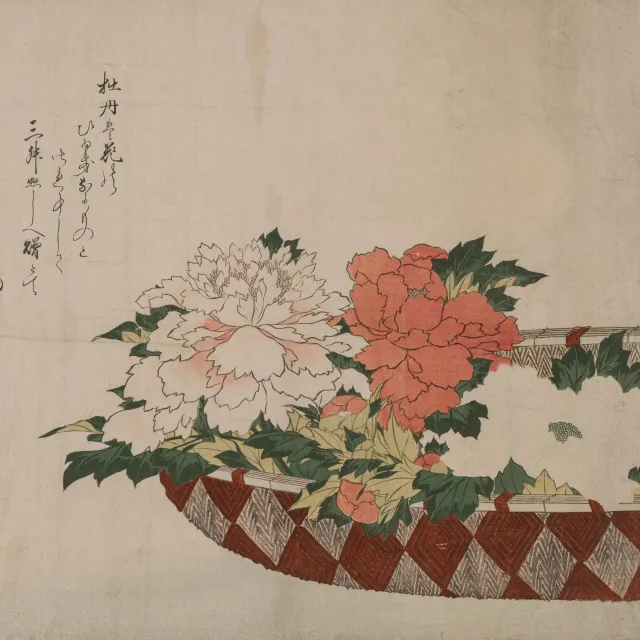 Peony Basket
 Swirling Sea Whirlpools
Space
Space wallpapers are the easiest dark option. The Earth or a band of stars sits in the middle and the rest of the screen is near-black, which keeps the clock crisp. The iPad Pro 11-inch and 13-inch (M4 and later) use a Tandem OLED panel, where black areas give off no light, so the picture looks even deeper than on an LCD iPad.
Calm landscapes
Landscapes with a low horizon and lots of sky leave room for the clock at the top. Look for soft weather, mist or evening light rather than high-contrast midday scenes. The iPad nature collection is built around this kind of picture.
 Blue Marble Earth
 Milky Way Above Earth
 Green Aurora Ribbon
 Twin Poplars in the Hills
 Crimson Sky Over the Lake
 October Mountain Valley
How do I pick a colour: dark, blue or pink?
Choose the colour by when and where you use the iPad. A dark wallpaper is easier on the eyes in the evening and makes white widgets clear. Blue and grey feel calm and suit a work or study iPad. Warm pinks, peaches and ambers feel softer and look good with a light Home Screen.
- Dark: space scenes and night shots such as Milky Way Above Earth or Fireworks Over the Night River.
- Blue: sea and sky pictures such as Seaside Chalk Cliff and Twin Poplars in the Hills.
- Pink and warm tones: flower still lifes and sunset skies such as Peony Basket or Crimson Sky Over the Lake.
- Neutral grey: stormy coasts and rain prints, which sit quietly behind colourful app icons.
Once you have a colour, match the Lock Screen clock to it. Touch and hold the Lock Screen, tap Customise, then tap the time to change its font and colour or switch to a more transparent look. Swiping left or right in the same editor tries different colour filters on the picture, which is a quick way to tone down a print that feels too bright.
How do widgets change the choice?
Widgets cover part of the picture, so plan for them. On the Lock Screen you add them in the same editor (tap Add Widgets), and they sit close to the clock. On the Home Screen, large widgets cover a big block of the wallpaper and stay in place when you rotate the iPad, so the area behind them matters more than on a phone.
- Put a busy area of the picture where your widgets go and keep the subject in the clear centre.
- If a widget is hard to read, switch the Home Screen to Blur rather than changing the whole wallpaper.
- For dense Home Screens, a near-plain picture works better; see our Home Screen wallpaper ideas for layouts that keep apps readable.
Which size should I download?
Download the square file for your model. On iPhonesWallpaper, every wallpaper in the iPad section is cut to six exact square sizes, from 2160 × 2160 for the iPad 10.2-inch up to 2752 × 2752 for the iPad Pro 13-inch (M4 and later). A square file needs no upscaling when the iPad rotates. The iPad wallpaper size guide lists every model.
Read next: How to Change Wallpaper on iPad (Lock Screen and Home Screen) and Matching Wallpaper for iPhone, iPad and Mac: One Look Everywhere.
Quick answers
What is the best aesthetic wallpaper for iPad?
Calm, detailed images with a centred subject work best: art prints, Earth or the Milky Way from orbit, and misty landscapes. Choose one with a square file at your iPad's resolution so it stays sharp when you rotate the screen.
How do I make my iPad Lock Screen look aesthetic?
Pick a wallpaper with two or three colours, tint the clock to match it in the Lock Screen editor, and add only a few widgets. Use the Blur option for the Home Screen so the two screens match.
Are dark wallpapers better on iPad?
Dark wallpapers make the clock and widgets easier to read and are more comfortable at night. On iPad models with OLED screens, black areas are switched off, so dark images also look deeper.
Why does my aesthetic wallpaper look blurry on iPad?
It is usually a phone-sized image stretched to fill a much larger screen. Download a square file that matches your iPad's longest side, such as 2420 × 2420 for an iPad Pro 11-inch (M4 and later).
Can an iPad Lock Screen wallpaper have a 3D effect?
Yes, on supported models. When you create a Lock Screen, try a spatial scene from your photos; Apple says photos with a clear subject and good lighting work best. Only the Lock Screen shows the 3D effect.
Sources
- Create a custom iPad Lock Screen (iPadOS 27), Apple Support
- Change the wallpaper on iPad (iPadOS 27), Apple Support
- iPad Pro – Technical Specifications, Apple