
To download a wallpaper on iPhone, open the full-size image in Safari, touch and hold it and tap Save to Photos; it lands in the Photos app under Collections → Recently Saved. If the site gives you a download button instead, the file goes to the Files app → Downloads; open it there, tap Share and choose Save Image to copy it into Photos. Then set it from Photos → Share → Use as Wallpaper.
In short
- Touching and holding an image in Safari and tapping Save to Photos puts it straight into Photos, in the Recently Saved collection.
- Tapping a download link or button saves the file to the Downloads folder in the Files app, in iCloud Drive or On My iPhone depending on Settings → Apps → Safari → Downloads.
- The wallpaper picker only reads Photos, so a file in Files must be saved to Photos first (Share → Save Image).
- A saved image is only as sharp as the file the site provides. For a modern iPhone you want at least 1170 × 2532 pixels; a 4K file is 2160 × 3840.
- Settings → Wallpaper → Add New Wallpaper → Photos, or Photos → Share → Use as Wallpaper, both set the saved image.
Photos or Files: where do downloads go on iPhone?
On iPhone, images saved with a long-press go to Photos, while files saved with a download button go to the Files app. The difference matters because the Lock Screen editor and Settings → Wallpaper can only pick pictures from Photos.
| Method | Where the image goes | Can you set it as wallpaper straight away? |
|---|---|---|
| Long-press image → Save to Photos / Add to Photos | Photos → Collections → Recently Saved | Yes |
| Tap a download button or link | Files → Downloads | No, save it to Photos first |
| Share button → Save Image | Photos → Collections → Recently Saved | Yes |
| Screenshot of the page | Photos → Screenshots | Yes, but quality is poor |
Where downloads land is set in Settings → Apps → Safari → Downloads. iCloud Drive (the usual default) keeps the file in the Downloads folder in iCloud Drive, so it also appears on your iPad and Mac; On My iPhone keeps it on the phone; Other lets you pick any folder. For wallpapers, On My iPhone avoids waiting for a file to download from iCloud before you can use it.
How do I save an image from Safari to Photos?
Touch and hold the picture in Safari and tap Save to Photos. Photos collects everything you save from Safari, Messages and Mail in the Recently Saved collection, so that is the quickest place to check.
- Open the page and tap the wallpaper so the largest version is showing.
- Touch and hold the image until a menu appears.
- Tap Save to Photos (some versions say Add to Photos).
- Open Photos, tap Collections, then Recently Saved. Pictures saved today also appear in Saved Today under Recent Days.
Long-pressing a small thumbnail saves the thumbnail, not the full file. Always open the full-size image or use the site's download button first. This is the most common reason a downloaded wallpaper looks soft.
How do I move a downloaded file from Files to Photos?
Open the file in the Files app, tap the Share button and choose Save Image. It is copied into Photos and the original stays in Downloads.
- Open the Files app and tap Browse.
- Open Downloads (in iCloud Drive or On My iPhone).
- Tap the image to preview it.
- Tap the Share button (the square with an arrow) and choose Save Image.
Right after a download finishes, Safari shows a Downloads button next to the search field. Tap it to see recent downloads; tapping one opens it, ready to share to Photos. To keep storage tidy, delete the copy in Downloads once the image is in Photos.
How does the download box on this site work?
On iPhonesWallpaper, every iPhone wallpaper is cut to 15 exact iPhone screen sizes plus a universal 4K file (2160 × 3840). The download box on each wallpaper page lists those sizes, and the site remembers your iPhone model once you pick it, so the right size is ready the next time.
Choosing the exact size for your model means the picture shows pixel for pixel, with no crop or zoom. If you do not know your model, the iPhone wallpaper sizes guide lists every resolution, and the 4K universal size works on any phone when in doubt. The download goes to Files → Downloads like any other, so follow the Files steps above.
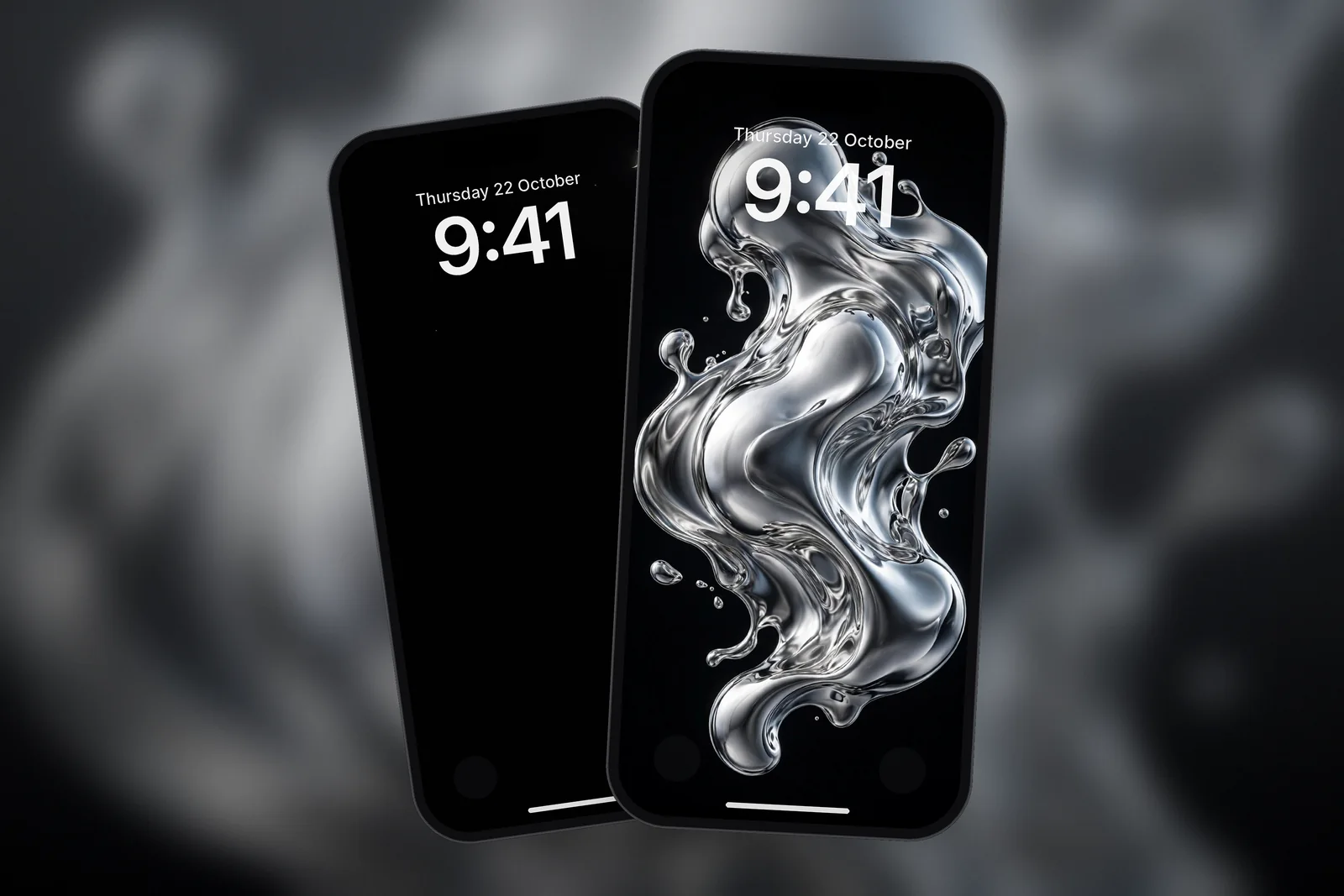
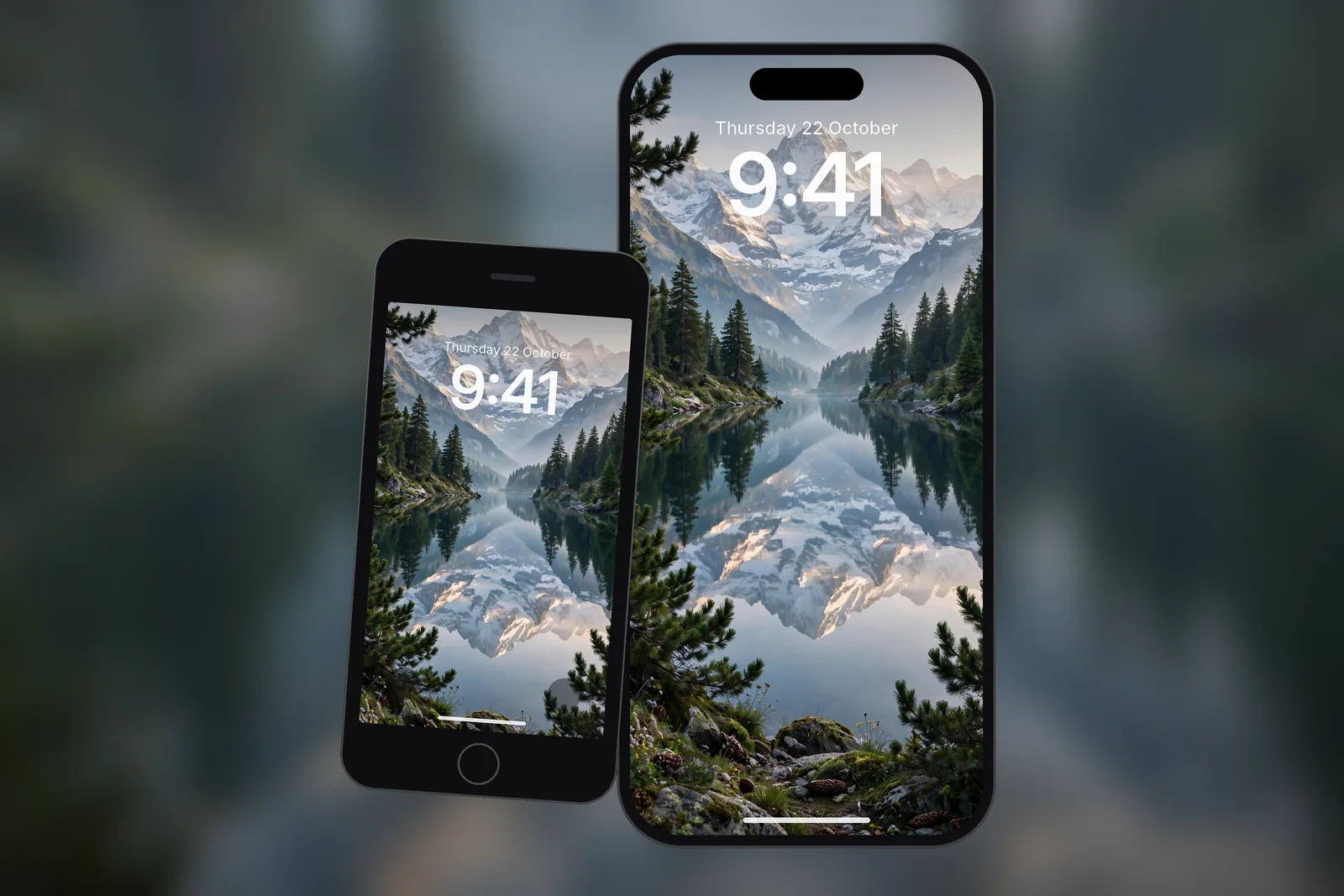
 Alpine Mountain Lake Reflection & Pine Forest
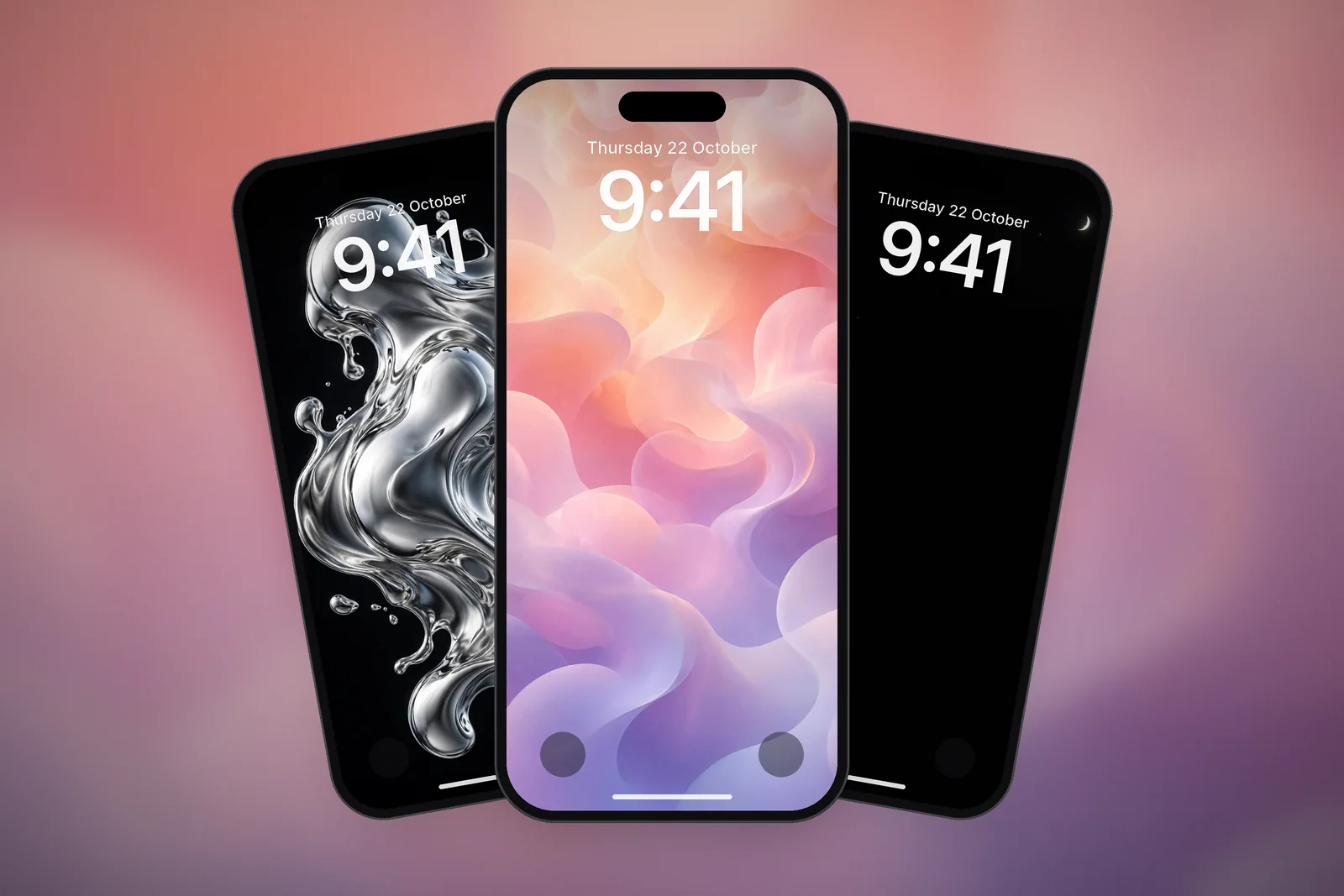
 Liquid Chrome
 Dark Night Sky Crescent Moon & Tiny Stars
 Pastel Gradient Blobs
How do I set the downloaded image as my wallpaper?
Open the image in Photos, tap Share and choose Use as Wallpaper. Pinch to zoom and drag to frame it, then tap Add and choose to set it as a wallpaper pair or customise the Home Screen separately.
You can also long-press the Lock Screen, tap +, then Photos, or go to Settings → Wallpaper → Add New Wallpaper. All three reach the same editor. The full walkthrough, including Depth Effect and the Home Screen options, is in the guide on how to set a wallpaper on iPhone.
Why is my downloaded wallpaper missing or low quality?
A missing image is usually sitting in Files → Downloads rather than Photos, and a low-quality one is usually a thumbnail, a screenshot or a compressed copy. Check these in order.
- Not in Photos: look in Files → Downloads and save it to Photos with Share → Save Image.
- Photos access: if Safari cannot save, check Settings → Privacy & Security → Photos and make sure the app is allowed to add photos.
- Small file: in Photos, swipe up on the image or tap the info button to see its pixel size. Anything under about 1000 pixels wide will look soft on a current iPhone.
- Screenshot instead of a download: a screenshot captures the page at screen resolution, including any blur or scaling. Use the real file.
- Sent through a messaging app: many chat apps compress images. Send the original file or download it again from the source.
- Zoomed in too far: pinching to zoom while setting a wallpaper enlarges the pixels. A file at your exact screen size needs no zoom.
For the deeper causes of a soft wallpaper, see why an iPhone wallpaper looks blurry.
Read next: iPhone Wallpaper Blurry? The Real Causes and How to Fix Each and Different Wallpaper for Lock Screen and Home Screen on iPhone.
Quick answers
Where do downloads go on iPhone?
Files you download in Safari go to the Files app, in the Downloads folder in iCloud Drive or On My iPhone. Images saved with a long-press go to the Photos app instead.
How do I save an image from Safari to Photos?
Open the full-size image, touch and hold it, and tap Save to Photos or Add to Photos. In the Photos app it appears under Collections → Recently Saved.
Why can't I find my downloaded wallpaper in Photos?
It was most likely saved as a file. Open Files → Downloads, tap the image, then tap Share → Save Image to copy it into Photos.
What size wallpaper should I download for iPhone?
Download the size that matches your model exactly: 1206 × 2622 for iPhone 17 and iPhone 18 Pro, 1179 × 2556 for iPhone 16, 15, 15 Pro and 14 Pro. If you are unsure, a 2160 × 3840 4K file works on any iPhone.
How do I change where Safari saves downloads on iPhone?
Go to Settings → Apps → Safari → Downloads and choose iCloud Drive, On My iPhone or Other. New downloads go to that location's Downloads folder from then on.
Sources
- Customize your Safari settings on iPhone (iOS 27), Apple Support
- Find your downloaded files on iPhone (iOS 27), Apple Support
- Find recently saved photos and videos on iPhone (iOS 27), Apple Support
- Share photos and videos on iPhone (iOS 27), Apple Support