If the clock on your iPhone Lock Screen keeps growing and shrinking, your phone is most likely doing what Apple designed. Since iOS 26 the time is adaptive: Apple says it "fluidly resizes to the available space on your Lock Screen, complementing the subjects of your photos and adapting as notifications and Live Activities appear." To keep it one size, pick a clock font that can't be stretched, use one photo instead of Photo Shuffle and give every Lock Screen you switch between the same clock. Music is the hardest case: on iOS 26 the player can't be dismissed, while iOS 27 lets you swipe it away.
In short
- The adaptive clock in iOS 26 and iOS 27 fits the free space in a photo and makes room for notifications and Live Activities.
- Music or video can shrink the clock, since Now Playing is a Live Activity; iOS 27 lets you swipe it away.
- Photo Shuffle and Lock Screens linked to a Focus change the picture or the whole Lock Screen, and the clock with it.
- For a clock that keeps one height, choose any font except the first one, which MacRumors reports is the only one that can be resized.
- On iOS 27, MacRumors and 9to5Mac report a compact clock that stays small.
What makes the clock change size
| What changes it | What you see | What to do |
|---|---|---|
| A photo wallpaper (adaptive time) | The clock is taller on one photo than another, or fills empty sky | Drag the corner to your size, or use another font |
| Notifications | A tall clock gets smaller as notifications stack up | Clear or mute them |
| Live Activities (Maps, sports, deliveries) | The clock shrinks while the activity is on the Lock Screen | Change that app's Live Activities setting |
| Music or video playing | The time turns small, sometimes with album art filling the screen | Swipe the player away on iOS 27 |
| Photo Shuffle | The size changes with each new photo | Use one photo, or photos framed alike |
| A Focus switches Lock Screens | A different clock at work or at bedtime | Give each Lock Screen the same clock |
Your photo decides how big the clock is
Apple's Lock Screen guide says that on iPhone 12 and later you can pick wallpaper options "where the time dynamically adapts to your photo wallpaper and notifications." According to MacRumors, the time on a photo wallpaper can expand by itself to fill empty space, and the subject of the photo is meant to stay visible. Engadget adds that a subject filling the top of the picture limits how far the clock can grow.
To set the size yourself (each Lock Screen keeps its own):
- Touch and hold the Lock Screen, then tap Customize. If your iPhone asks which screen to edit, choose the Lock Screen.
- Drag the bottom-right corner of the time down to make it taller, or up to bring it back toward the standard size.
- Tap the time to see the fonts. MacRumors and Engadget report that only the first font, with the standard Western digits (Arabic, Western), can change height. Pick another font for a clock that never stretches.
- Tap Done.
Dragging the corner sets the height of a quiet Lock Screen; the clock still makes room for notifications and music. If a taller clock is hard to read, see our guide to keeping the clock readable.
Pictures with open sky above a low subject give the clock the same room every time:
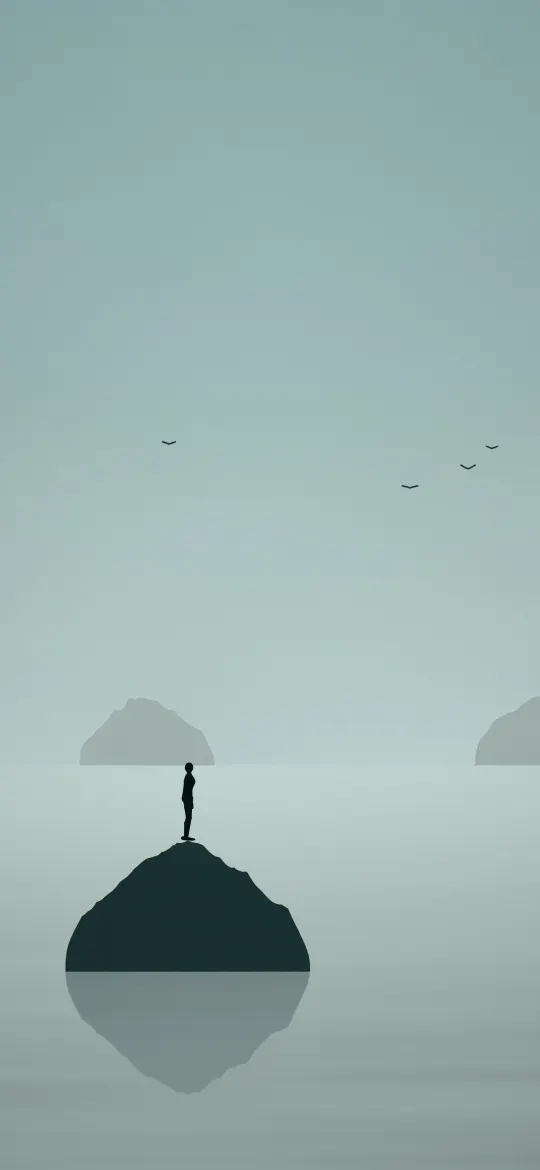


With Depth Effect on, the subject can also sit in front of the digits; our Depth Effect guide explains the framing.
Notifications and Live Activities take space from the clock
Apple's iOS 26 release notes say adaptive time adapts "as notifications and Live Activities appear." Live Activities are live updates on the Lock Screen, such as Maps directions, sports scores and food delivery orders. Each time one arrives, a tall clock gives up space. To cut that down:
- Clear notifications you've read: swipe left on a notification or group, then tap Clear or Clear All.
- Mute an app that sends a lot: swipe left on its notification, tap Options, then mute it for an hour or a day. Apple says muted notifications go straight to Notification Center and don't appear on the Lock Screen.
- Change an app's Live Activities: go to Settings › Apps, tap the app, then tap Live Activities. Apple notes that not every app has this setting.
Music and video shrink the clock
An Apple Community thread is titled "iOS 26: Lock screen clock shrinks with media playback," and there is a clear reason. Apple counts the Now Playing controls as Live Activities, and iOS 26 added full-screen animated album art for supported albums. 9to5Mac describes iOS 26 showing a minimized clock while full-screen album art is on screen.
According to MacRumors, there was no way to dismiss Now Playing from the Lock Screen before iOS 27. On iOS 27 you can clear it:
- On the Lock Screen, swipe left on the Now Playing controls.
- Tap Clear.
9to5Mac says the audio keeps playing. MacRumors adds that the controls can return when you play something in another app.
Photo Shuffle and Focus Lock Screens
Photo Shuffle gives the clock a new photo, and new free space, each time it changes; MacRumors notes the time can change size from image to image. Keep photos with similar framing in the set, or switch to one photo. In the editor, tap the photo thumbnail to change the selection, or tap the More button to change how often it shuffles. Our Photo Shuffle guide covers the frequency options.
A Focus can swap the whole Lock Screen. Apple says a Lock Screen linked to a Focus appears whenever that Focus is on, and a Focus can turn on by itself at set times, at a location or when you open an app; Sleep follows your sleep schedule in Health. If your Sleep or Work Lock Screen has a different font or height, the clock seems to change size then. To match them:
- Touch and hold the Lock Screen until Customize appears.
- Swipe to a Lock Screen, tap Customize, then set the same font and clock height.
- Tap Done and repeat for each Lock Screen.
If you'd rather the Focus stopped switching Lock Screens at all, our Focus wallpaper guide explains how to unlink them.
iOS 27: a compact clock that stays small
MacRumors and 9to5Mac report a compact clock in iOS 27 that shrinks the time to about the size of the date and moves it into the top row. Apple's iPhone User Guide doesn't describe it yet. The steps, from MacRumors:
- Touch and hold the Lock Screen, then tap Customize.
- Tap the clock to open the Font & Color panel.
- Tap the icon made of two horizontal bars in the top-right corner of the panel.
- Tap the wallpaper outside the panel, then tap Done.
MacRumors says it applies only to that Lock Screen and keeps your font and color. Tap the same icon to go back.
Quick answers
Why does my iPhone Lock Screen clock keep changing size?
Since iOS 26 the clock is adaptive: Apple says it resizes to the free space in your photo and adapts as notifications and Live Activities, such as Now Playing, appear. Photo Shuffle and Focus Lock Screens change it too.
How do I make the Lock Screen clock stay one size?
Touch and hold the Lock Screen, tap Customize, tap the time and choose any font except the first one, which MacRumors reports is the only font that can change height. On iOS 27, MacRumors also describes a compact clock in the Font & Color panel that keeps the time small.
Why does the clock get smaller when I play music?
The Now Playing controls are a Live Activity, and the adaptive clock makes room for them. On iOS 27 you can swipe left on the controls and tap Clear while the audio keeps playing, according to MacRumors and 9to5Mac.
Can I turn off the adaptive clock on iPhone?
Apple doesn't document an on or off switch for adaptive time. The closest options are a font other than the first one, a single photo instead of Photo Shuffle, and changing the Live Activities setting in Settings › Apps for apps you don't need on the Lock Screen.
Sources
- Create a custom iPhone Lock Screen, Apple
- About iOS 26 Updates, Apple
- Access features from the iPhone Lock Screen, Apple
- View and respond to notifications on iPhone, Apple
- Turn on or schedule a Focus on iPhone, Apple
- iOS 26: New Lock Screen Features, MacRumors
- iOS 27 Lets You Dismiss the 'Now Playing' Lock Screen Widget, MacRumors
- iOS 27's New Compact Clock Gives Your Wallpaper Room to Breathe, MacRumors
- iOS 27 adds unique new setting to personalize your iPhone's Lock Screen, 9to5Mac
- iOS 27 adds four new ways to customize your iPhone's Lock Screen, 9to5Mac
- How to stretch the clock on your lock screen in iOS 26, Engadget