On iPhone, StandBy mode turns on automatically when the phone is charging, locked and resting on its side in landscape without moving. It shows one of three full-screen views: widgets, photos or a large clock. You switch it on or off in Settings → StandBy, and it works on any iPhone that runs iOS 17 or later.
In short
- StandBy needs three things at once: the iPhone is charging (cable or MagSafe/Qi charger), the screen is locked, and the phone is held still in landscape.
- There are three views. Swipe left or right to move between widgets, photos and clocks; swipe up or down to change the style inside a view.
- The photos view uses your Photos library (Featured photos or albums you choose), not your Lock Screen wallpaper.
- Settings → StandBy has the main switch, Night Mode and, on iPhones with an Always-On display, a Display option: Automatically, After 20 Seconds or Never.
- StandBy does not run without charging. Unplug the phone and it returns to the normal Lock Screen.
What is StandBy mode on iPhone?
StandBy is a full-screen landscape view that appears when an iPhone is charging on its side and locked. It turns the phone into a bedside clock, a desk photo frame or a small dashboard of widgets, readable from across a room.
Apple added it in iOS 17, so it works on every iPhone that can run iOS 17 or later, including iOS 27. Nothing needs installing. If the switch is on and the conditions are met, StandBy appears once you lay the phone down and press the side button; you can also ask Siri to turn StandBy on or off.
What does StandBy need to turn on?
StandBy needs the iPhone to be charging, locked and stationary in landscape, all at the same time. Miss one and you get the ordinary Lock Screen instead.
- Charging: a Lightning or USB-C cable, a MagSafe charger or a Qi wireless pad all count. A stand that holds the phone at an angle is the most comfortable setup.
- Locked: press the side button first. An unlocked phone in landscape just shows the app you were using.
- On its side and still: the phone must be in landscape and not moving. Lying flat on a desk does not count; it needs to be propped up.
This is also why people search for "standby mode without charging". There is no setting for that. StandBy is designed as a charging screen, and unplugging the cable ends it.
Which StandBy view should you use?
Pick widgets for information, photos for decoration and clocks for the bedside. You switch views by swiping left or right across the screen.
| View | What it shows | How to change it | Best use |
|---|---|---|---|
| Widgets | Two widget stacks side by side (calendar, weather, reminders and more); many are interactive | Long-press a stack, unlock, then add, remove or reorder widgets | Desk or kitchen counter |
| Photos | Your best shots shuffled automatically, or an album you choose | Swipe up or down to change album; long-press to edit the list | Desk photo frame, bedside |
| Clock | A large clock in styles such as Digital, Analog, Solar, Float and World Clock | Swipe up or down to try each style; long-press to change the accent colour | Nightstand |
The widget stacks are Smart Stacks: they rotate on their own to show the widget most relevant at that time of day. Long-press a stack to change what it contains. Widgets are interactive here too, so you can tick off a reminder without unlocking. If you charge with MagSafe in several places, StandBy remembers the view you prefer at each one, for example photos in the kitchen and a clock by the bed.
How do I show my own photos in StandBy?
StandBy's photos view shows Featured photos by default; to use your own pictures, open the photos view, long-press it, unlock, and tap + to add an album. Swipe up or down afterwards to choose which album plays.
- Make an album in Photos, for example "StandBy", and put the pictures you want in it.
- Charge the phone on its side so StandBy appears, then swipe to the photos view.
- Long-press the photo, unlock with Face ID or Touch ID, and tap + to add the album.
- Tap Done, then swipe up or down until your album is showing.
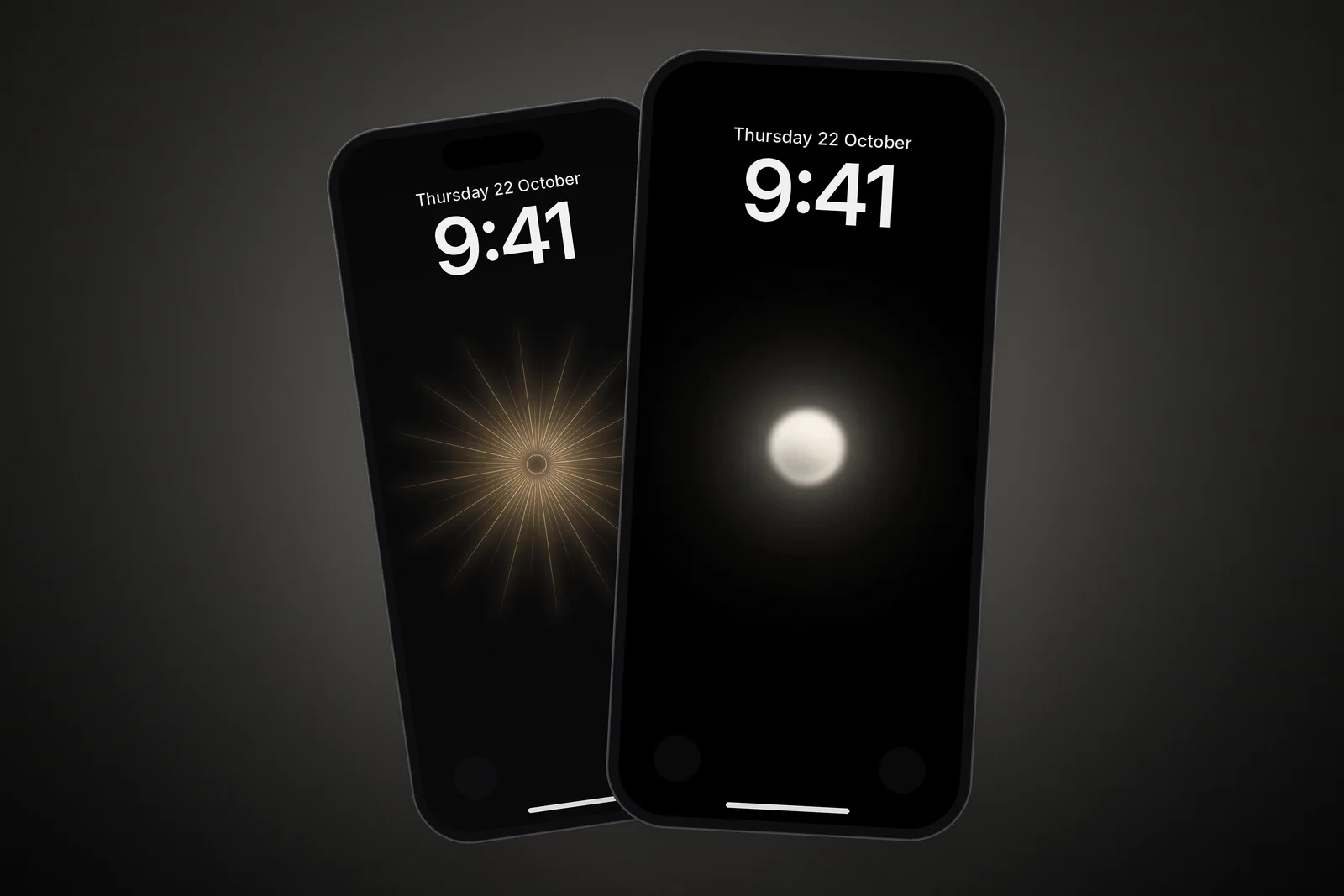
Here is the catch: StandBy is landscape, and most phone wallpapers are portrait. A tall 9:16 wallpaper gets cropped to a wide strip through its middle, so pictures with a centred subject and plenty of empty space survive the crop best. A moon wallpaper, a sun or a single line on black reads clearly; a busy scene loses its top and bottom.
Your Lock Screen wallpaper is not used in StandBy at all. If you want the same picture in both places, save it to the StandBy album as well. On iPhonesWallpaper, every iPhone wallpaper is also offered as a universal 4K file at 2160 × 3840, which leaves enough pixels for the landscape crop to stay sharp. The dark wallpapers are a good starting point, because black edges disappear in a dark bedroom.
 Minimal Zen Sun
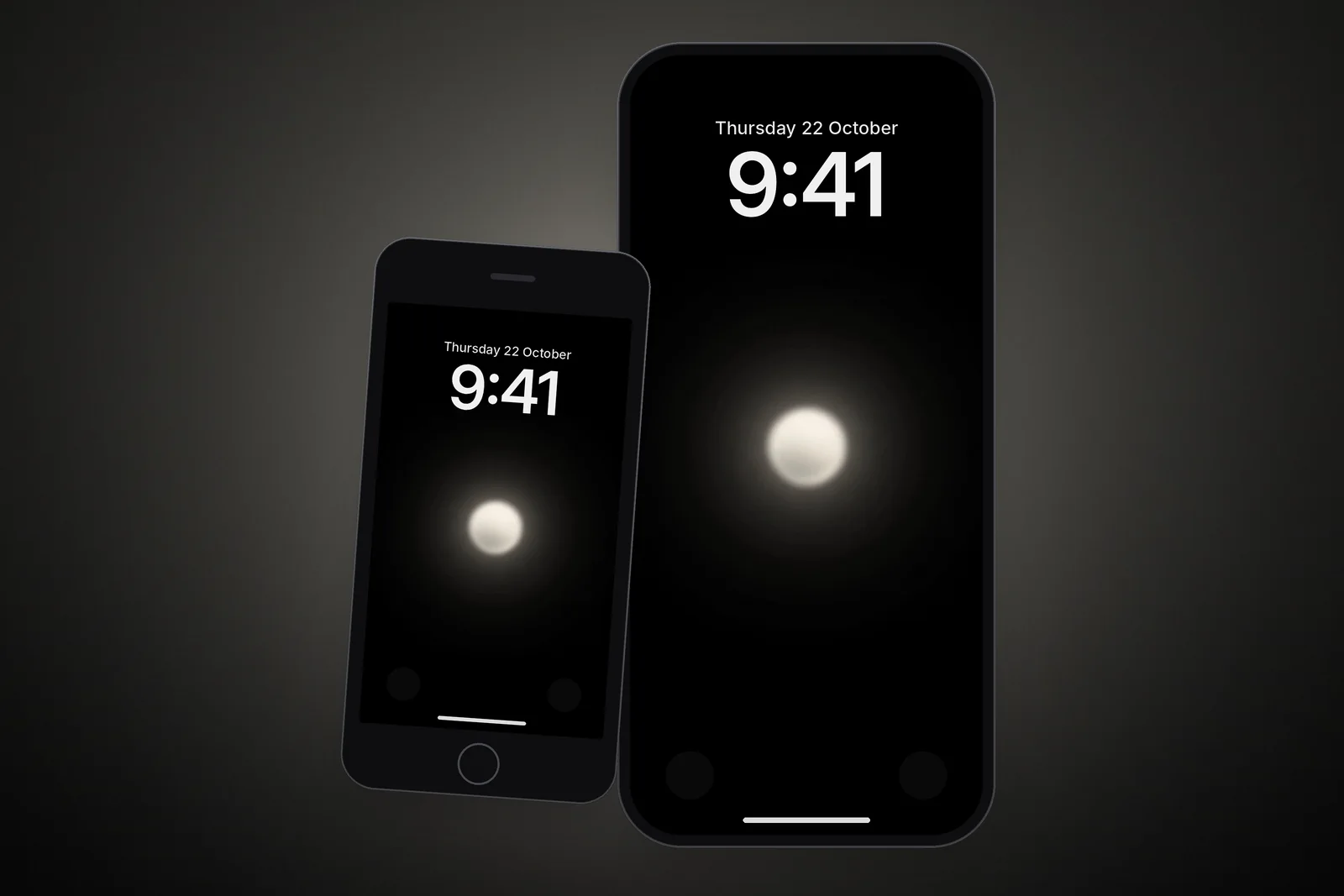
 Minimalist Glowing Light Orb on Pitch Black
 Dark Night Sky Crescent Moon & Tiny Stars
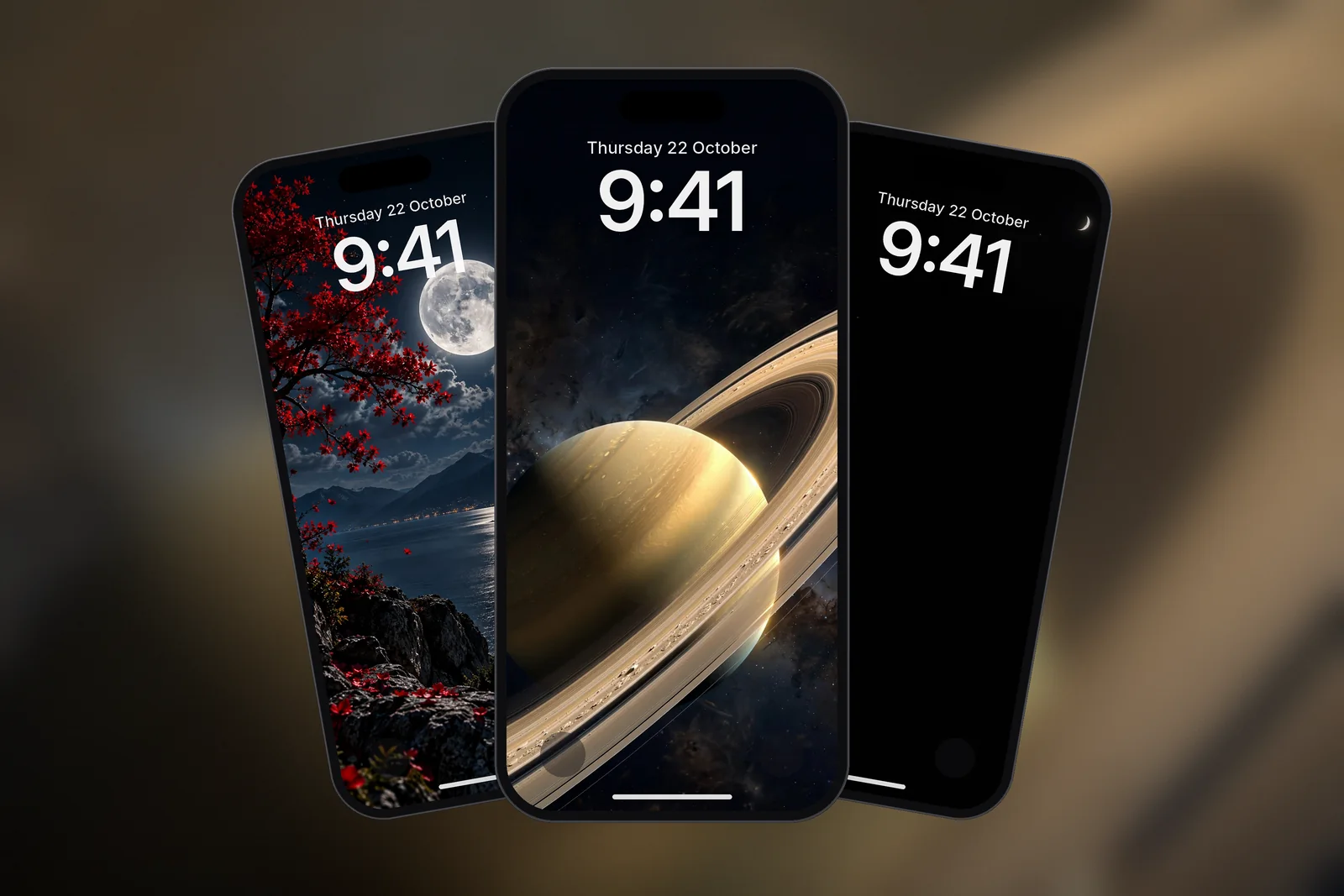
 Saturn Rings Close-Up
 Moonlit Lake 4K Wallpaper – Full Moon Night Landscape
If you already rotate pictures on the Lock Screen with Photo Shuffle, the same album can feed both. The Photo Shuffle guide covers how to build a tidy album for that.
Which StandBy settings matter?
Open Settings → StandBy. The page is short, and these options are worth knowing.
- StandBy: the main switch. If StandBy never appears, check this first.
- Display (iPhones with an Always-On display): Automatically turns the screen off when the iPhone isn't in use and the room is dark, After 20 Seconds turns it off after 20 seconds, and Never keeps it on as long as StandBy is on.
- Night Mode: in low light the screen adapts and shows everything with a red tint, so it does not light up the bedroom.
- Notifications: alerts can appear in StandBy; the notification options on this page decide whether they show in full and whether previews need a tap.
A dark clock face with Night Mode on is the gentlest bedside choice. On OLED iPhones, black pixels are switched off completely, so a mostly black StandBy screen gives off very little light. The post on dark wallpapers and battery explains how much that actually saves.
Why is StandBy mode not working?
StandBy usually fails to appear because one of its three conditions is not met: the phone is not charging, not locked, or not held still in landscape. Work through these checks in order.
- Confirm Settings → StandBy → StandBy is on.
- Lock the phone with the side button before putting it down.
- Prop it up in landscape. Flat on a table, StandBy will not start.
- Check the charger is actually charging: look for the charging symbol after you plug in. A loose cable or a phone case that is too thick for a wireless pad are common culprits.
- Keep the phone still for a few seconds. A wobbly stand can stop StandBy from settling.
- Restart the iPhone if every condition is met and nothing happens. This clears most one-off glitches.
If StandBy appears but goes black after a few seconds, that is normal behaviour on models without an Always-On display, not a fault. On Always-On models, check Settings → StandBy → Display: After 20 Seconds and Automatically both let the screen turn off, while Never keeps it on.
If your photos view keeps showing random pictures, it is still on Featured photos. Long-press, unlock and remove that source, leaving only your own album.
Read next: Always On Display Wallpaper on iPhone: Settings and Best Picks and Photo Shuffle Wallpaper on iPhone: Setup, Frequency and Fixes.
Quick answers
How do I turn on StandBy mode on iPhone?
Go to Settings → StandBy and turn StandBy on. Then put the iPhone on charge, lay it on its side in landscape and keep it still, and press the side button; StandBy appears.
Can you use StandBy mode without charging?
No. StandBy only runs while the iPhone is charging, by cable or wireless charger. Unplug it and the phone goes back to the normal Lock Screen.
How do I change the photos in StandBy?
Swipe to the photos view, long-press, unlock, and tap + to add an album from Photos. Swipe up or down to switch between albums, and remove Featured photos if you only want your own pictures.
Does StandBy show my wallpaper?
No. StandBy uses widgets, clocks or albums from Photos, not the Lock Screen wallpaper. Save the wallpaper to an album and add that album to the photos view if you want it there.
Can StandBy stay on all night?
On iPhones with an Always-On display, yes: set Settings → StandBy → Display to Never, and turn on Night Mode so the screen shows a dim red tint in the dark.
Sources
- Use StandBy to view information at a distance while iPhone is charging (iOS 27), Apple Support
- About iOS 17 Updates, Apple Support
- Keep the iPhone display on longer (iOS 27), Apple Support